After signing up, Spark will display a window prompting you to complete setup and get started.
Click the ‘Get Started’ button in the window and finish the remaining steps to complete the captable setup.
Company Details
You will be required to upload your Article of Incorporation in PDF format as prompted on the page.
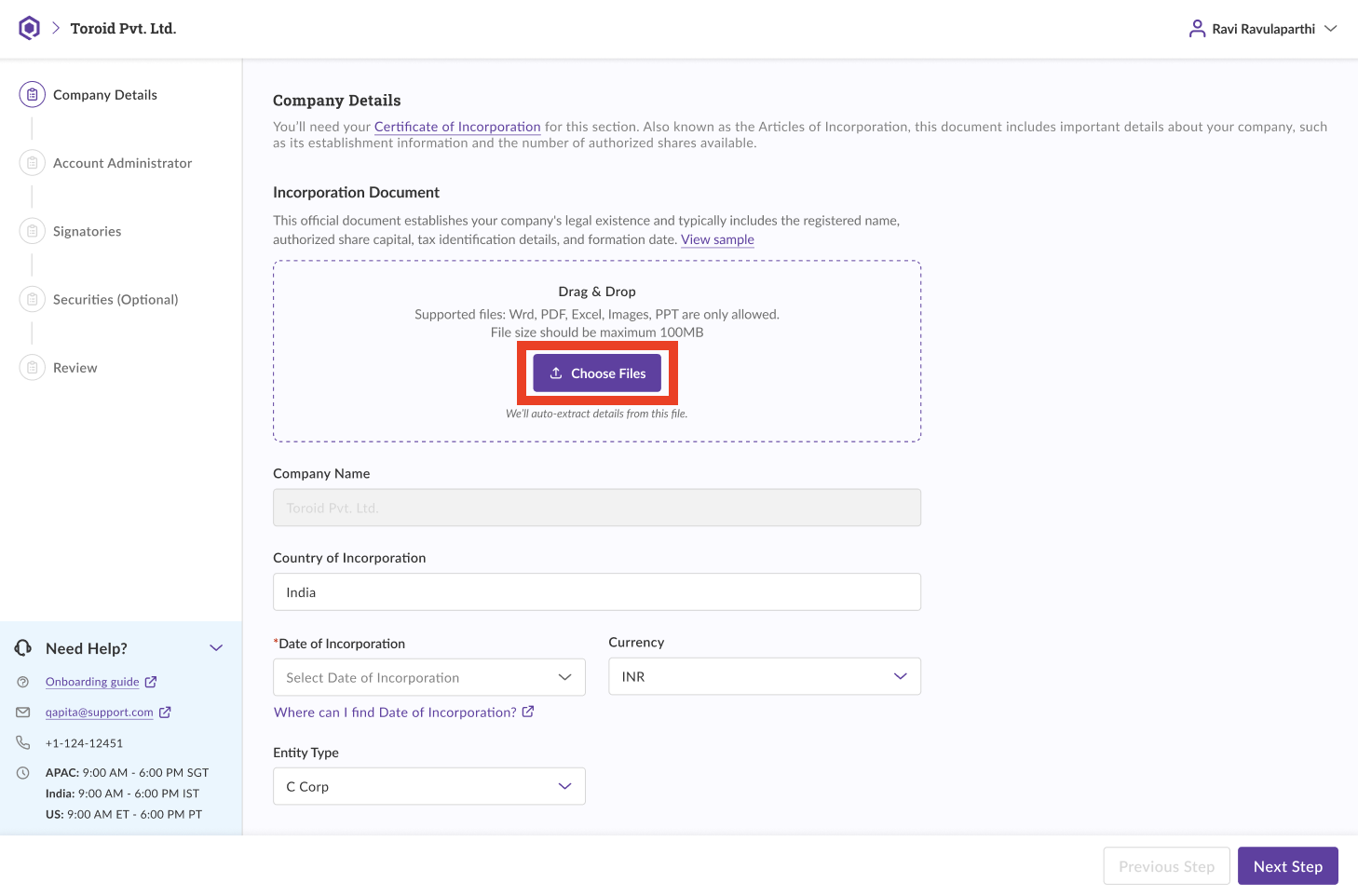
Once you upload, we will automatically extract the required information directly from the document, helping you complete the onboarding process quickly. You can review it or click on 'Apply' to include that information. You will be able to add share classes and share certificates later in the 'Securities' section too.
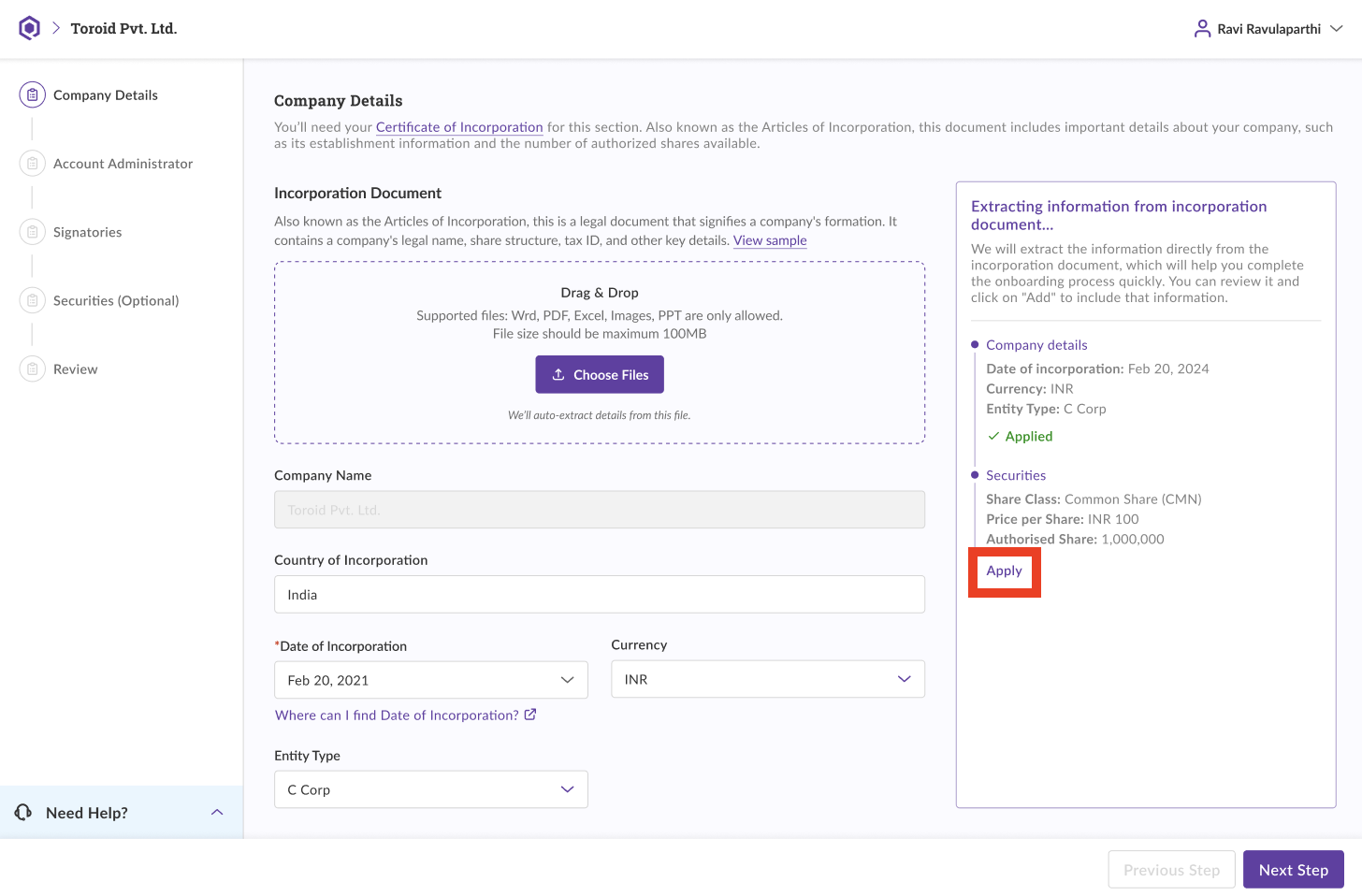
Once you've entered the required information, click 'Next Step' to move forward.
Account Administrator
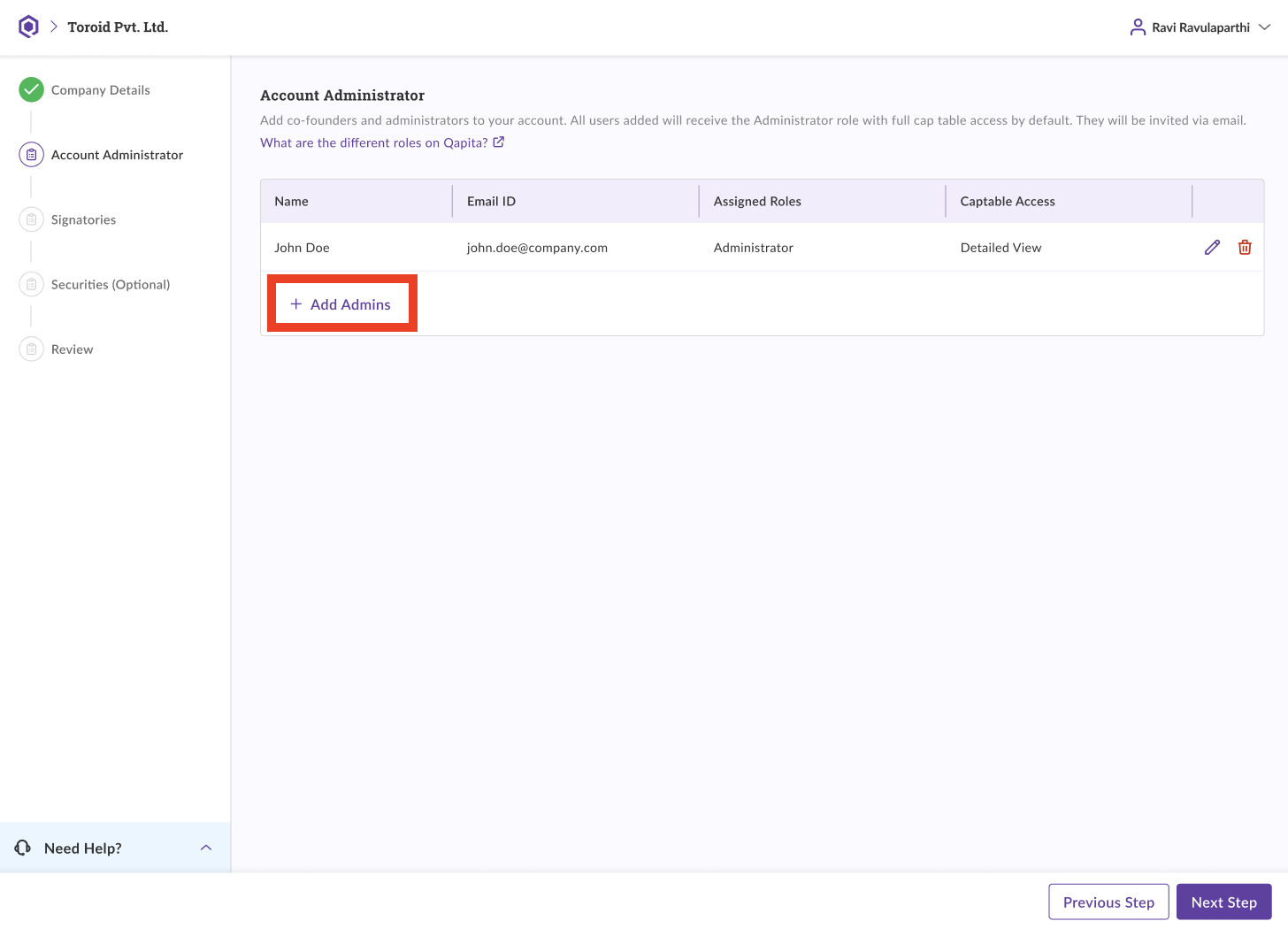
On this page, You can add co-founders and administrators to your account. All users added will receive the Administrator role with full cap table access by default. They will be invited via email.
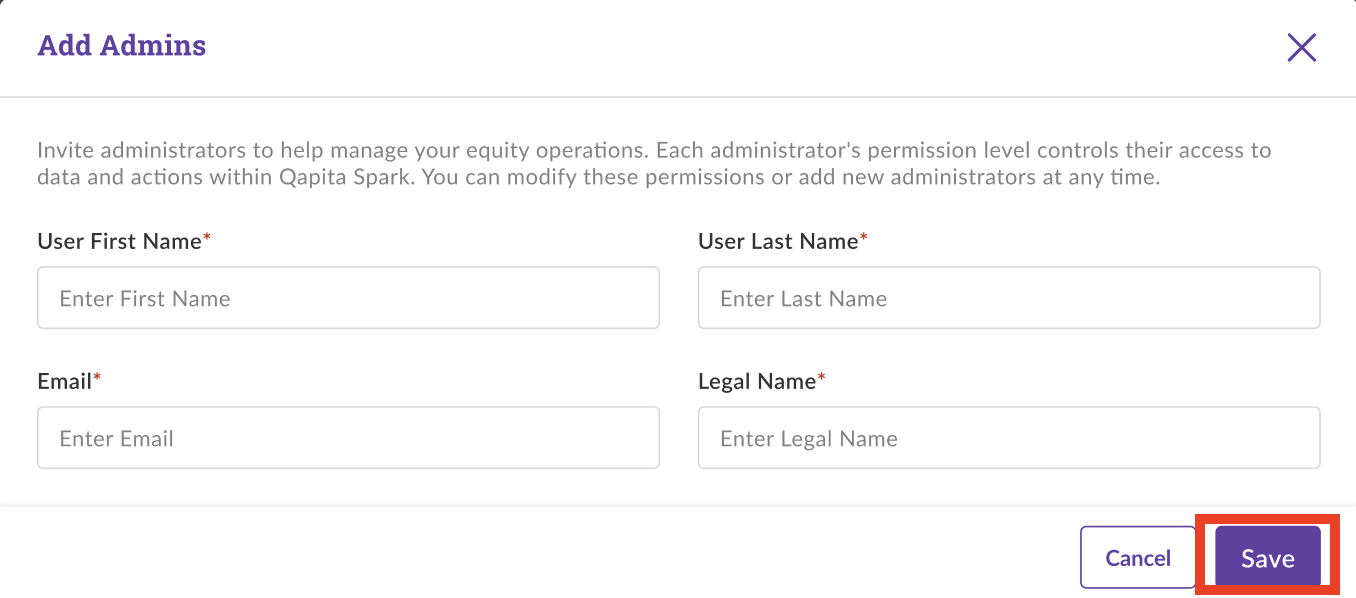
Fill in the details in the form that pops up and click on Save.
Once you have added all the administrators, you can click on Next Step to continue.
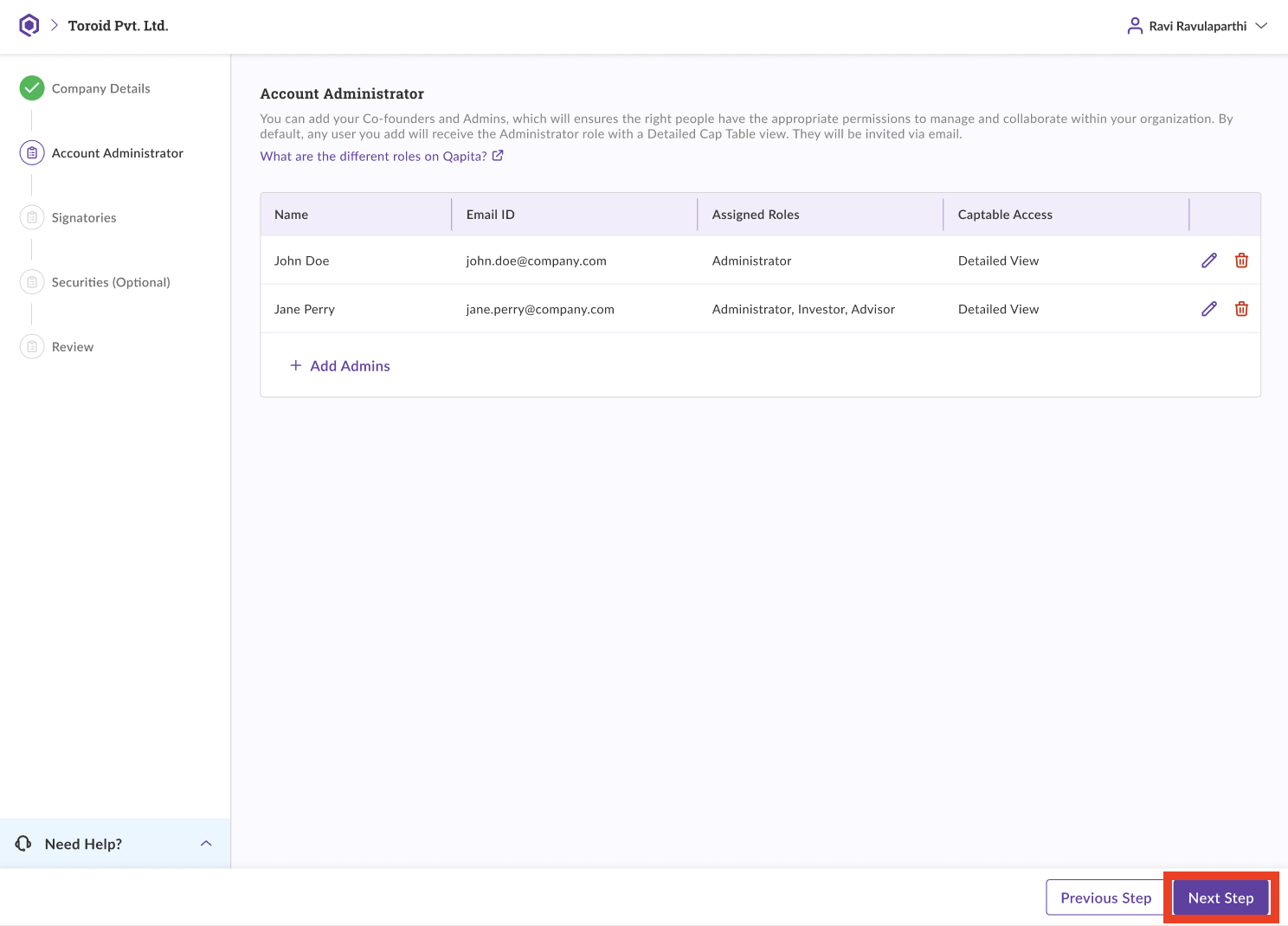
Invited administrators can help manage your equity operations. Each administrator's permission level controls their access to data and actions within Qapita Spark. You can modify these permissions or add new administrators at any time from within the platform.Signatories
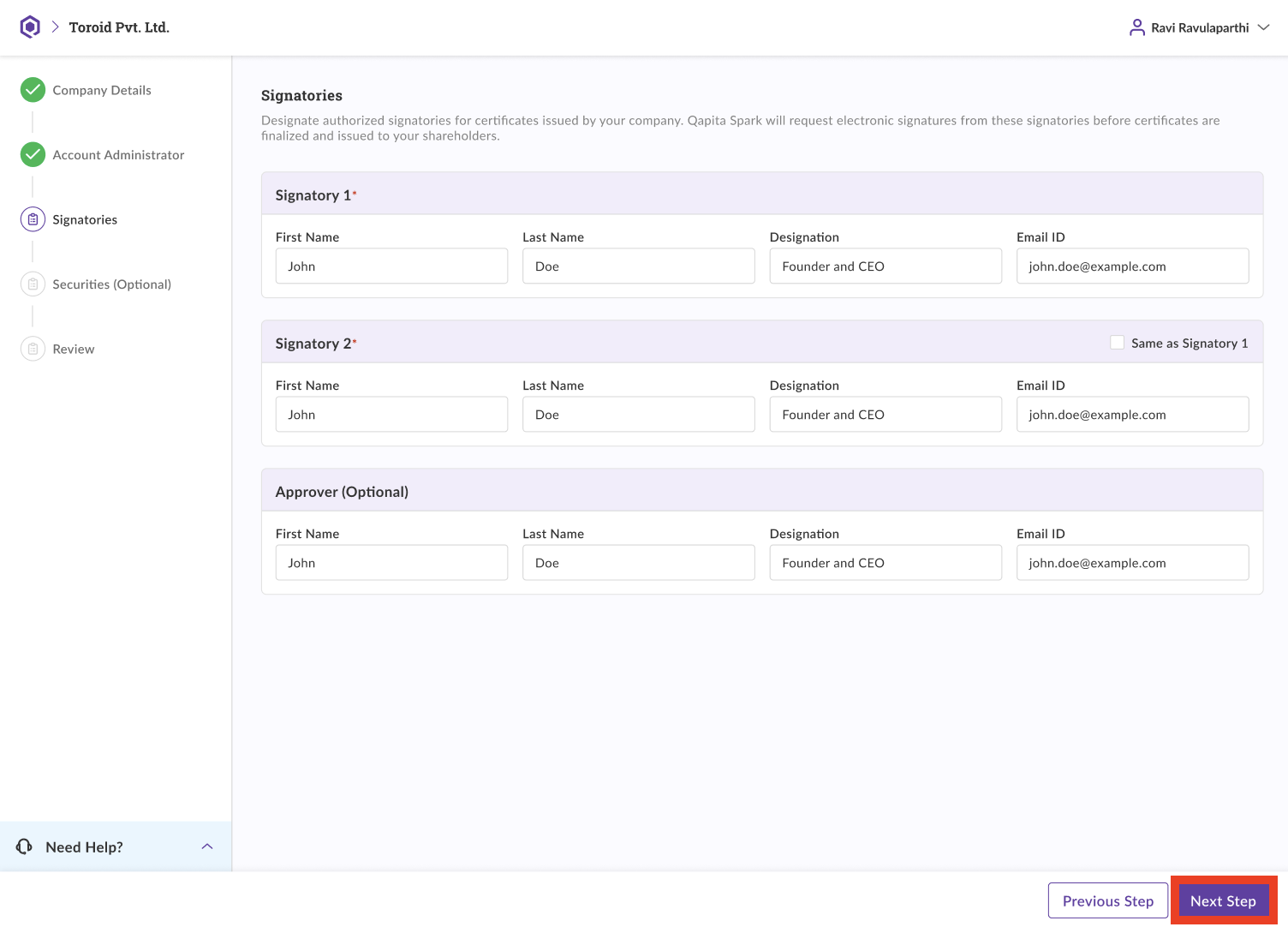
On the Signatories page, you can assign authorized signatories for certificates issued by your company. Qapita Spark will request electronic signatures from these signatories before certificates are finalized and issued to your shareholders.
Securities
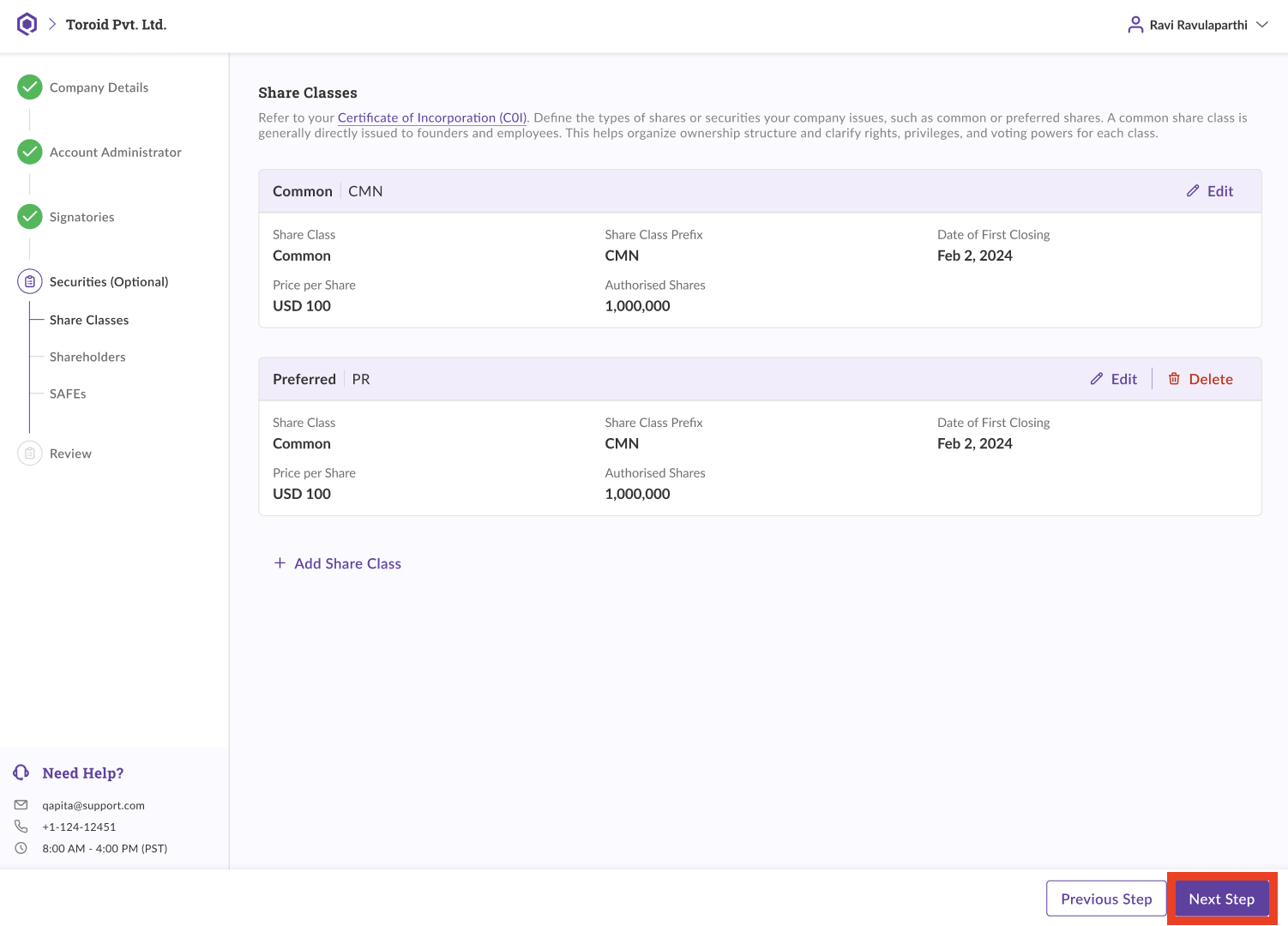
On the Share Classes page, you will be required to define the types of shares or securities your company issues, such as common or preferred shares. A common share class is generally directly issued to founders and employees. This helps organize ownership structure and clarify rights, privileges, and voting powers for each class.
You can click on Add Share Class to add a new share class depending on your organization's structure.
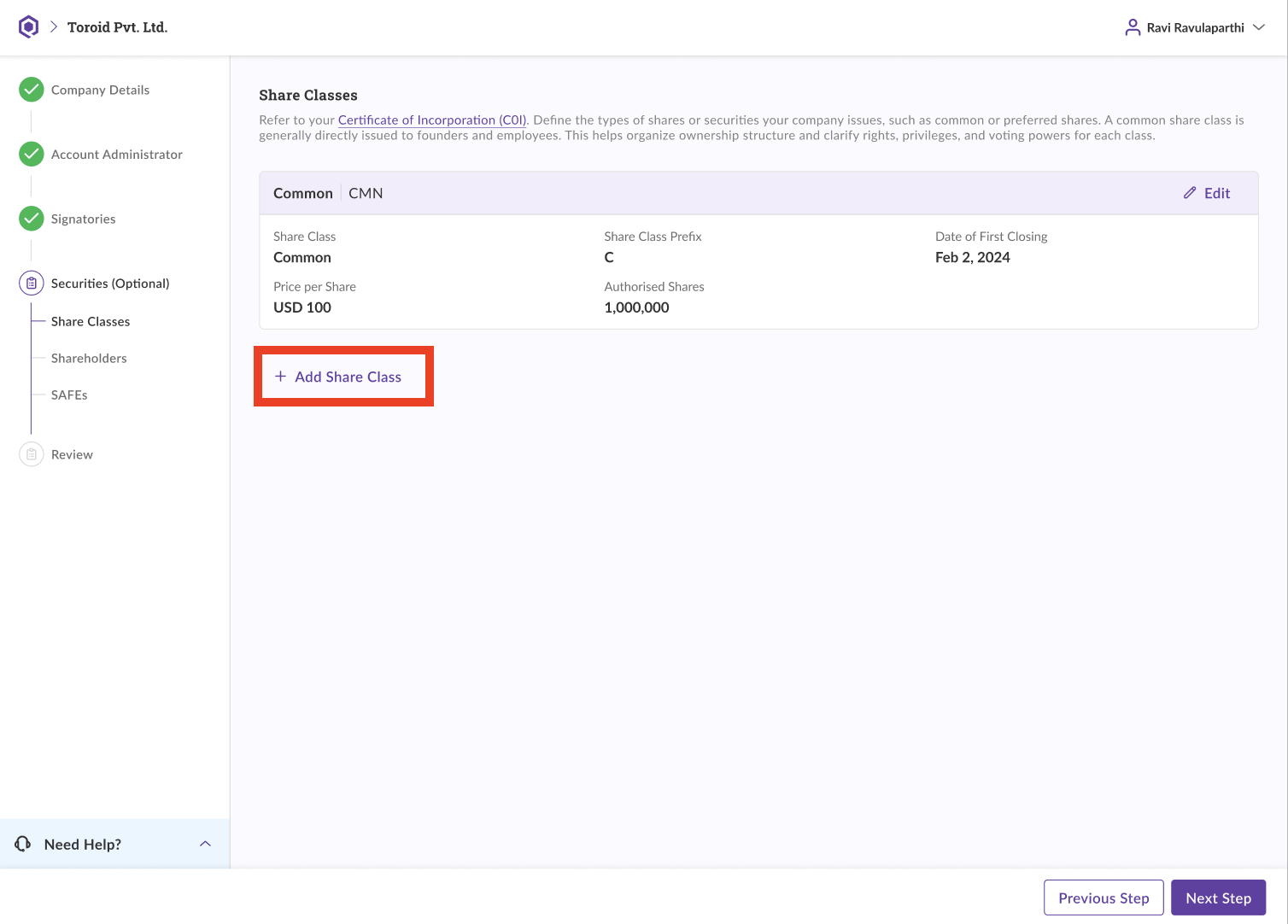
You have to refer to your company's Article of Incorporation for information about the share classes.
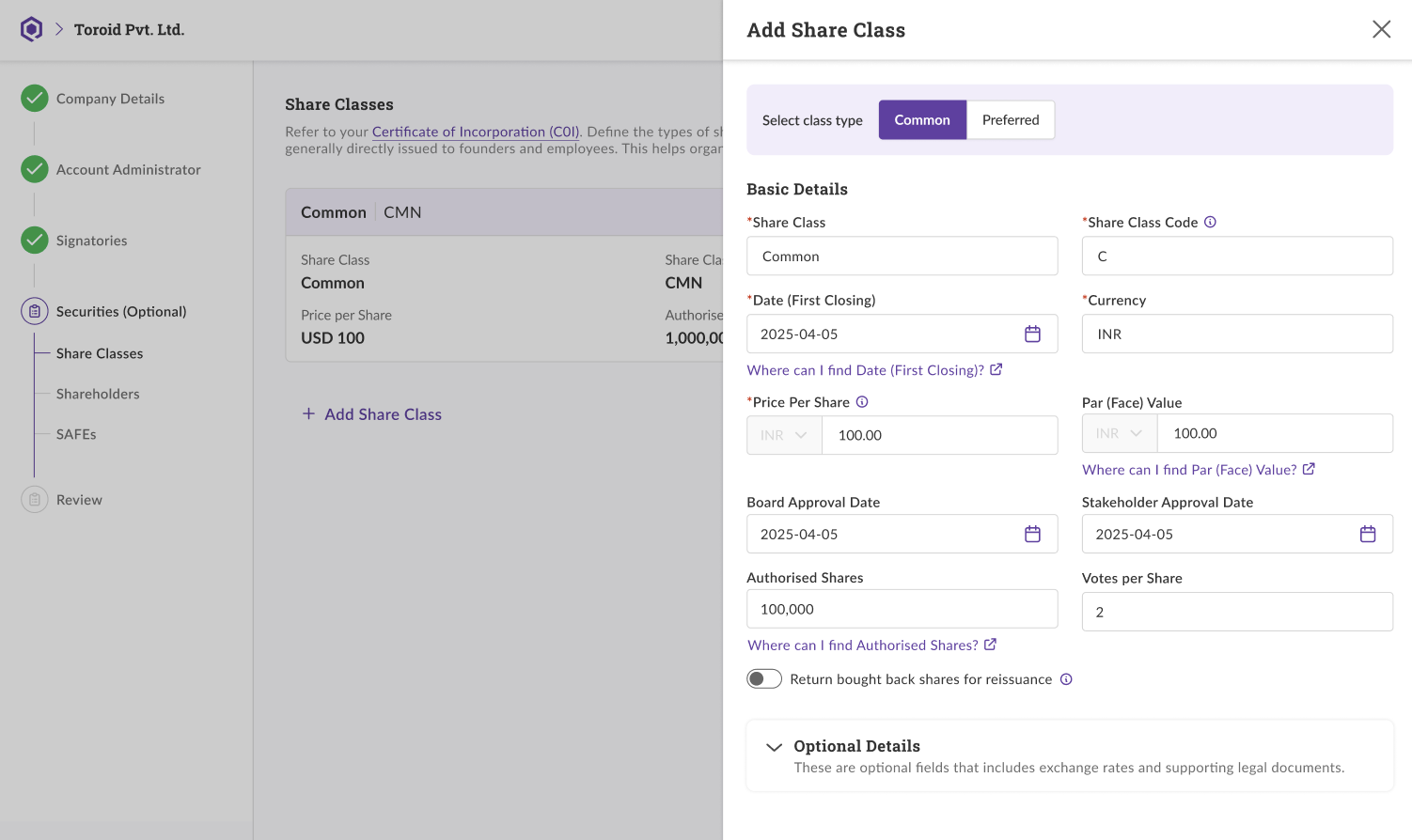
Once you have added all the share classes, you can click on Next Step to contrinue.
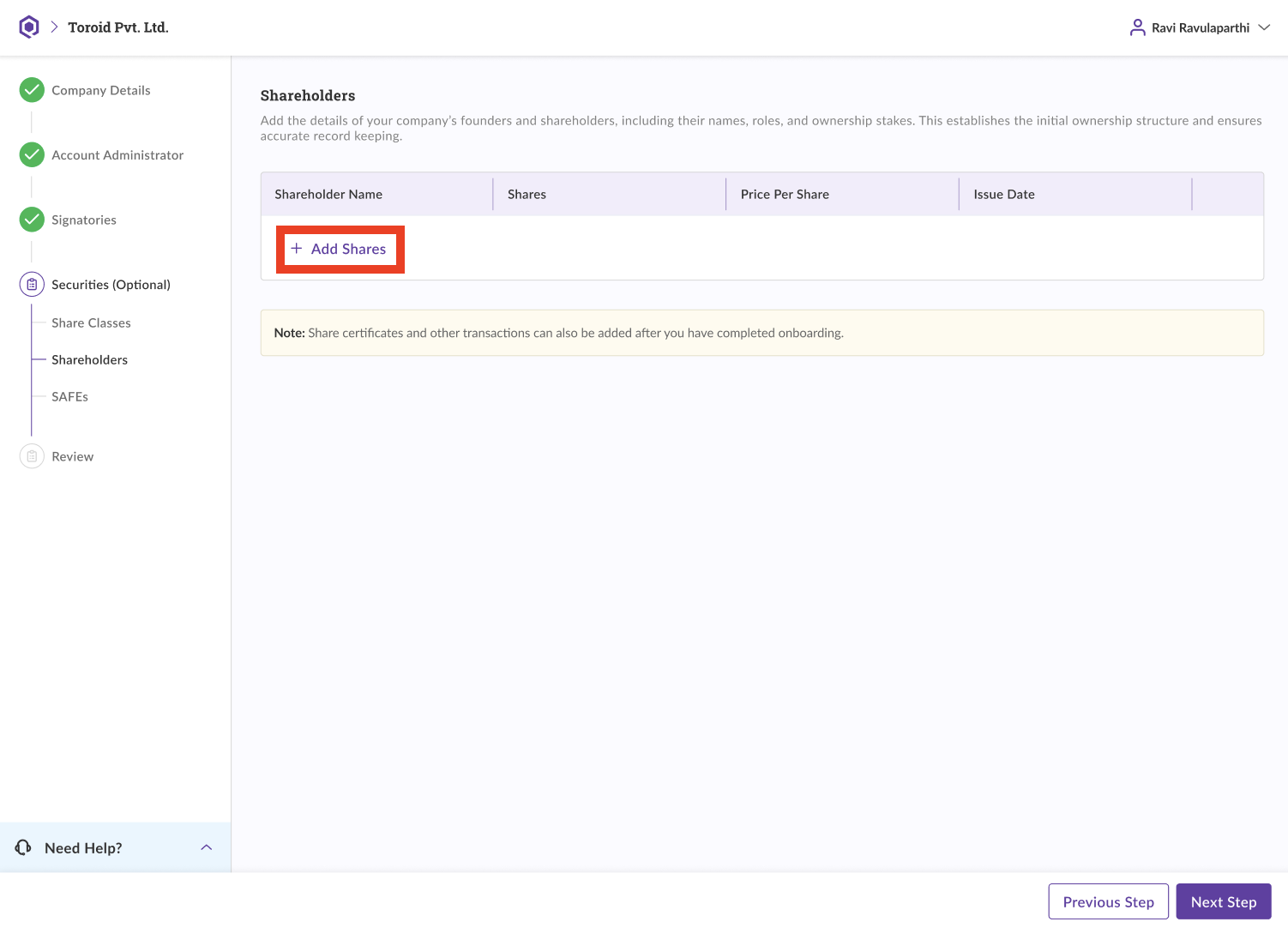
You will be forwarded to the Shareholders page. Now, you will be required to add the details of your company's founders and shareholders, including their names, roles, and ownership stakes. This establishes the initial ownership structure and ensures accurate record keeping.
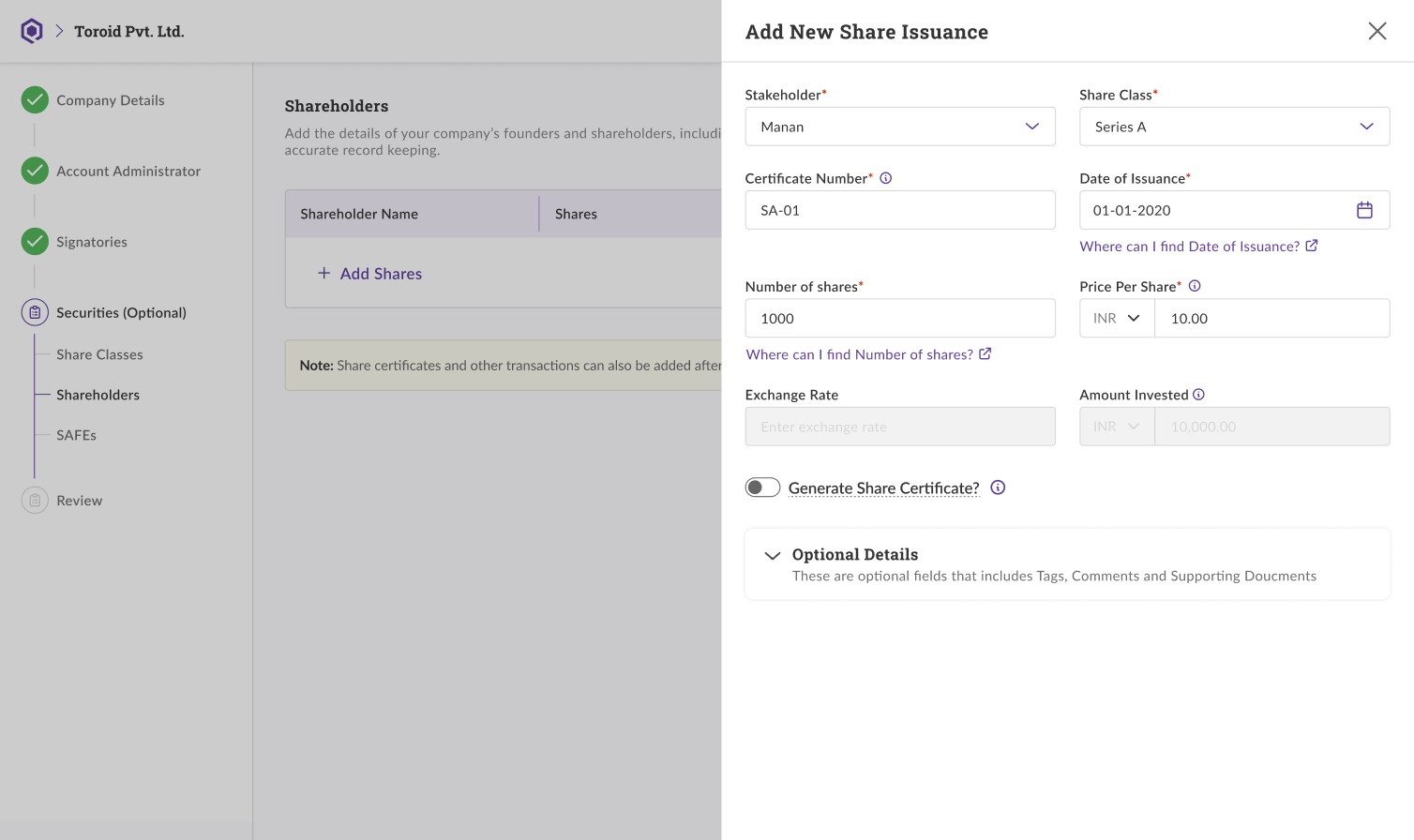
Fill in the required details to issue a share.
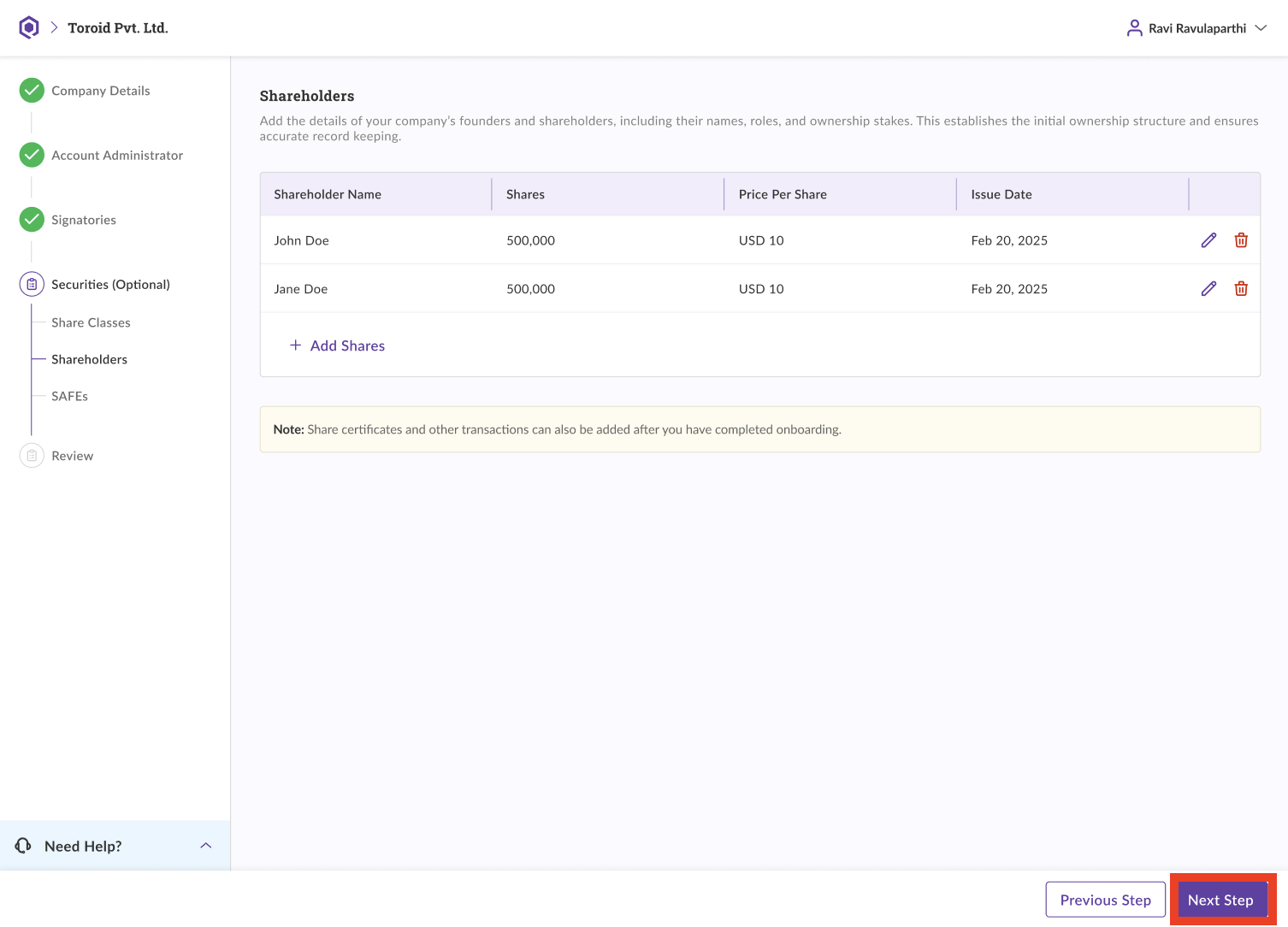
Once you have added all the shareholders, you can click on Next Step to continue.
This page shows a complete summary of the information you’ve provided. Review the details carefully and make edits if needed. Once everything is verified, click Complete to finish setting up your cap table.

Your cap table has been successfully set up. Share certificates will now be sent to the relevant signees for approval.
Was this article helpful?
That’s Great!
Thank you for your feedback
Sorry! We couldn't be helpful
Thank you for your feedback
Feedback sent
We appreciate your effort and will try to fix the article