2.1 Oversight
A centralized, real-time record of a company’s ownership is essential for founders, investor relations teams, and finance team members because it helps them accurately track all equity issuances, conversions, and transactions. By keeping an up-to-date and transparent cap table, they can efficiently manage equity, share accurate data with potential investors, ensure compliance, and streamline fundraising rounds with clear ownership information.
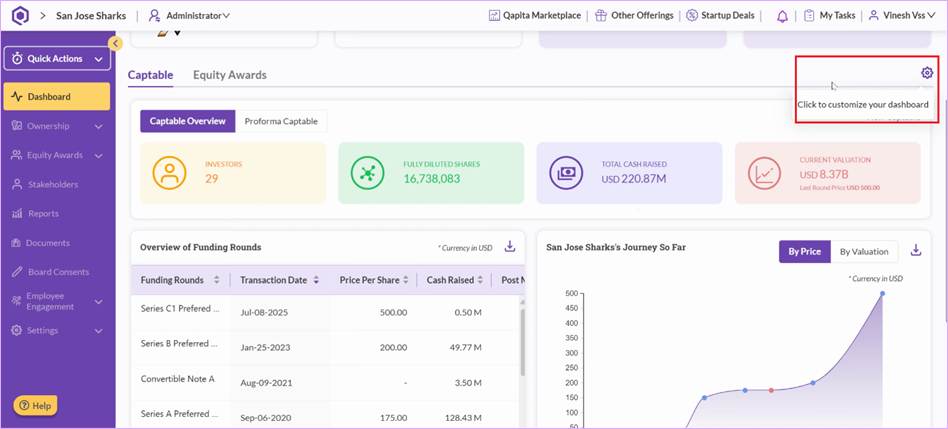
Qapita allows administrators flexibility to customize the cap table dashboard, enabling them to configure the display to best suit their analytical and reporting needs. Additionally, admin users can tailor the detailed cap table format, ensuring that the critical ownership information is presented clearly and precisely according to company requirements.
Cap Table Dashboard
The detailed steps below explain the key features, settings, and data views you'll encounter, so you're equipped to efficiently manage your company’s equity information.
|
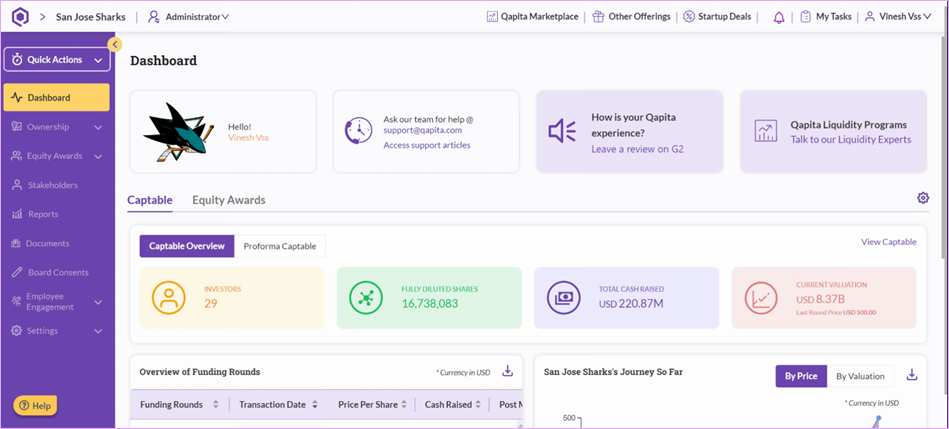
Step 1: Login in as administrator role and navigate to Dashboard. The dashboard summarizes your key cap table metrics, such as total investors, fully diluted shares, total cash raised, and your latest valuation.
Note: The valuation is calculated by multiplying the last round price by the fully diluted shares, while total cash raised represents the primary investment amount.
Step 2: You can navigate to the Settings icon to tailor the dashboard according to your requirements – including the metrics and charts to display the information most relevant to you.
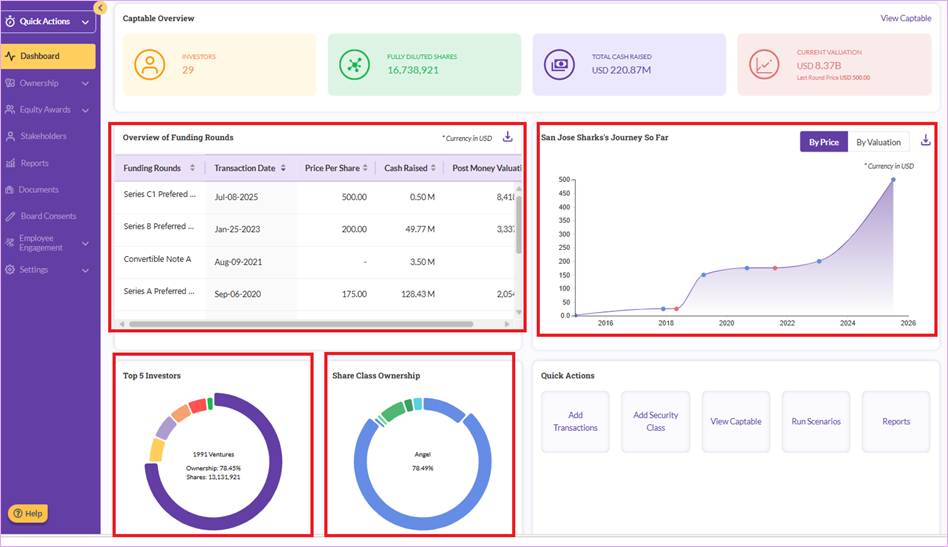
Step 3: You can review the following key metrics and charts from the dashboard:
- Overview of the Funding Rounds
- Change in Share Price and Valuation
- Top five investors by ownership percentage
- Overview of your Share Class Ownership
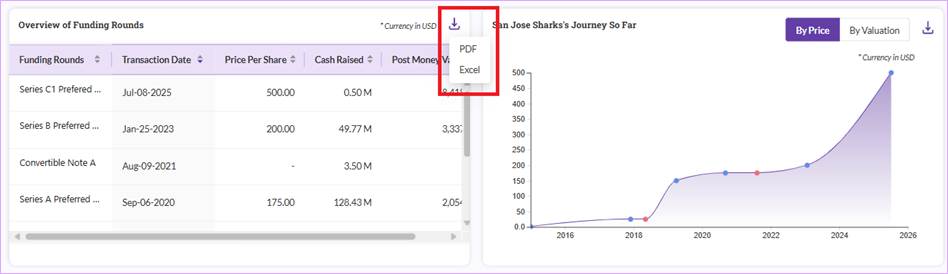
Note: You can export the data by click the “download” icon in Excel or PDF.
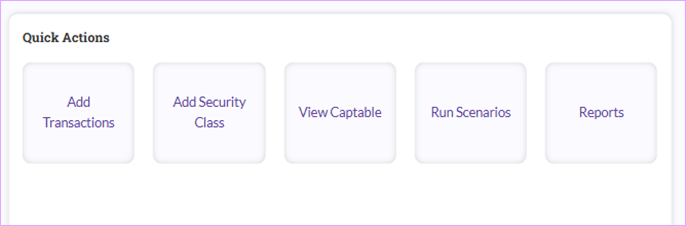
Step 4: You can also take Quick Actions like adding new transactions/security class or downloading comprehensive cap table reports directly from the dashboard.
Detailed Cap Table
Step 1: To check the detailed cap table, navigate to Ownership > Captable and you will be able to see the latest cap table. Administrator can also see the holdings divided into Your Own Shareholdings and Other's Shareholdings.
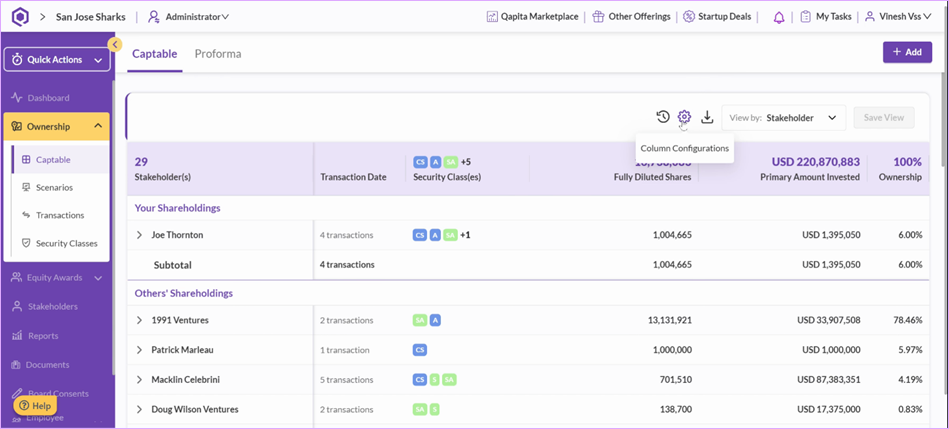
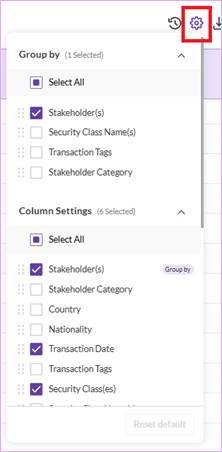
Step 2: You can customize or expand the Cap Table View by editing or adding more columns to adapt the cap table to your needs. To edit or add new columns, click on the “settings” icon, select the information that you would like to include in your Cap Table View.
You can also group them based on: Stakeholders, Security Class Type, Transaction Tags, and Stakeholder Category.
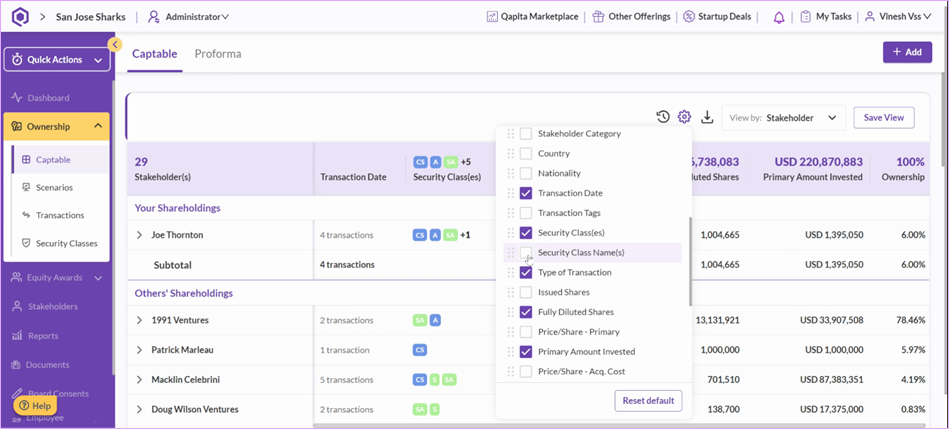
Note: Once the new columns are added, use the bottom scroll bar for easier navigation.
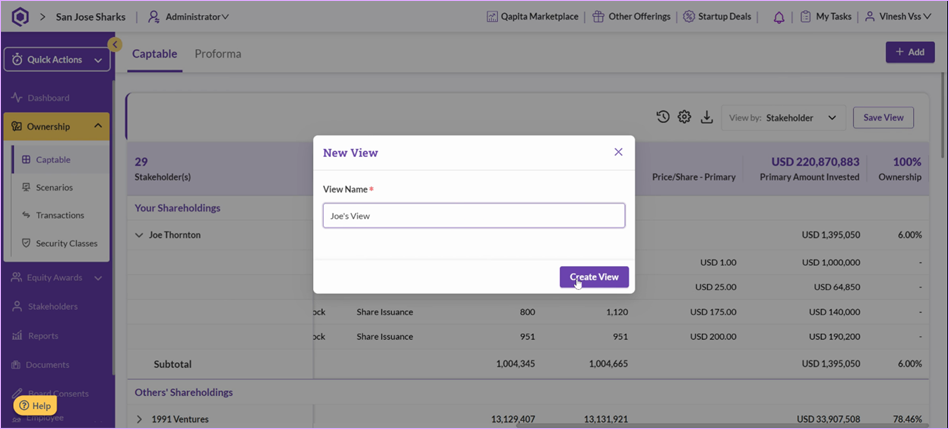
Step 3: You can save the view for easy access later. Click on Save View, name the view such as "Joe's view," and confirm by click on Create View. Once the customised is saved, this cap table view remains available each time you log in.
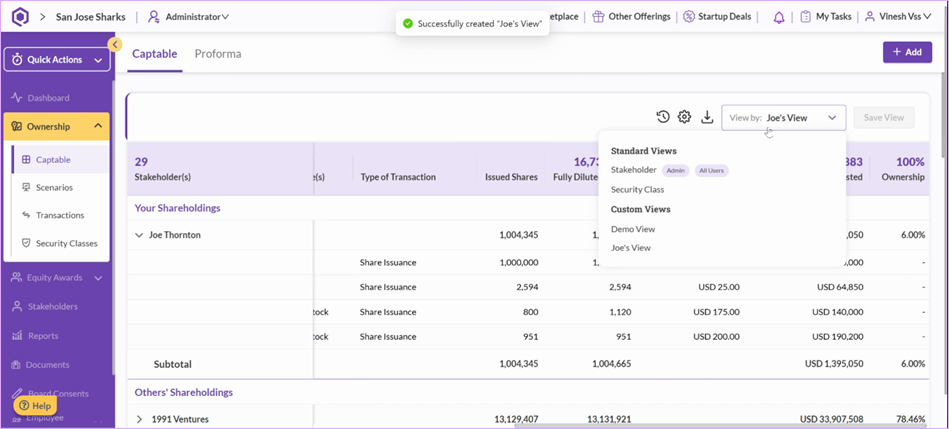
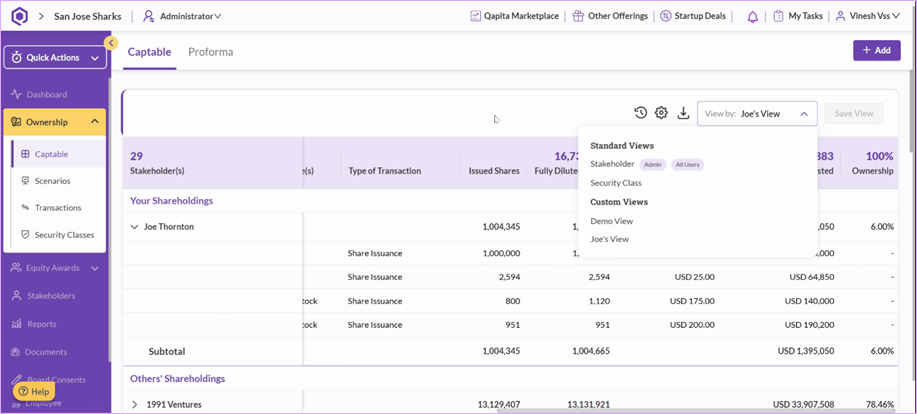
Step 4: Manage Multiple Administrator Views: Each administrator can save his/her personal view for tailored experiences without affecting other administrators.
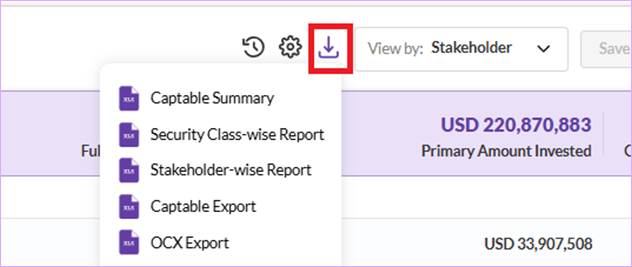
Step 5: Qapita also allows you to download the detailed cap table in excel. Click on the “download” icon and select the format which you prefer.
Things to Note
The valuation under Dashboard is calculated by multiplying the last round price by the fully diluted shares.
Was this article helpful?
That’s Great!
Thank you for your feedback
Sorry! We couldn't be helpful
Thank you for your feedback
Feedback sent
We appreciate your effort and will try to fix the article