3.12 Employee Exercises
Qapita provides a structured workflow for running exercise windows - defining when exercises are allowed, who is eligible, and what information is visible. Employees get a clear, guided experience to act within the window, while admins have centralized oversight.
|
Configure the Exercise Window for Employees (Admin’s POV)
Set up your employee exercise window step by step. This guide walks you through each configuration option, with context for when and why you’d use each setting.
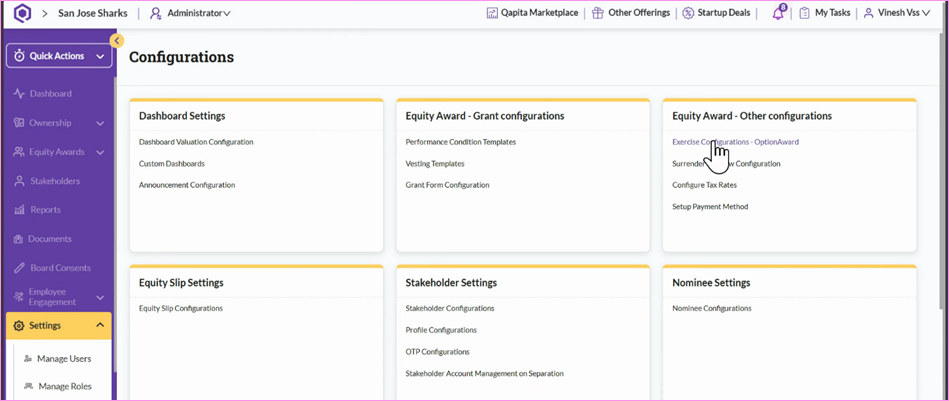
Open Exercise Configurations Access the configuration options by selecting Exercise Configurations from the configuration menu.
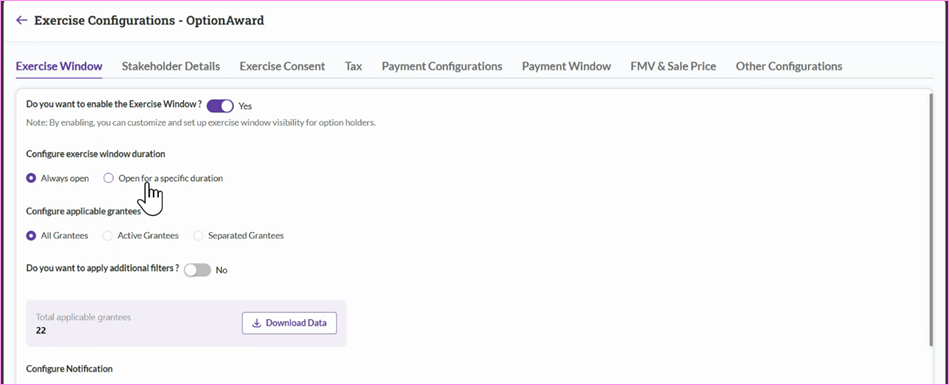
Step 1: Choose the Exercise Window Timing Decide how employees access the window. Select whether it’s Always Open or restricted to a set period.
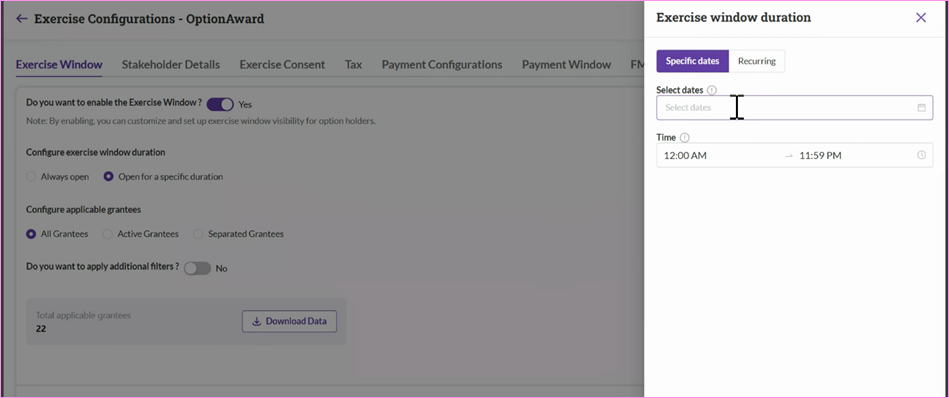
If opting for a specific period, configure exact dates and days. Set it to open on certain dates, or limit to weekdays or weekends as needed.
Determine Eligibility - Configure who can access the exercise window. Choose if the window is open to all employees or only to those who’ve been terminated.
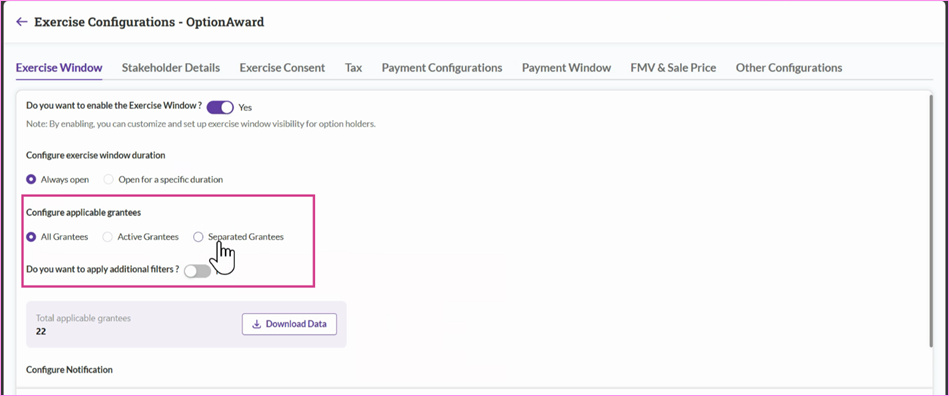
Flexibility to Add Employee Filters Refine - Eligibility using filters like zip code or nationality. To add or manage more filters, head to Stakeholder Configurations.
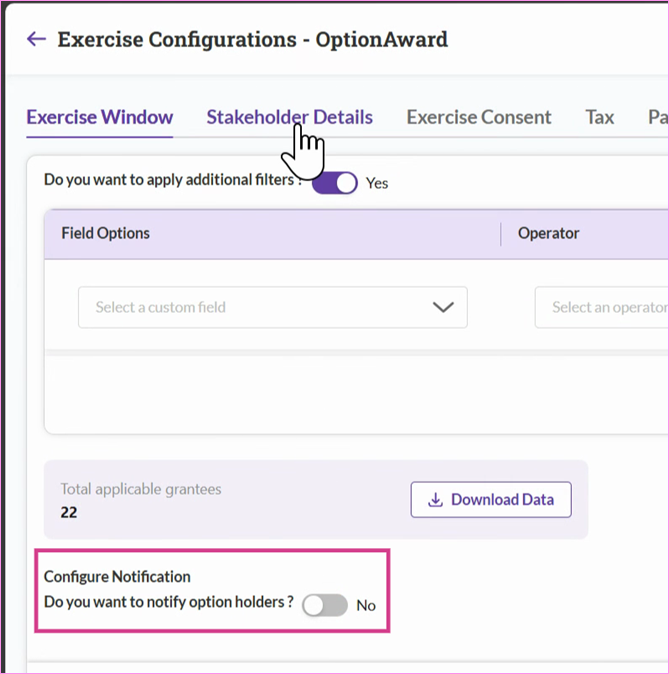
Enable Notifications - Let employees know when the window opens by enabling notifications for option holders.
Note: Notifications template can be customized by reaching out to the support team (support@qapita.com).
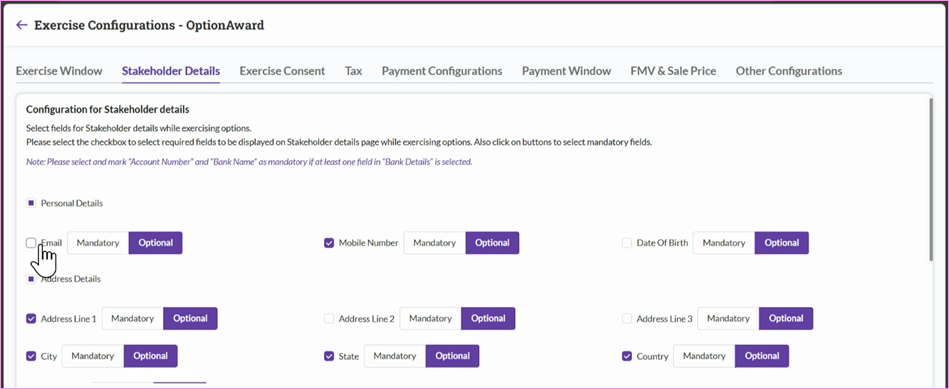
Step 2: Configure Stakeholder Data Requirements - Choose which fields employees must fill out during an exercise. Employees must complete these fields before finishing the exercise. Add more required fields by updating Stakeholder Configurations.
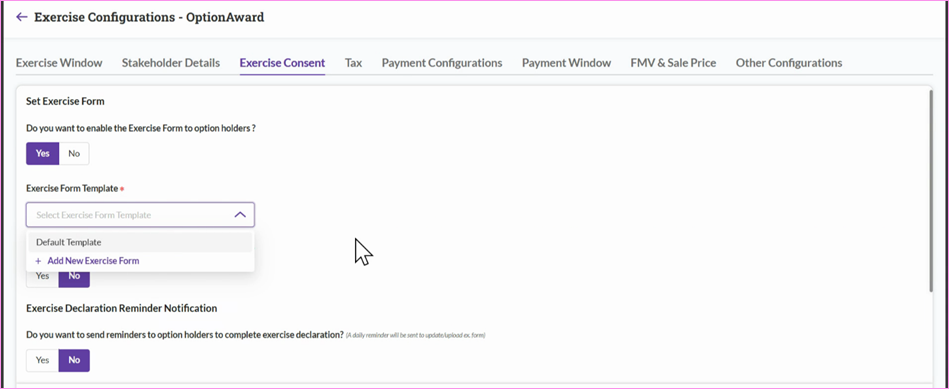
Step 3: Set Up the Exercise Consent Form Configure the consent form that employees will sign, similar to a grant letter. Use the default template or create your own. Enable "Sign & Upload" option for the stakeholders to download the exercise form and sign physically. Enable automated reminders to prompt updates until the form is uploaded. Add custom disclaimers to clarify the terms.
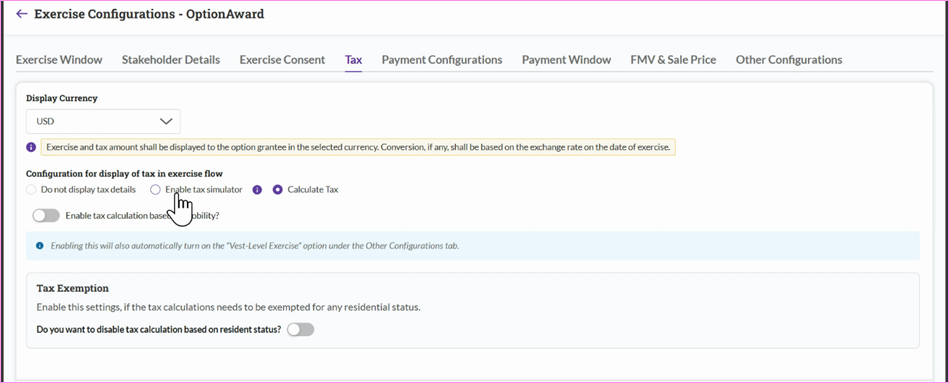
Step 4: Review Tax Configurations Watch the tax configuration walkthrough video to ensure all the relevant tax details are updated. Tax configurations setup will assist with the following tax setups,
- Flat tax rate for all the stakeholders
- System identification of Tax based on the stakeholder payroll details
- Stakeholder level tax.
Choose any one option to complete the tax configuration
Tax Simulator - A Tax slider allowing employees to choose a tax between a certain range and complete the exercise.
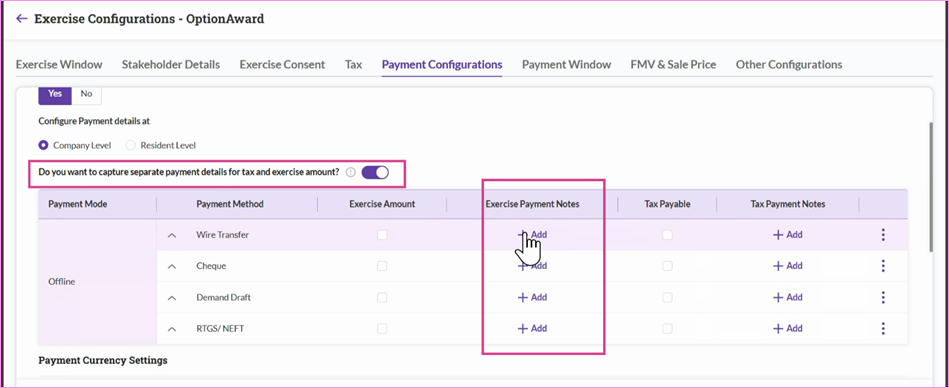
Step 5: Set Up Payment Modes In the payment configuration section, define how employees will remit payment for their exercise and taxes. If tax should go to a different account, enable the tax payment notes toggle. Configure exercise payment notes and tax payment notes to clearly communicate bank account details, ensuring employees know where to send their payments.
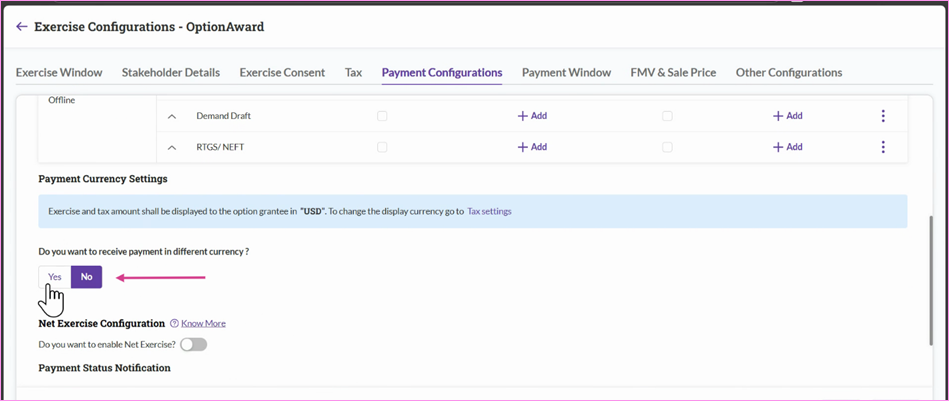
Set the preferred currency for payment receipts. If payment arrives in a foreign currency, the platform will apply the exchange rate as on the exercise date. Enable Net Exercise for cashless handling. Update notification customizations as needed.
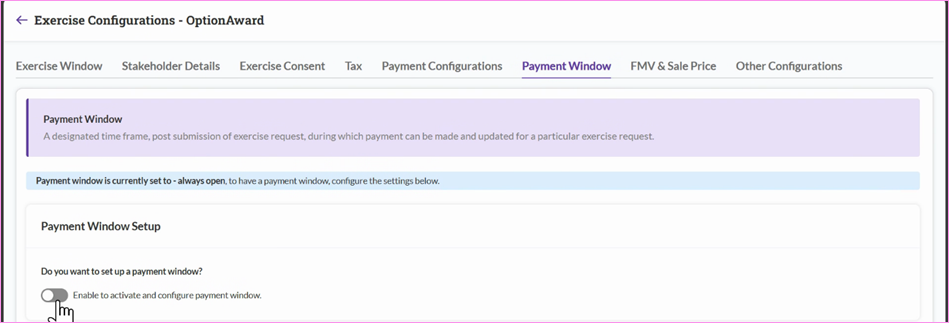
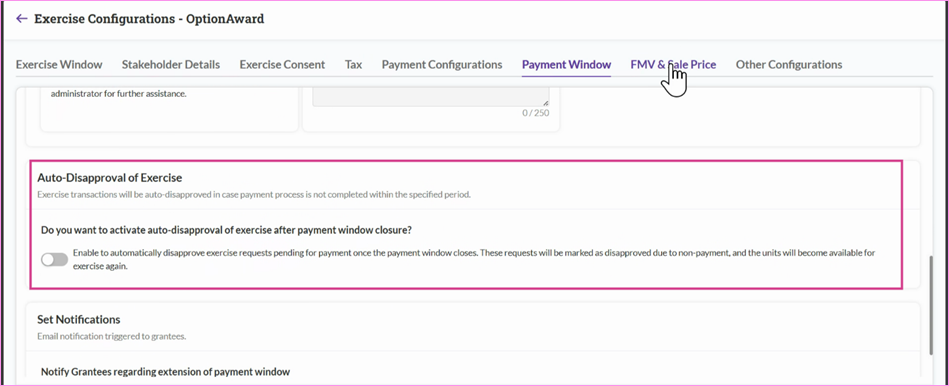
Step 6: Set a payment window timeline to help employees avoid payment delays after submitting exercise details. When the window expires, the system will automatically disapprove pending exercises.
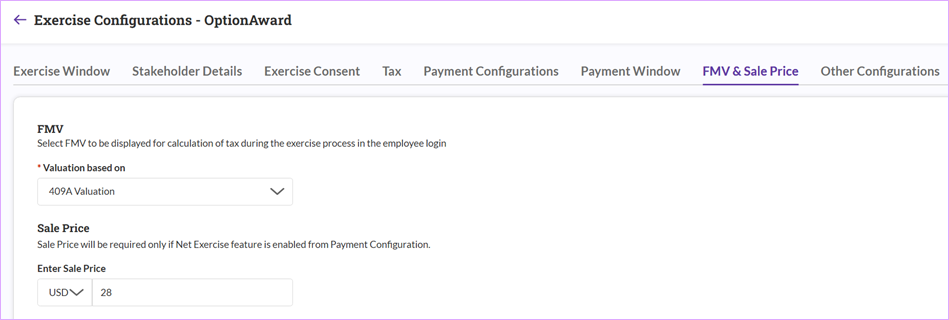
Step 7: Set up FMV (Fair Market Value) to help employees understand company value and determine tax payable amount. This step is mandatory.
For Net Exercise/Cashless exercises, the sale price is used to calculate the number of shares deducted based on the cost of the exercise payable.
Step 8: Further customize the process:
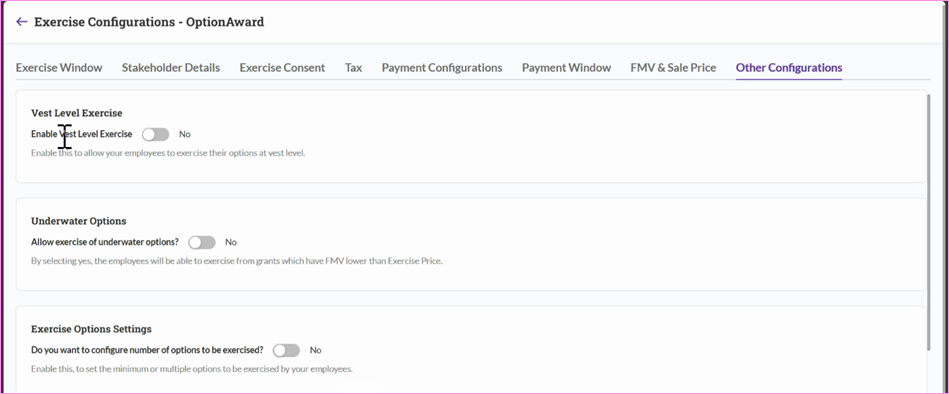
- Vest Level Exercise: Allow exercising at tranche level.
- Underwater Options: Permit underwater option exercises (when FMV < exercise price).
- Exercise Option Settings: Set minimum or multiple exercise thresholds. For example - Options can only be exercised in multiples of 10
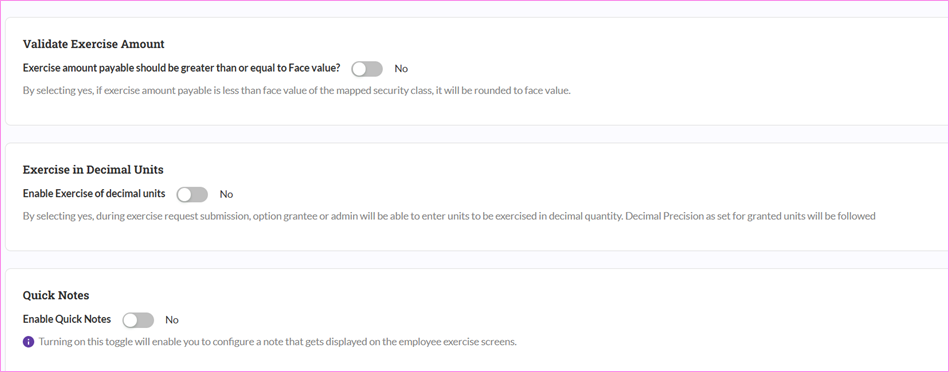
- Validate Exercise Amount - Mostly observed in India. If strike price goes below the par value of a share class. Not applicable for US, SEA.
- Quick Notes - Include any helpful notes or instructions in the Quick Notes section to display as a pop up during the exercise flow, ensuring all the relevant information is conveyed to your stakeholders.
You’re now ready to configure every critical aspect of the exercise window for employees. Reach out if you have any questions along the way!
Exercise Workflow (Participant’s POV)
By giving participants a clear, guided way to exercise, you cut confusion and back‑and‑forth, so requests are accurate the first time and approvals move faster. It boosts confidence in equity, strengthens compliance, and reduces last‑minute issues near deadlines.
Qapita provides a self‑serve, permissioned workflow for employees to submit an exercise request with built‑in eligibility checks and required disclosures. This typically includes cost of exercise, tax payable estimates, payment method selection and viewing exercise consent documents and notifying the participants of the status of exercise and share issuances.
|
You can log into Qapita’s portal as a participant to manage your equity awards and submit exercise request.
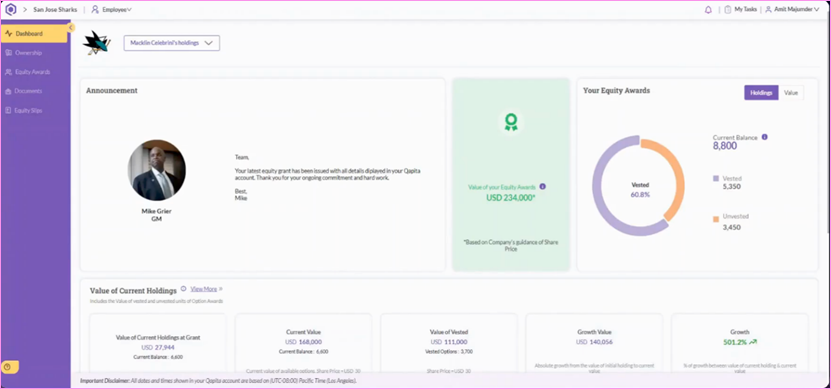
Step 1: Log in as a participant to access your equity award holdings and key information under Dashboard. This includes company announcement, the value of your awards, the vesting status of your grants, and the ability to track the company's stock price and valuation growth over the period. You can also view the exact percentage of the company you own as part of your cap table (if the cap table access was given to you).
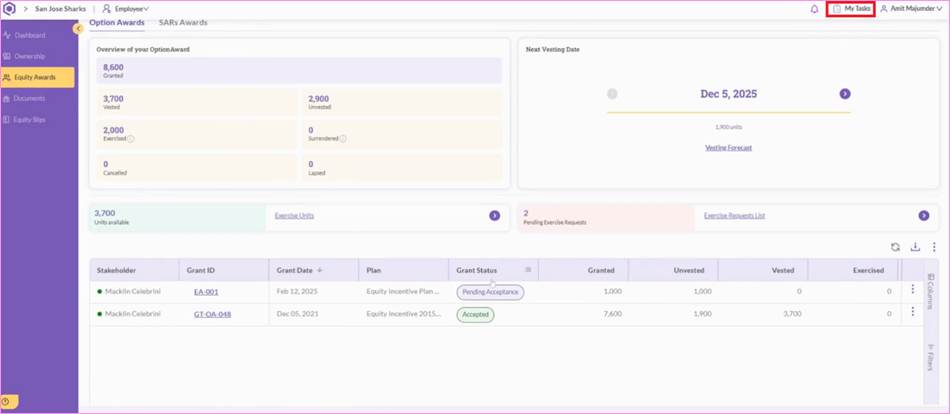
Step 2: Navigate to the Equity Awards in the left menu, you can view previously accepted awards and accept new grants issued through Click to Accept or E-Signature workflows once they are approved by the company.
To check for any pending tasks to accept or e-sign, click “My Tasks” to view them.
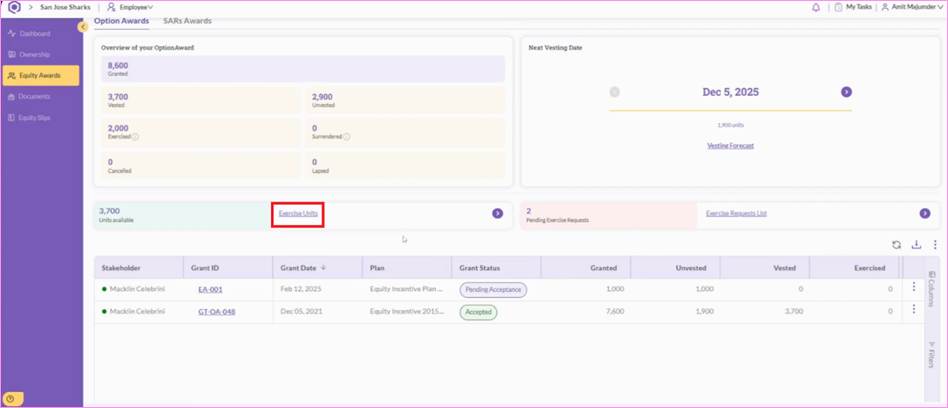
Step 3: You are also able to transact on available awards directly through the system. Exercise any available options you hold as part of the integrated exercise workflow. To submit the exercise request, click on Exercise Units.
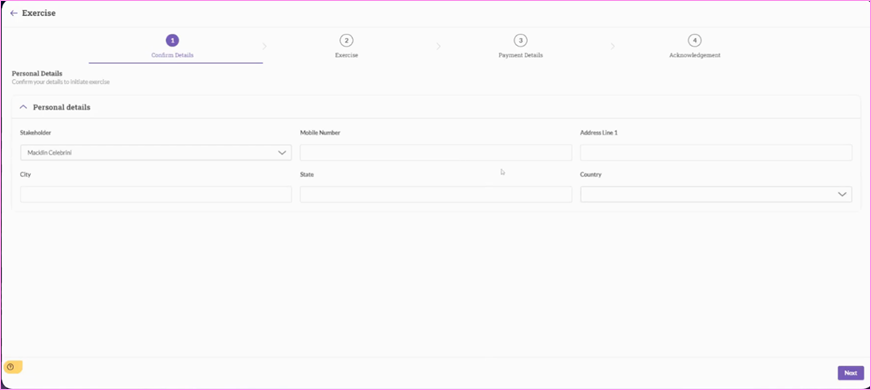
Step 4: Complete all fields as required by the company. These fields can be configured as optional or mandatory to complete by the admin of the company.
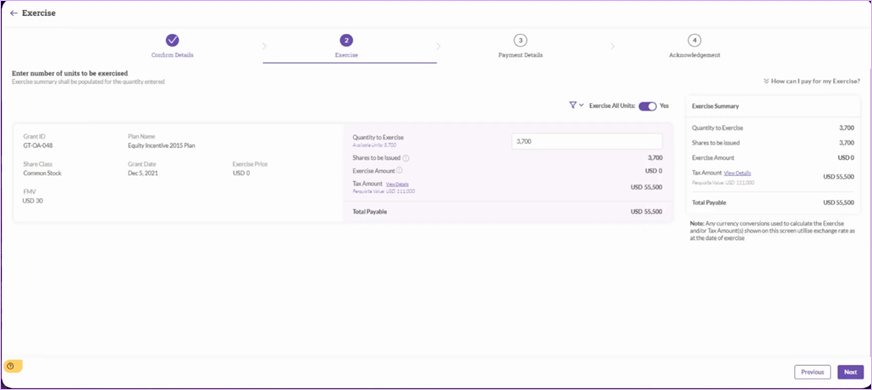
Step 5: Specify the units you wish to exercise on the exercise request screen. You have the option to exercise all options or specify a certain number to be exercised.
After selecting the desired quantity for exercise, the system automatically prepares tax calculations based on the relevant tax settings and displays the summary of reportable income and associated tax to be either reported or withheld by payroll. Check all calculations, comply with the relevant terms and conditions set by the company, and submit your request.
Step 6: Provide the relevant payment information after submitting your exercise request. Depending on the available payment methods, this could be a wire transfer, ACH, or cheque. View the relevant payment instructions and confirm that payment has been completed by you.
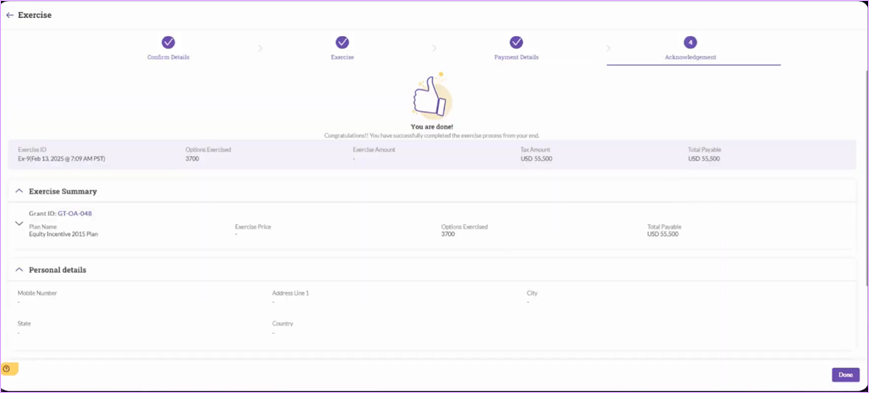
Once the payment details have been captured and the exercise request has been finalized, all details will be recorded in the system. You will be able to track it in real time to understand the status of the payment as the company approves the exercise, confirms receipt of funds, and issues the stock to settle the exercise.
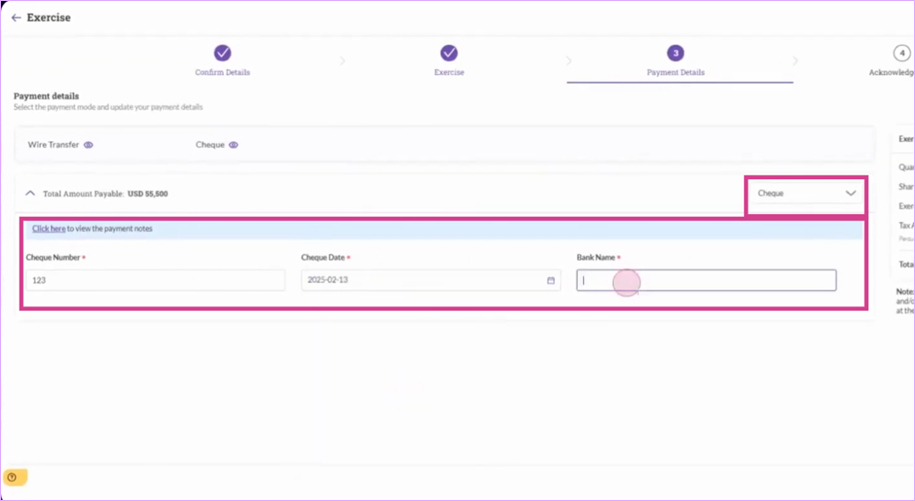
After completing the payment, ensure to click on proceed to view the acknowledgement page.
Was this article helpful?
That’s Great!
Thank you for your feedback
Sorry! We couldn't be helpful
Thank you for your feedback
Feedback sent
We appreciate your effort and will try to fix the article