3.10 Ongoing Administration
Ongoing administration on Qapita helps keep your equity data accurate, compliant, and up to date. Whether it’s editing stakeholder details, updating grant information across RSAs, RSUs, and stock options, or sending reminders for grant approvals and acceptances,
Qapita streamlines it all through a single workflow. This simplifies day-to-day management, reduces manual follow-ups, and ensures every change or action is tracked in real time, keeping your cap table organized and your teams aligned.
This article will guide you through the initial steps of editing the stakeholders, grant on the Qapita platform. By the end of this walkthrough, you'll be able to edit stakeholders, edit grants, and send reminders for grant approval and acceptance.
|
Editing Stakeholder on Qapita Platform
This tutorial will guide you through the process of editing a stakeholder on the Qapita platform.
Step 1: Begin by navigating to the Stakeholder section on the left-hand side of the platform.
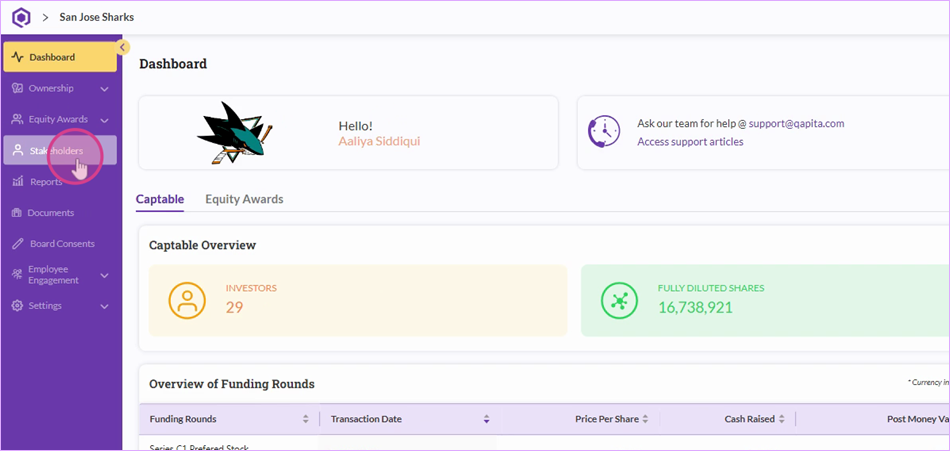
Step 2: Search for the stakeholder whose details need to be edited.
Step 3: Click on Edit under the stakeholder's details.
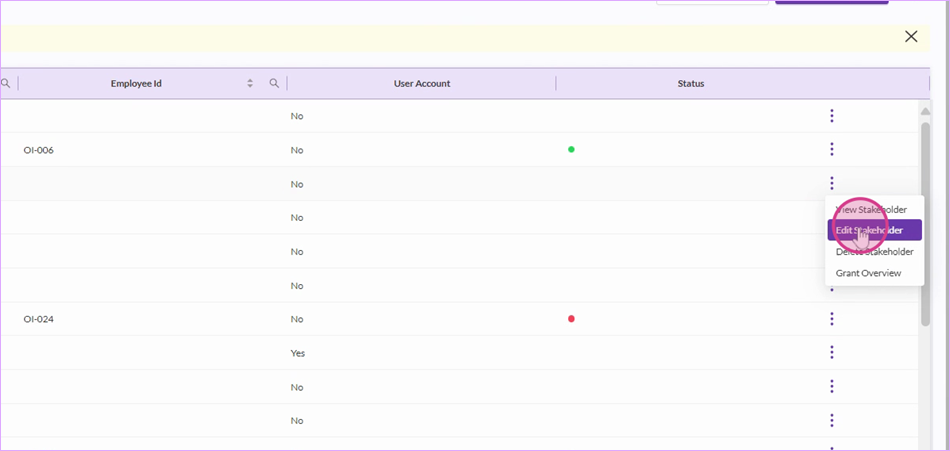
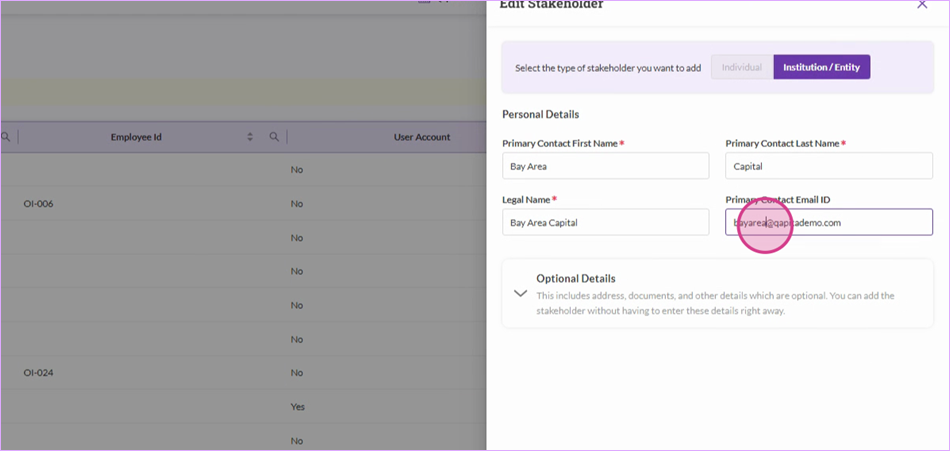
Step 4: Update the required details, such as updating the email address.
Step 5: Review the additional information for any other necessary updates. Once all changes are made, click on Save.
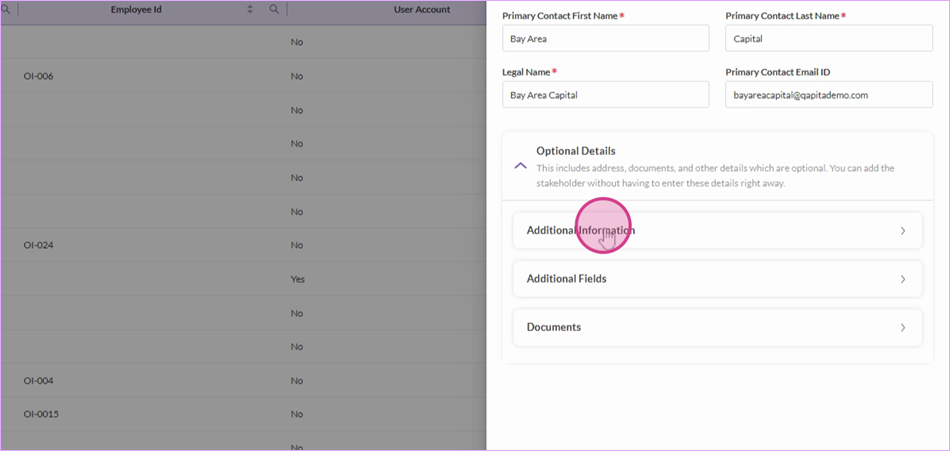
Repeat the process for any other stakeholders that need updating. Alternatively, leverage the bulk upload functionality to update this for a large group of individuals.
Editing Grants on Qapita Platform
|
In this article, you'll learn how to edit grants, update vesting details, and send reminders for approval or acceptances within the Qapita platform.
Step 1: Navigate to Equity Grants. Select the Grant section to see the full list of grants.
Step 2: Select the grant you want to edit and then go to Grant Actions and click Edit.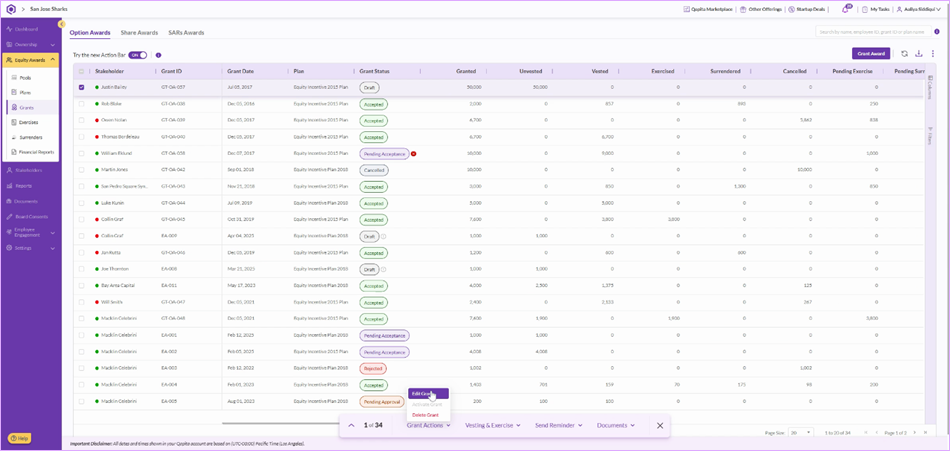
Step 3: Edit the Details and click on Update Grant.
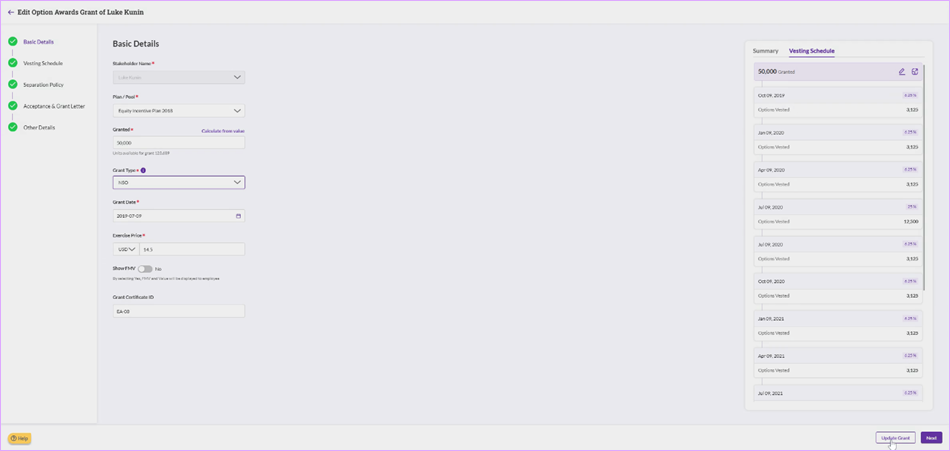
Step 4: Update the vesting start date and choose the appropriate Vesting template. If no suitable template exists, you can create a new one by clicking on Create Vesting Template.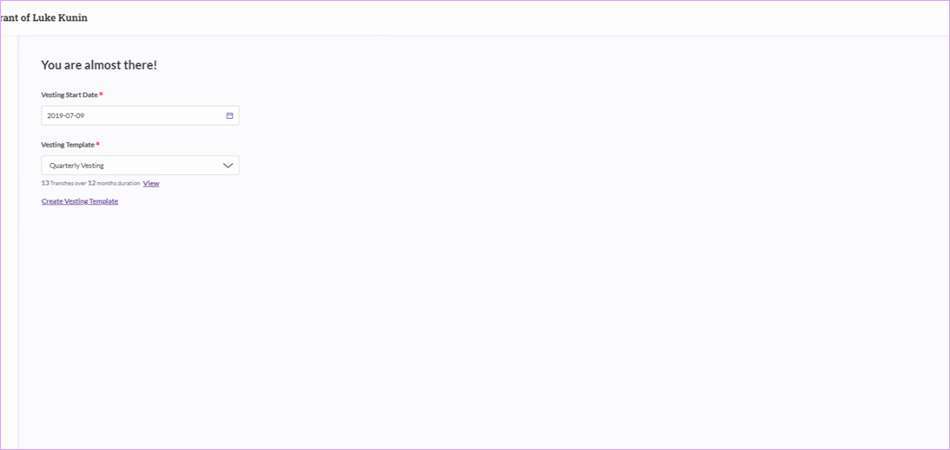
Step 5: Click Edit if you need to edit the vesting schedule manually and click on Update.
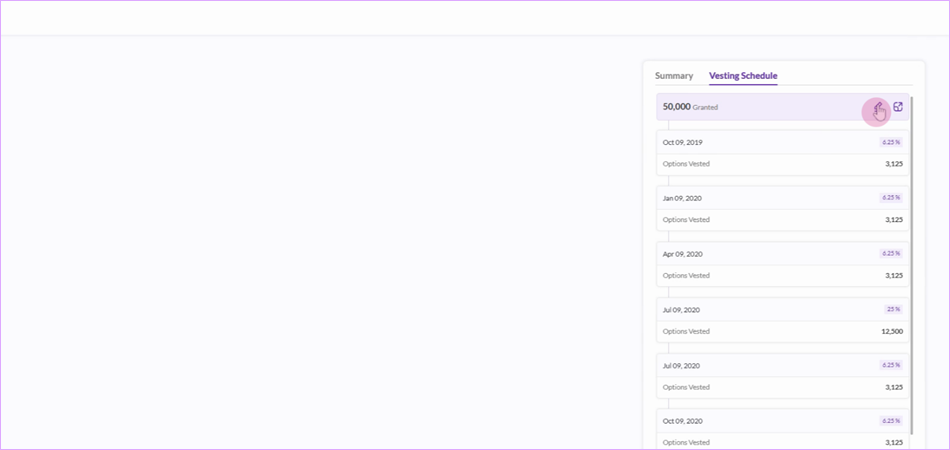
Step 6: Click Update Grant to save the changes.
Step 7: A prompt appears. Enter the reason for the update. Choose the option to Notify the approver/grantee or regenerate the grant letter. If you don't need any action, choose neither and just click on Proceed.
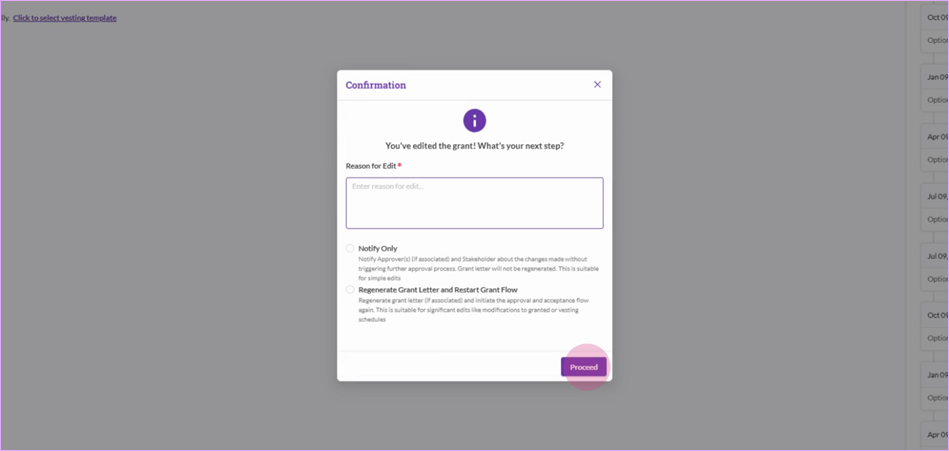
After updating, the new grant letter will generate and reflect your changes.
Repeat the process for any other grant that needs updating.
Send Approval Reminders
Step 1: To remind approvers to approve newly issued awards, filter out the grant which are Pending for Approval.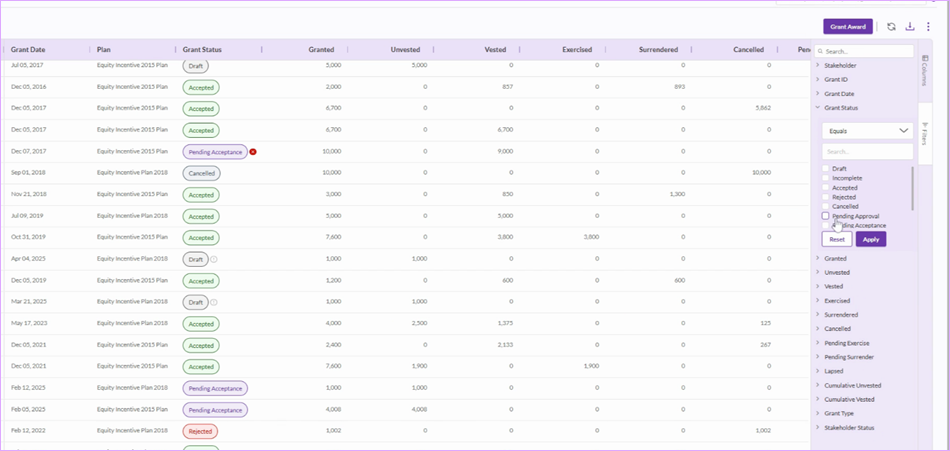
Step 2: Select the relevant grants, then choose Send Reminder.
Step 3: Confirm by clicking on Send Reminder.
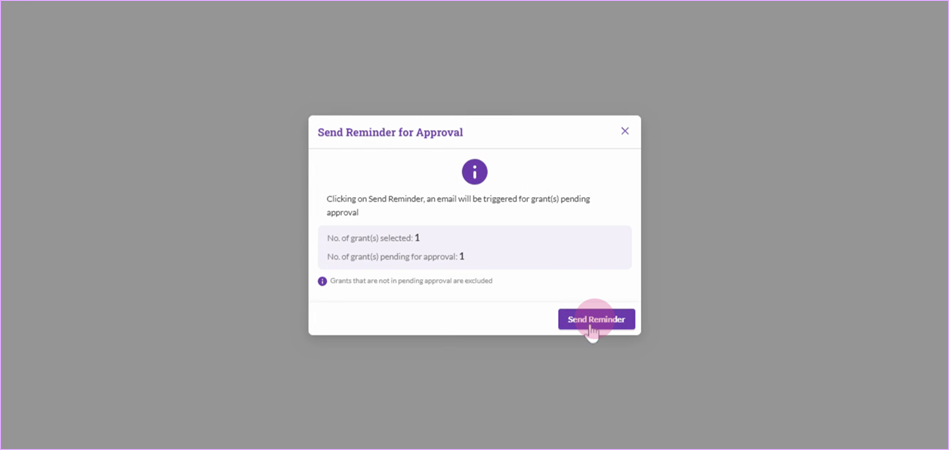
Similarly, you can send reminder for acceptance. Select Pending Acceptance grants and Send Reminder.
That's how to smoothly edit, update, and manage grant workflows in Qapita.
Was this article helpful?
That’s Great!
Thank you for your feedback
Sorry! We couldn't be helpful
Thank you for your feedback
Feedback sent
We appreciate your effort and will try to fix the article