3.3 Data Governance – Access Levels
Managing equity - it’s about ensuring the right people have the right access at the right time. As companies scale, multiple stakeholders come into play: employees, founders, investors, board members, auditors, and regulators. Without strong governance, equity data can quickly become fragmented, risky, or even non-compliant.
That’s where Qapita’s Data Governance framework steps in.
|
Configuring Access Levels
Get started with assigning predefined and custom roles to stakeholders in Qapita. By following these steps, you'll efficiently manage access for new or existing stakeholders using roles tailored to their needs.
Step 1: Click Settings and select Manage Roles. Here, you'll see a list of predefined roles and a tab for custom roles.
Predefined Roles:
- Administrator role provides full platform access, including editing, uploading, and downloading data.
- Investor access allows for Cap Table and scenario viewing, downloads, and Data Room access.
- Employee access lets users view their individual awards or units and download related documents and reports.
- Advisor access offers a view of the Cap Table, scenario details, downloads, and instrument views
- Board Director access gives permission for Board consent only.
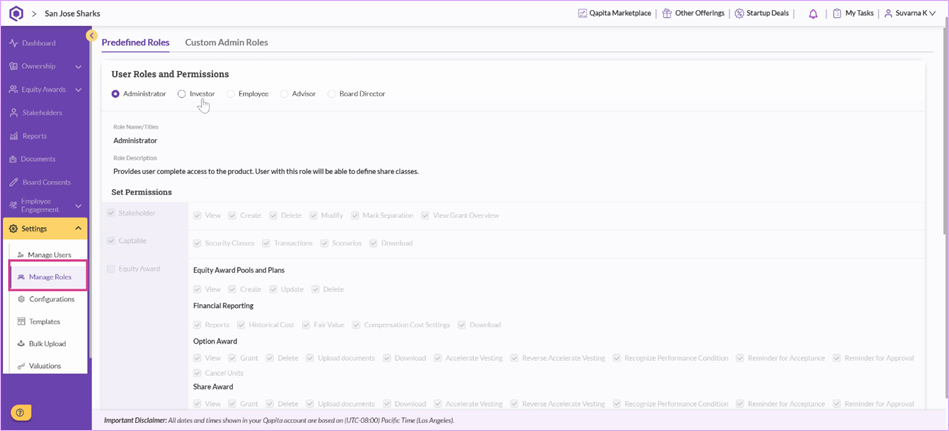
Note: Predefined roles can't be edited.
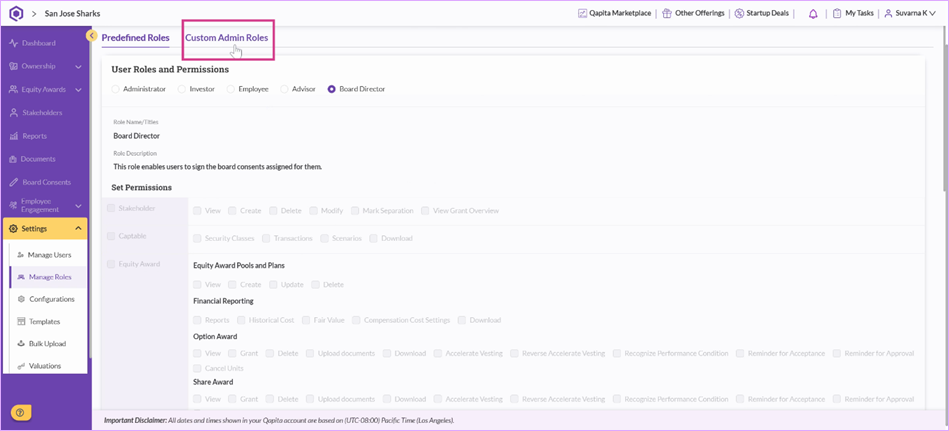
Step 2: For custom needs, create an Admin role using the custom roles tab.
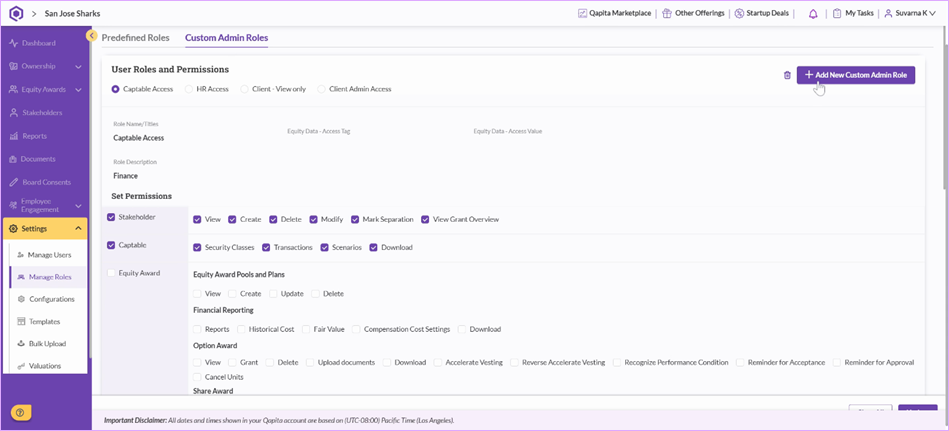
Step 3: Click Add New Custom Admin Role.
Step 4: Enter a role name, description. Once a custom admin role is created, this will be visible when you are inviting a user to the platform.
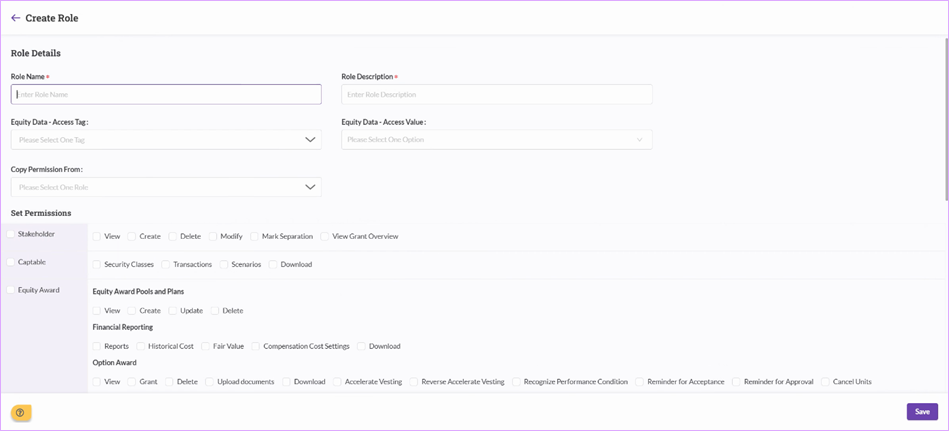
Step 5: Choose specific permissions by clicking the relevant access options.
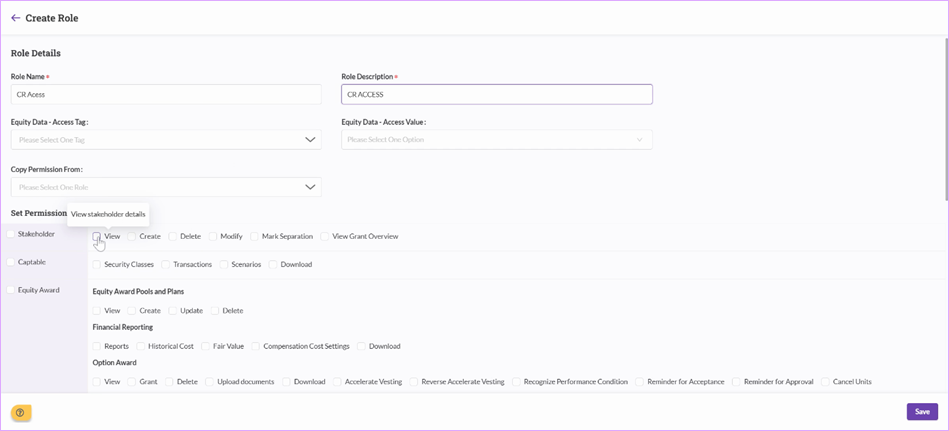
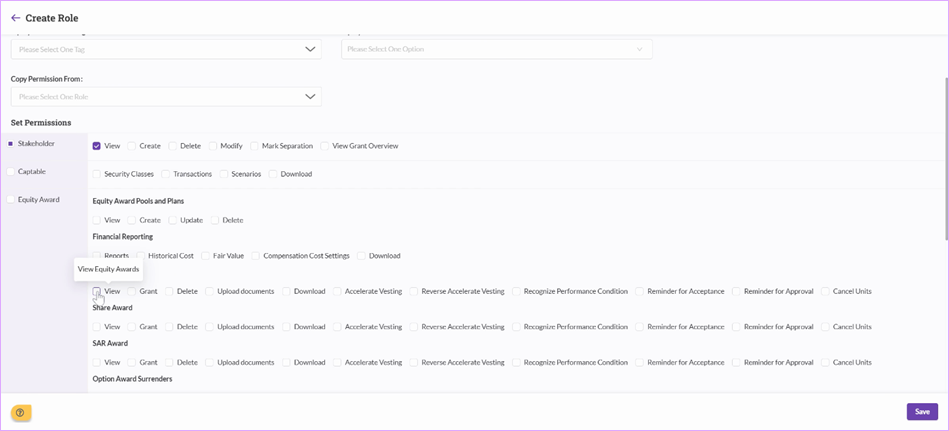
Step 6: Click Save to finish creating the new Custom Admin role.
Things to Note
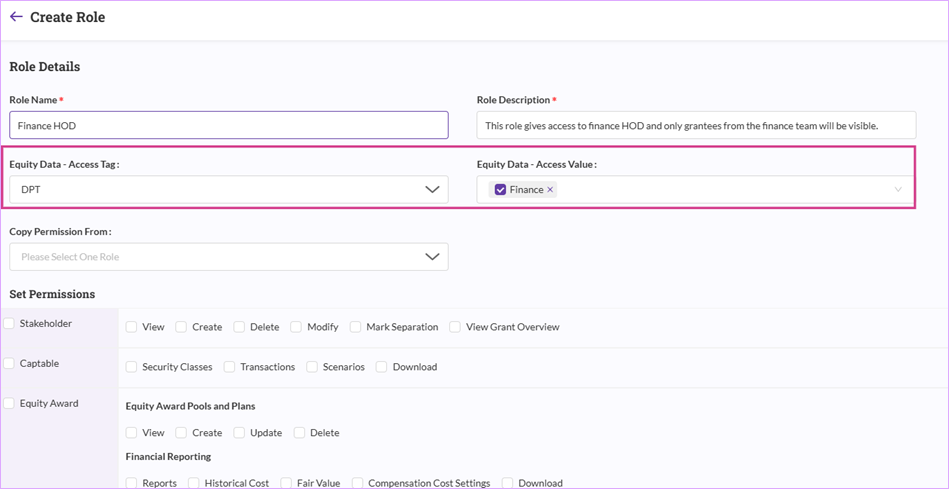
Equity Data - This field will help you to set up a custom admin at a department level.
Equity Access Tag - This field is created from stakeholder configuration section.
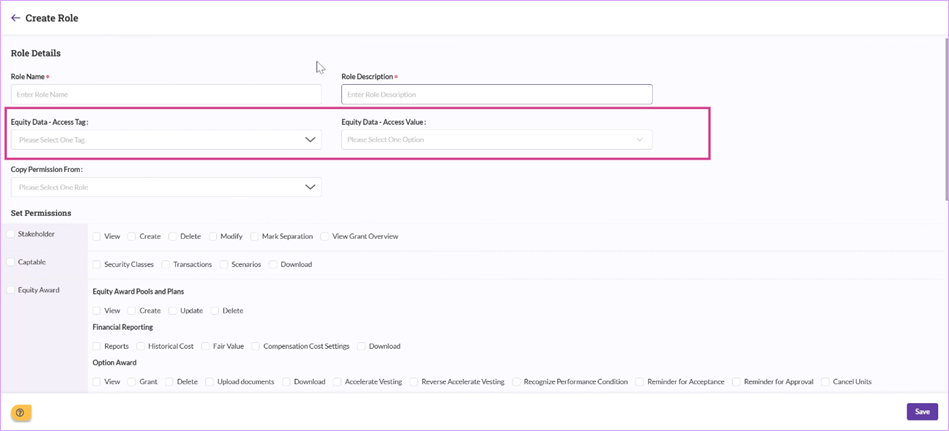
A quick example below - Equity Access should be enabled.
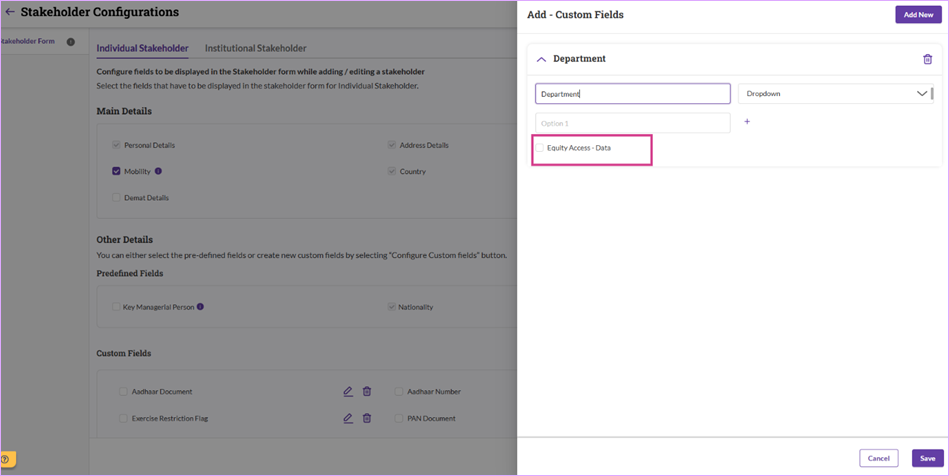
In the below screenshot:
- DPT - Indicates the stakeholder configuration field
- Finance - Indicates the department name.
If the custom admin role is shared with Finance HOD, based on the given permissions, this user will only be able to see the data of the stakeholders from the finance department.
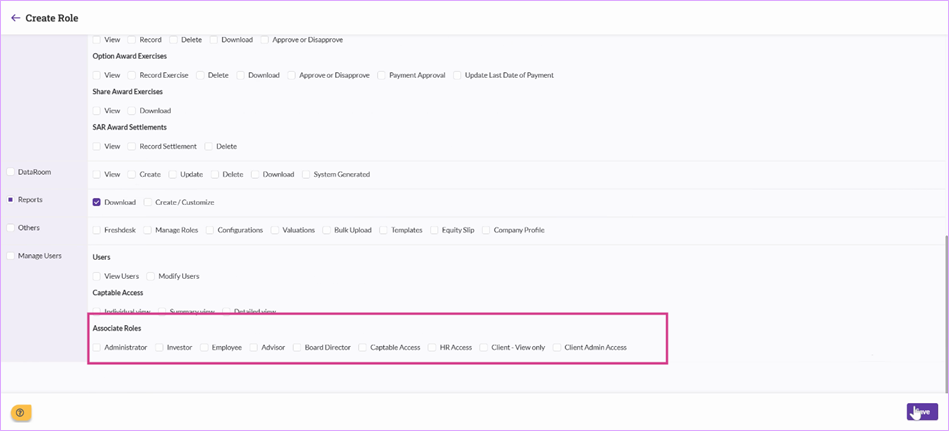
What does ‘Associate Roles’ mean? If a custom admin role is responsible in sharing system access with other stakeholders, this option will let you choose the type of role the custom admin user is allowed to select while sharing access.
You've successfully completed the process for assigning predefined or custom roles in Qapita!
Was this article helpful?
That’s Great!
Thank you for your feedback
Sorry! We couldn't be helpful
Thank you for your feedback
Feedback sent
We appreciate your effort and will try to fix the article