3.11 Vesting Management
Qapita simplifies vesting management by automatically tracking schedules, reflecting vested quantities in real time, and accommodating varied vesting types such as time-based, milestone-based, or performance-based vesting.
Accurate vesting management ensures transparency, compliance, and fair value recognition. It helps companies maintain precise accounting and gives stakeholders clear visibility into their earned ownership. Capita’s dynamic workflows also support accelerations or modifications, allowing admins to handle special cases like performance condition achievements or early vesting without manual errors or data gaps.
Creating a Vesting Template
In this guide, we'll guide you through creating a vesting schedule on the Qapita platform.
|
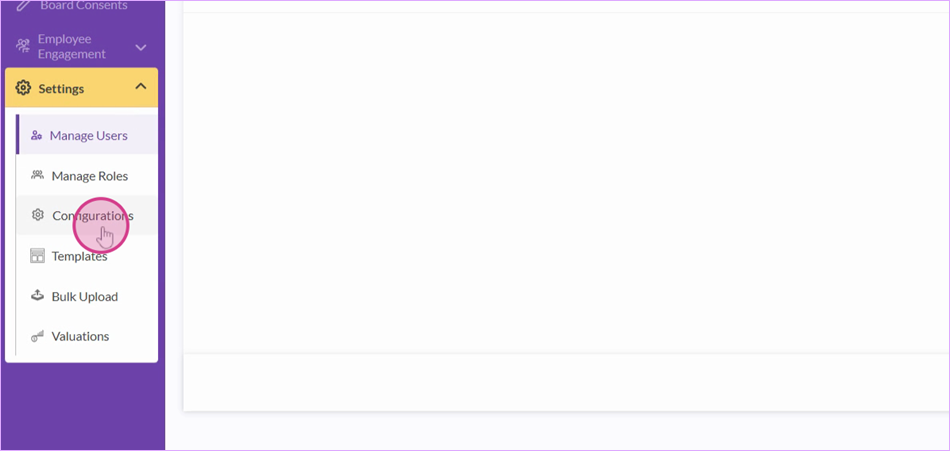
Step 1: Navigate to Configuration section under the Settings.
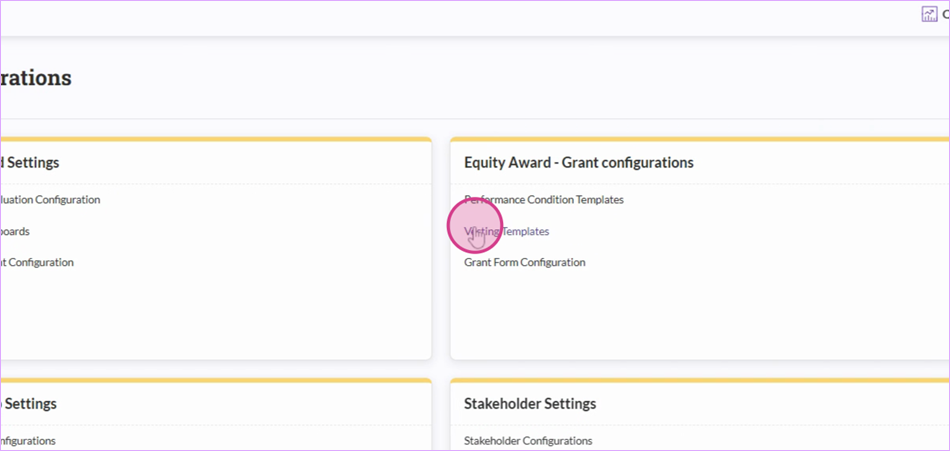
Step 2: Click on Vesting Templates.
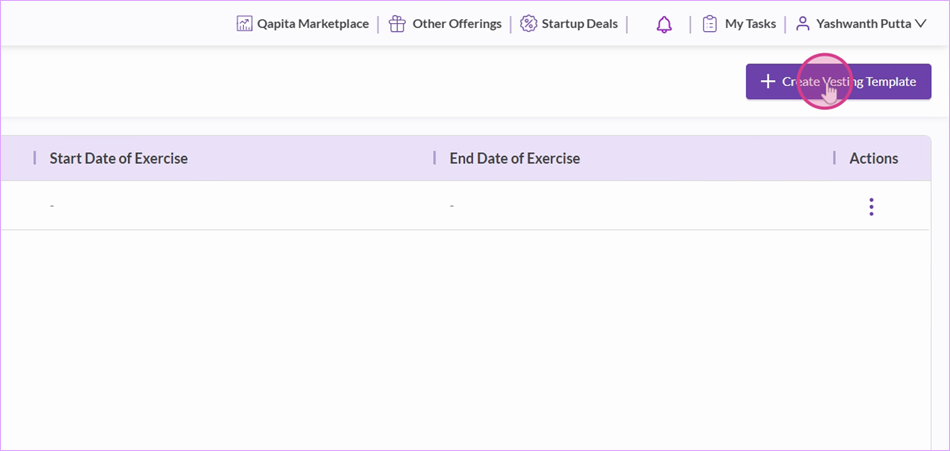
Step 3: On the right-hand side, select the Create Vesting Template option.
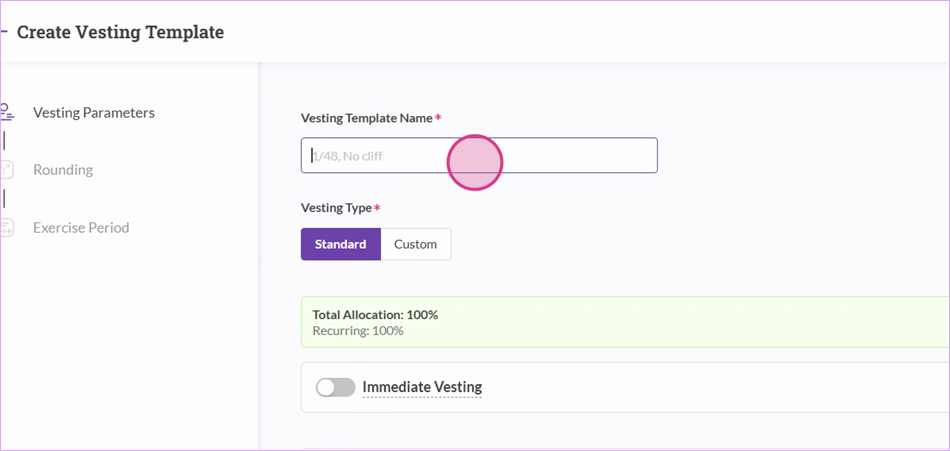
Step 4: Name your Vesting Template and choose between a standard vesting type or a custom vesting type.
Step 5: Select Immediate or Cliff Vesting and set the percentage.
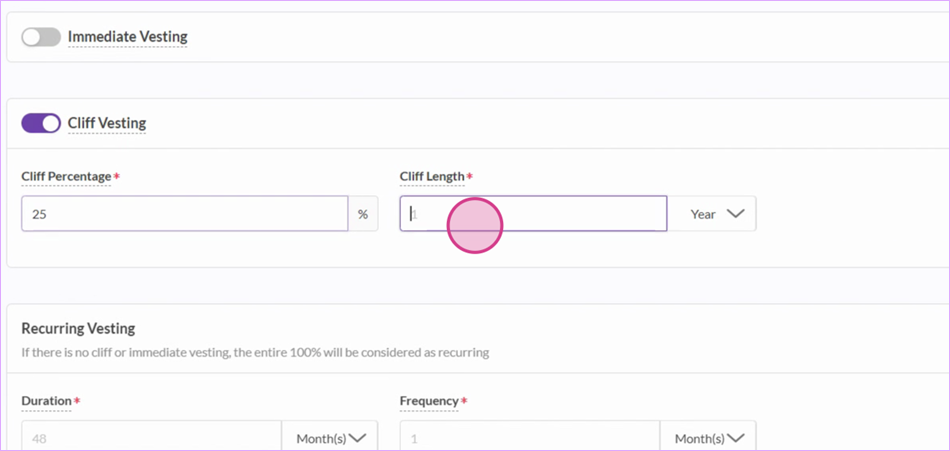
Step 6: Set the Duration and Frequency for the rest of the vesting.
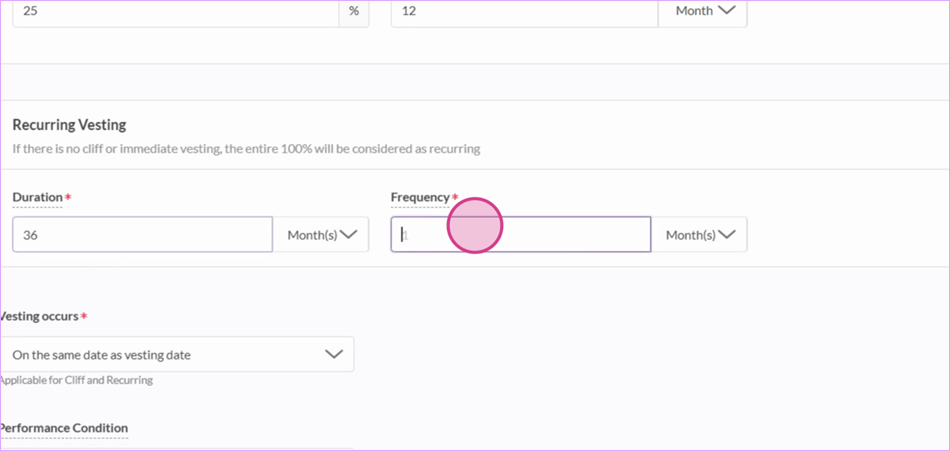
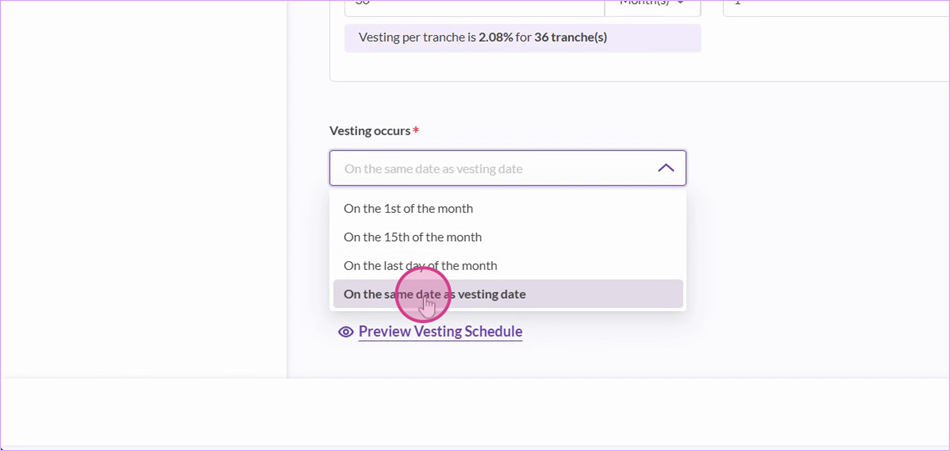
Step 7: Select when the vesting should occur.
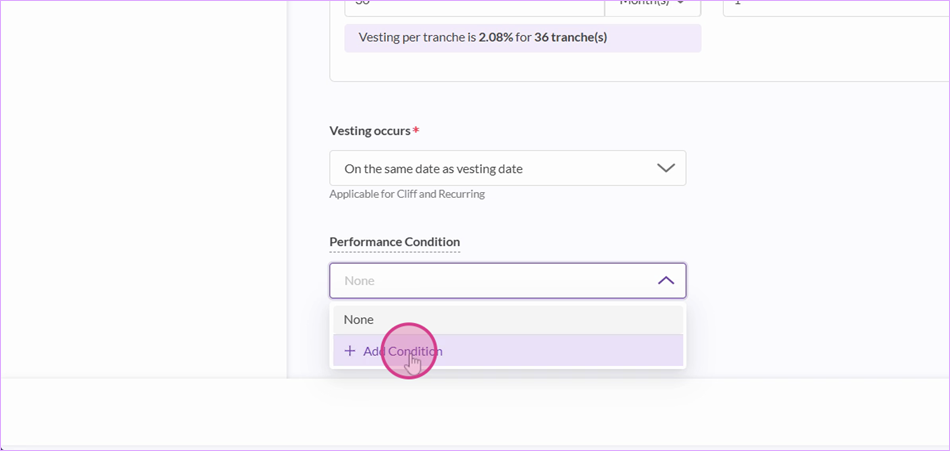
Step 8: If there are any performance conditions, add them by clicking on Add Condition and then select it from drop down.
Step 9: Preview your Vesting Template.
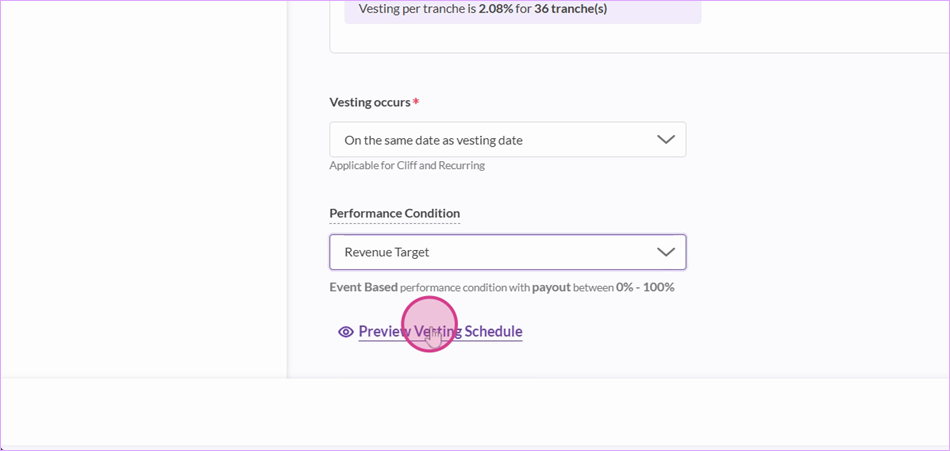
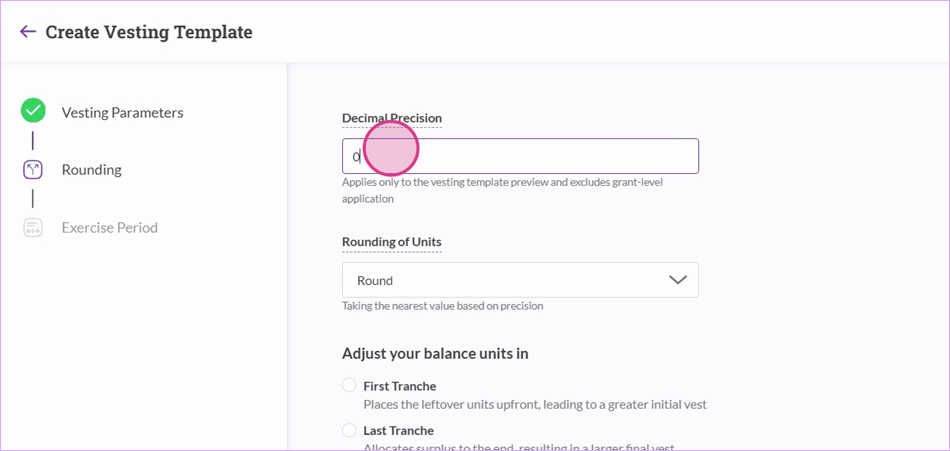
Step 10: Click on Next and set the decimal position and Rounding of Units.
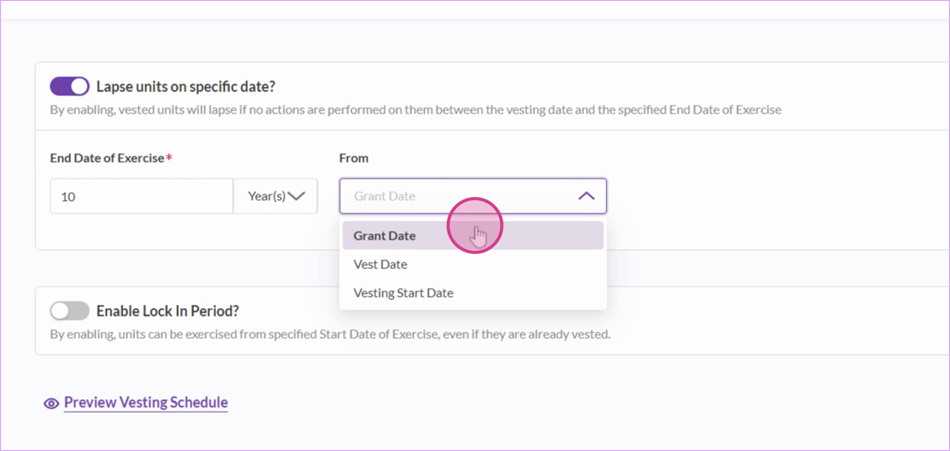
Step 11: Set the exercise period and click on Save to finalize your vesting template.
Your vesting template is created. Similarly, by following these steps, you'll be able to create multiple vesting schedules on the Qapita platform.
Recognize Performance Conditions
Next, we will cover recognition of performance conditions at the time of vesting and acceleration.
|
Step 1: Select the grant that requires performance-based vesting recognition.
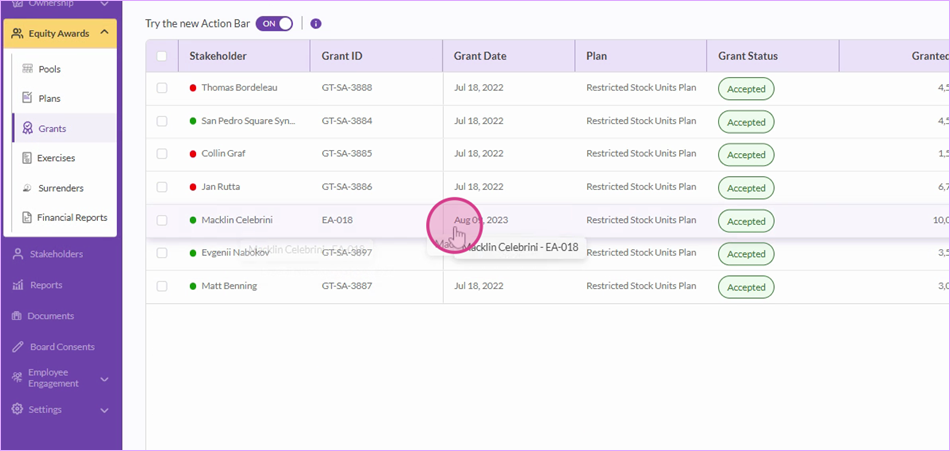
Step 2: Choose Recognize to access the vesting details for the selected grant.

Step 3: Pick the tranche you want to recognize. Set the recognition date and payout percentage. For example, if the employee has achieved 70% of the target, the system calculates 70% of 2,500 units and cancels the remaining options. Decide whether to cancel these actions or transfer them to future vesting periods.
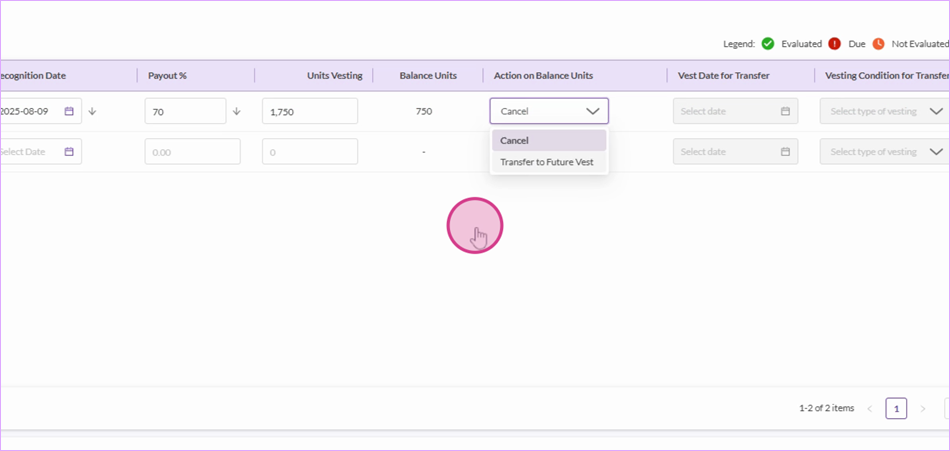
Step 4: Click Recognize Performance Condition.
Step 5: Confirm the recognition of the performance condition. A success message appears upon completion.
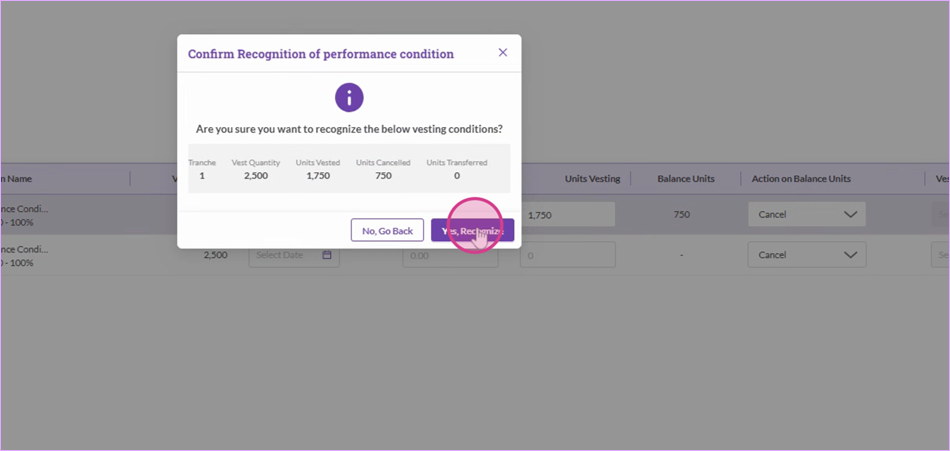
Accelerate Vesting
Step 1: Select the grant, then choose Accelerate Vesting as the action.

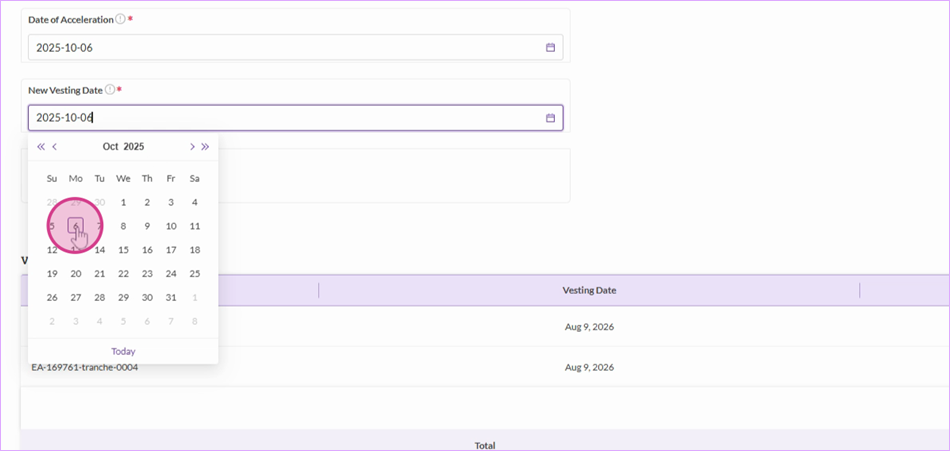
Step 2: Enter the acceleration date and set the new vesting date.
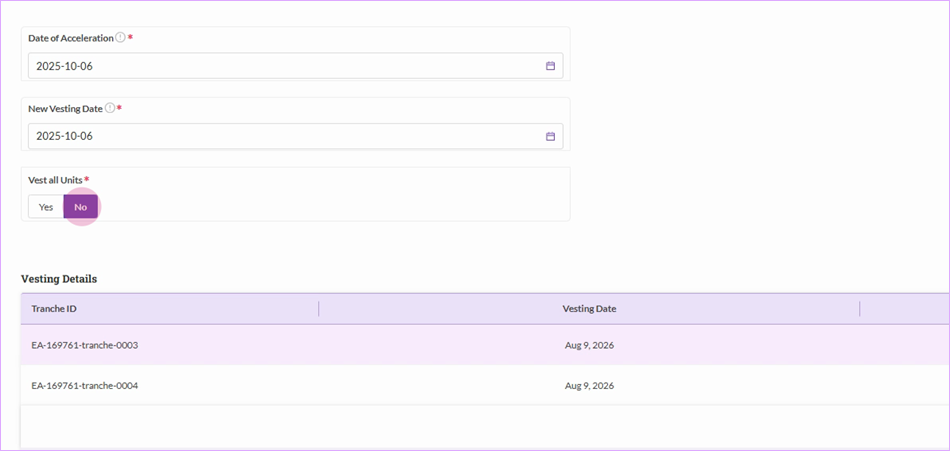
Step 3: Determine whether to vest all or a portion of the units. If vesting part, enter the number of units to accelerate in the provided field.
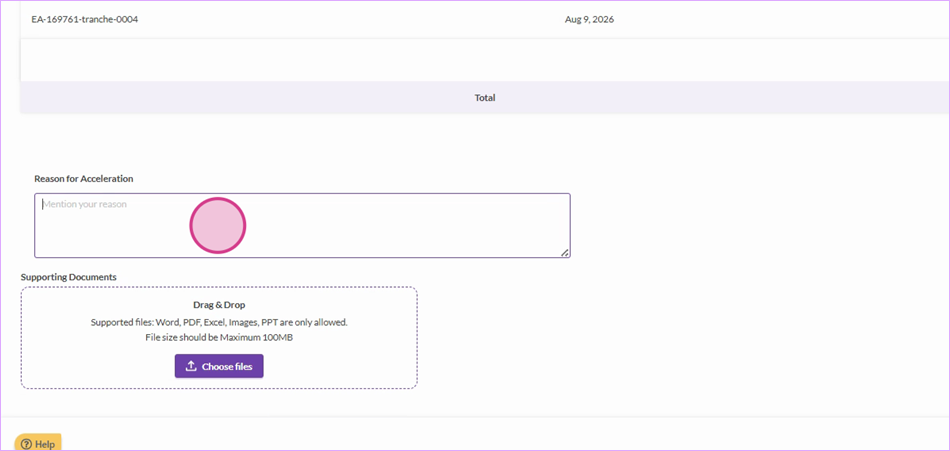
Step 4: Add a reason for acceleration and upload any supporting documents. Click Accelerate Unit to finalize.
Was this article helpful?
That’s Great!
Thank you for your feedback
Sorry! We couldn't be helpful
Thank you for your feedback
Feedback sent
We appreciate your effort and will try to fix the article