3.5 Employee Offboarding
Qapita offers a structured termination workflow with HRMS integration. Admins can manually record or review terminations with effective dates and reasons. The system stops or prorates vesting, applies forfeitures, calculates post‑termination exercise windows and triggers employee notifications. HRMS events can flow in automatically and apply terminations to stakeholders with audit trails keeping the cap table, and reports in sync.
|
Employee Termination
This article guides you through the process of marking a stakeholder termination on the Qapita platform.
The Qapita platform can be integrated with your HRMS to automatically update details such as termination dates and reasons for termination. You can also pull custom details from your HRMS. If Qapita is not integrated with your HRMS, you need to manually mark the employee as terminated on the platform.
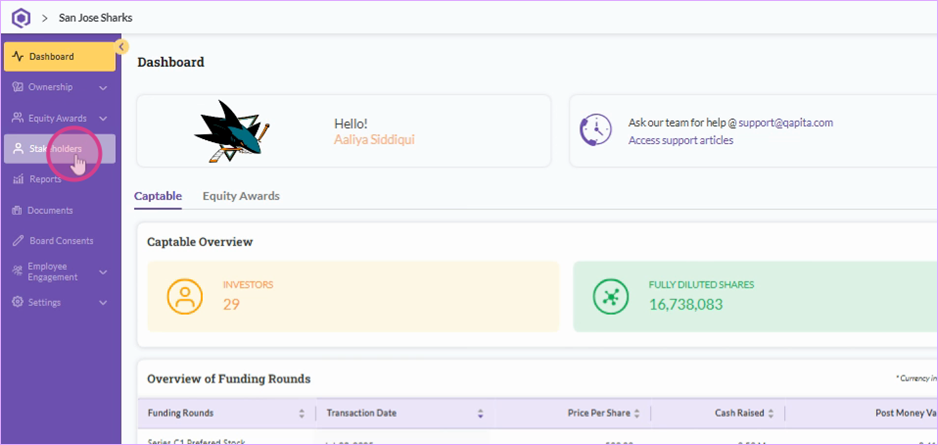
Step 1: Start by navigating to the Stakeholders section on the Qapita platform.
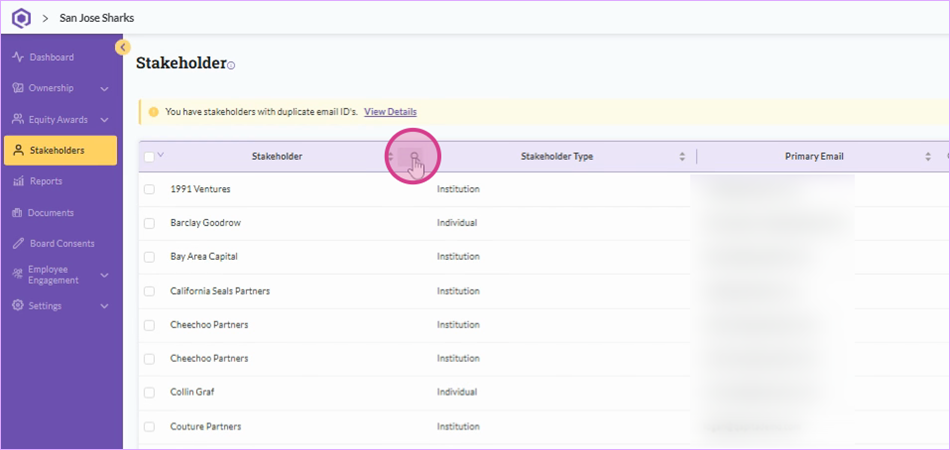
Step 2: Identify the stakeholder to be marked as terminated. In this example, we're marking Will Smith as terminated.
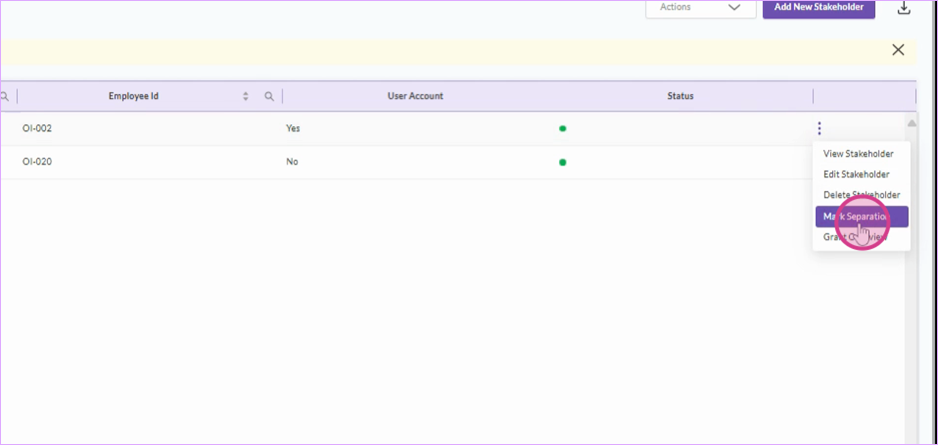
Step 3: Click on the three dots next to the employee's name and select Mark Separation from the dropdown menu.
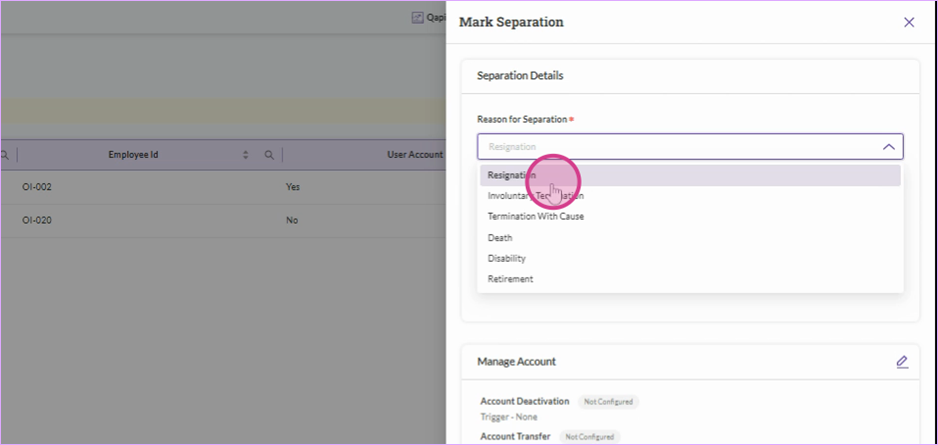
Step 4: Choose the reason for termination/separation. This is crucial as it determines the rules for vested and unvested stock options.
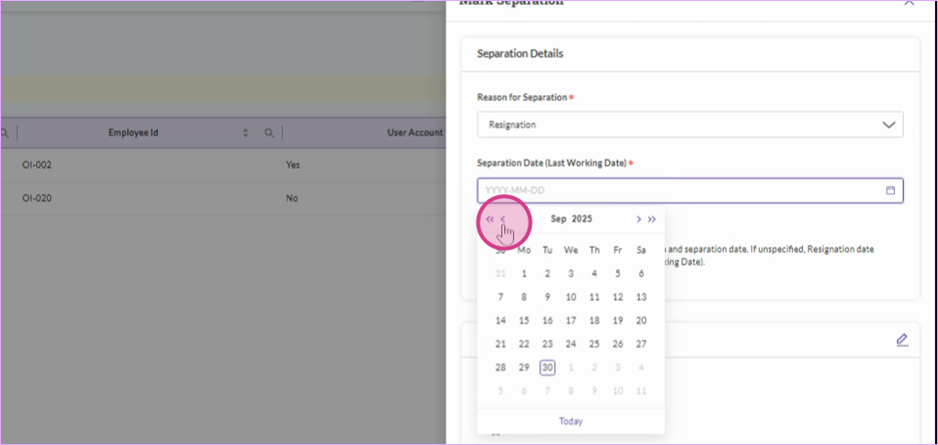
Step 5: Next, input the termination date.
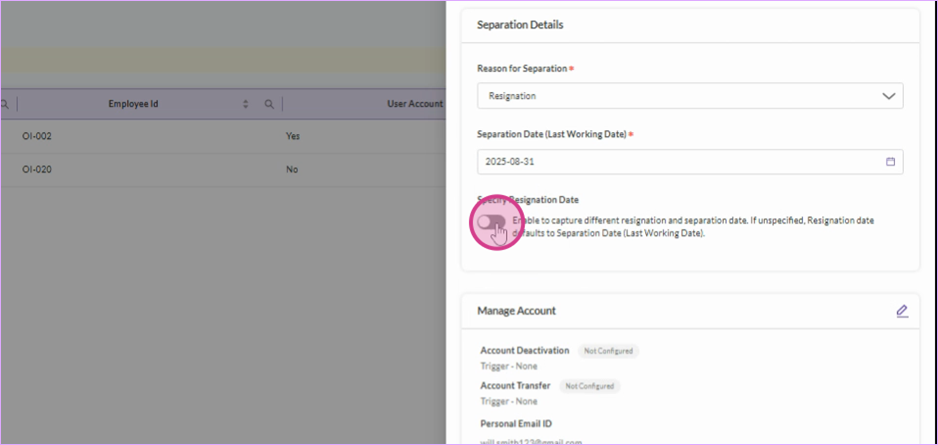
Step 6: If necessary, add a resignation date. This is the date the stakeholder put down the papers or submitted resignation, while the termination (LWD – Last Working Date) is when the employee officially leaves the company.
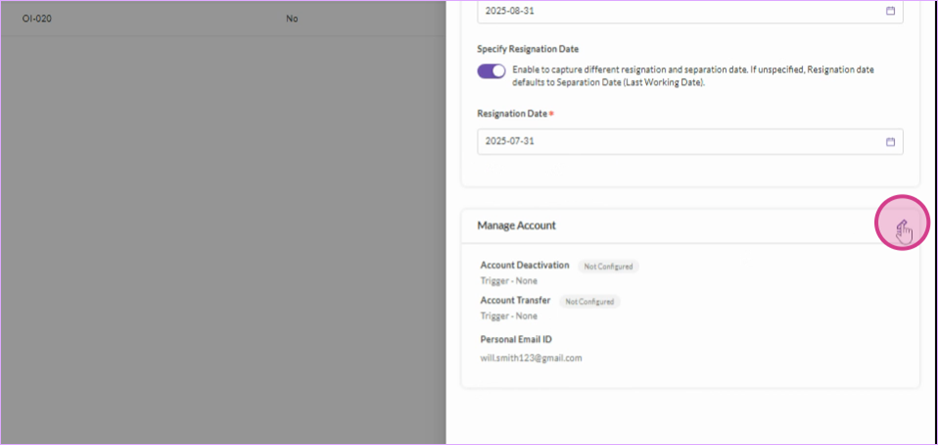
Step 7: Navigate to Manage account. This feature allows you to manage the stakeholder account post-termination.
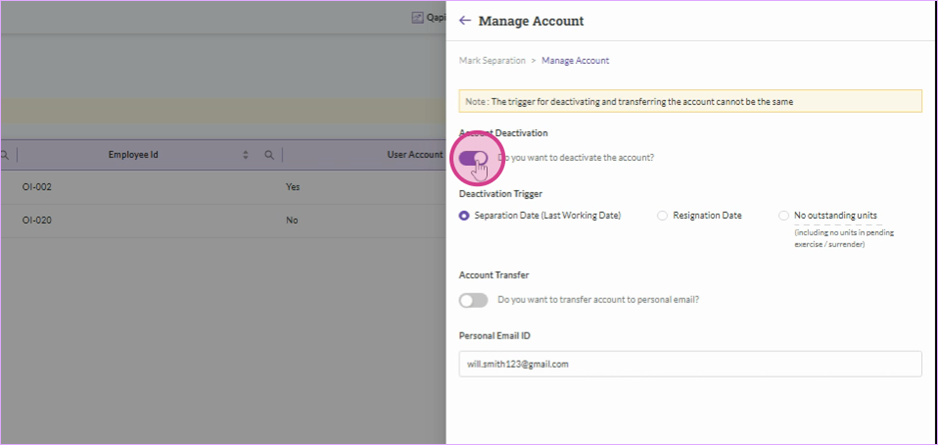
Step 8: If you want to deactivate their account, enable the Account Deactivation. You can choose to do this either on the separation date or the resignation date.
Step 9: If you want to transfer their account to their personal email address. Enable Account Transfer, select the date and add their personal email address.
Companies usually prefer to transfer the account if the employee is holding any outstanding shares or stock options.
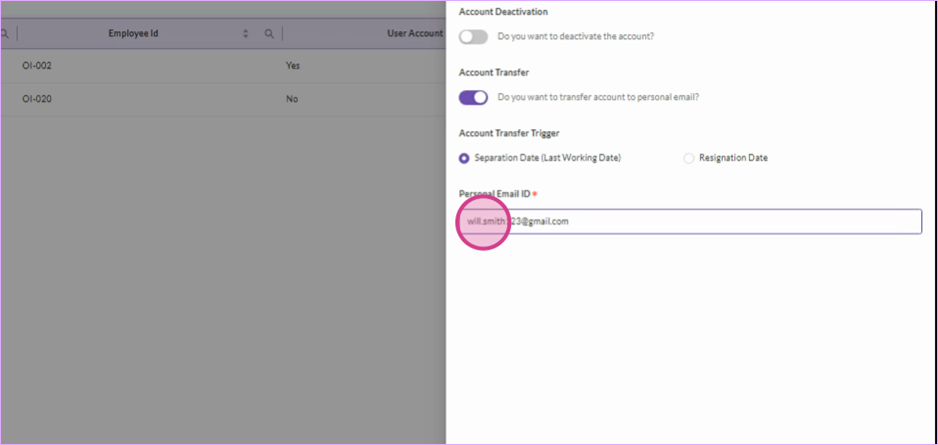
Step 10: After making your selection, click Save and then Mark separation. The employee will receive a notification of their termination/separation and, if applicable, an invitation to the Qapita platform via their personal email.
The status icon will change to Red from Green when a stakeholder is marked terminated.
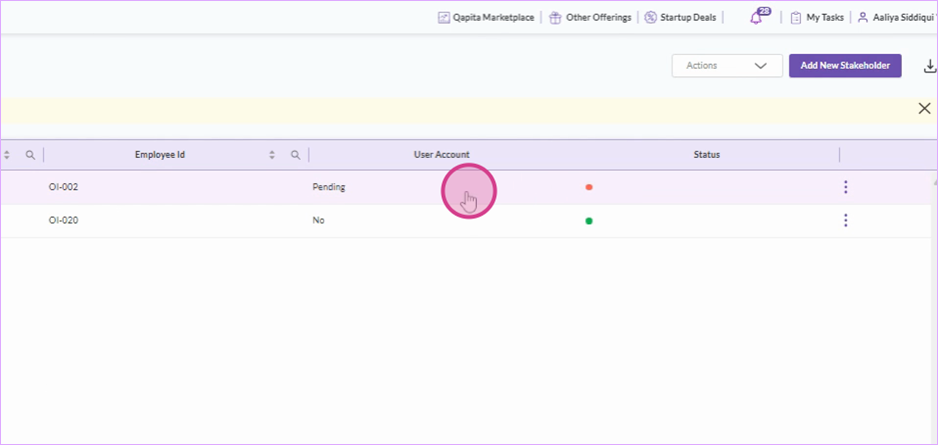
And that's it! You've successfully marked an employee's separation on the Qapita platform.
Was this article helpful?
That’s Great!
Thank you for your feedback
Sorry! We couldn't be helpful
Thank you for your feedback
Feedback sent
We appreciate your effort and will try to fix the article