3.6 Employee Communication
Effective employee communication is crucial for fostering engagement, transparency, and understanding, especially regarding complex topics like stock plans. To facilitate this, you can use the system to trigger email notifications to participants. Furthermore, there is a data room to serve as a centralized hub for communication, allowing for tailored information sharing with different groups of stakeholders.
Below are the detailed steps on how you can use the system for the above functions.
|
Data Room
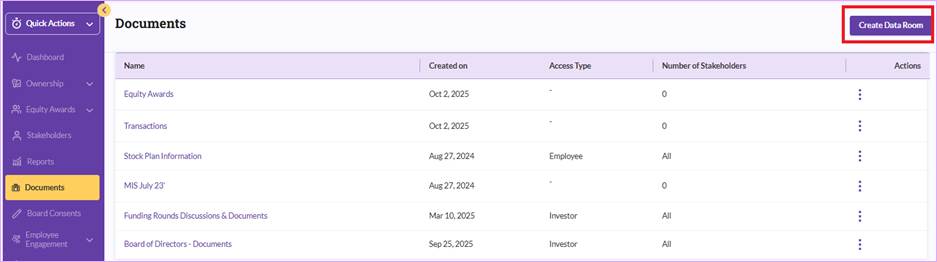
Step 1: Navigate to the Documents section in the left menu, you can then create a data room by clicking the “Create Data Room”.
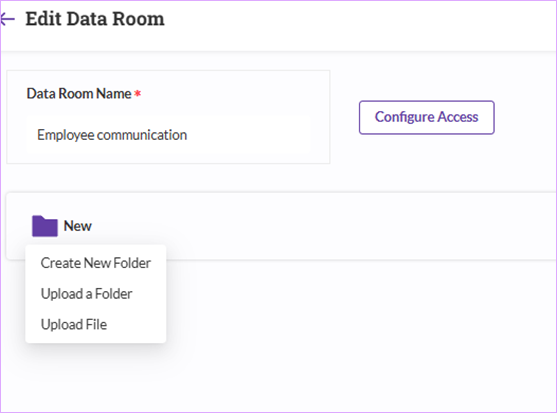
Step 2: Name your data room and upload any necessary documents or folders.
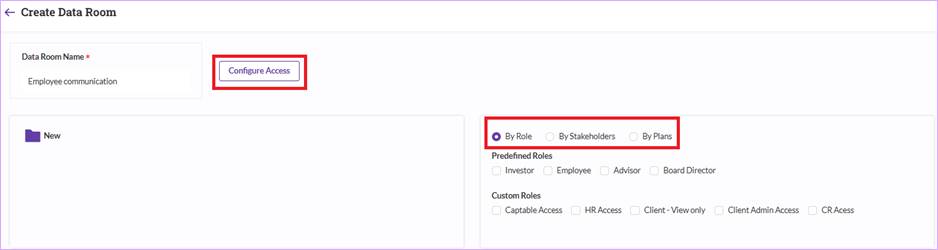
Step 3: Click on “Configure Access” to limit certain group of stakeholders to access the folder. There are three methods to do this – you can configure this by Role, Specific Stakeholders or Stock Plan.
Step 4: Once the configuration is finalized, click on “Create Data Room”.
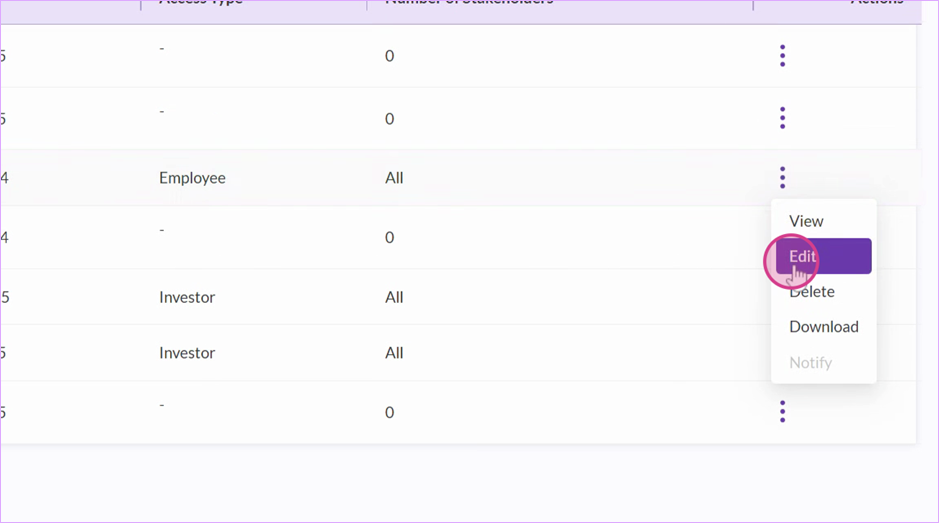
Step 5: If you need to make changes to a previously created data room, click on the three dots and select Edit - you will have the ability to upload or delete documents.
You can also use Qapita to send reminders to employees. There are 2 common reminders: Qapita Account Activation and Grant Letter Acceptance.
Account Activation Reminders
Users need to activate their accounts when they got first invited to Qapita Platform. Without activating their accounts, they won’t be able to log into Qapita.
Step 1: To send reminders to employees who haven't activated their accounts, go to Settings, then Manage Users, and finally Pending Invitations tab. Select all employees that you would like to notify and click on Send Reminder.
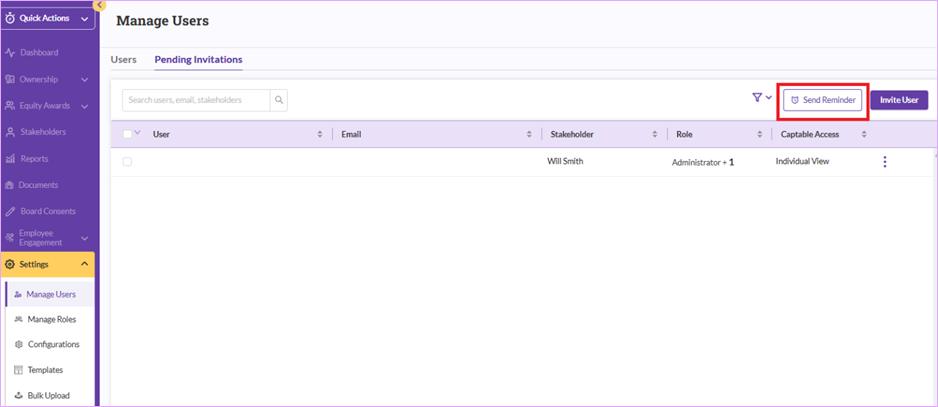
Once the stakeholder has activated his or her account, the user’s profile will move from “Pending Invitations” to “Users”.
Grant Agreement Acceptance Reminders
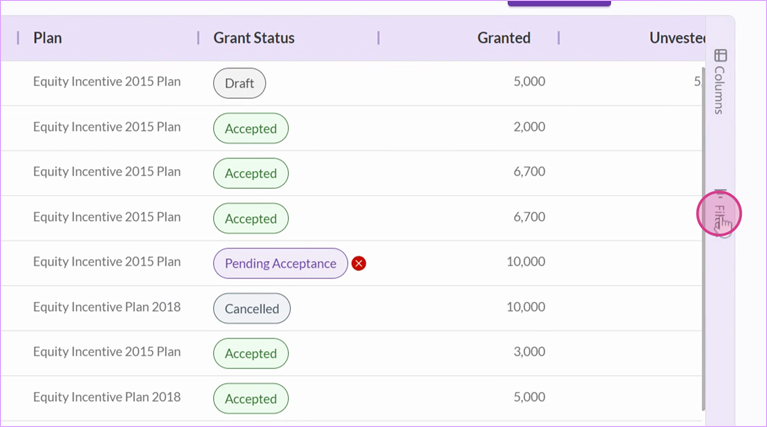
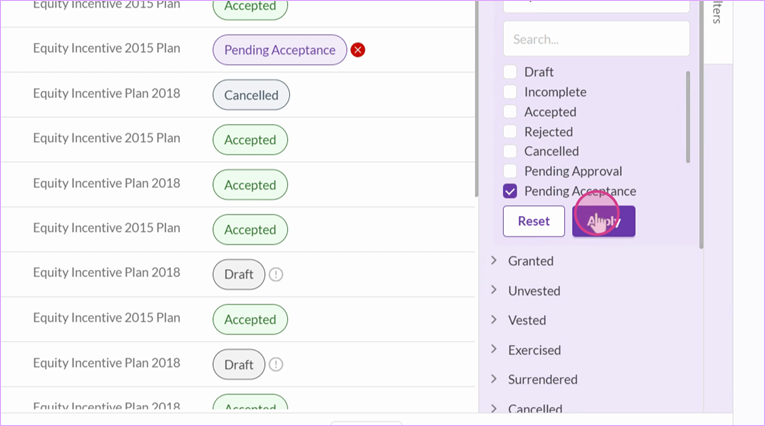
Step 1: To send reminders to employees who haven't accepted their grant agreements, go to Equity Awards, then click on Grants. Use the filters to select awards with Pending Acceptance grant status and click Apply. Select all grants and click on Send Reminder.
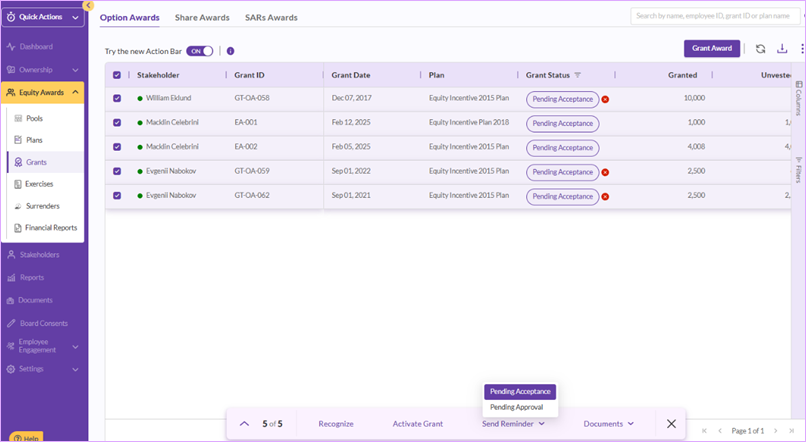
You can follow the exact same process to reminder authorized company personnel to approve the grants before they are released to plan participants for acceptance.
Email Notifications Configuration
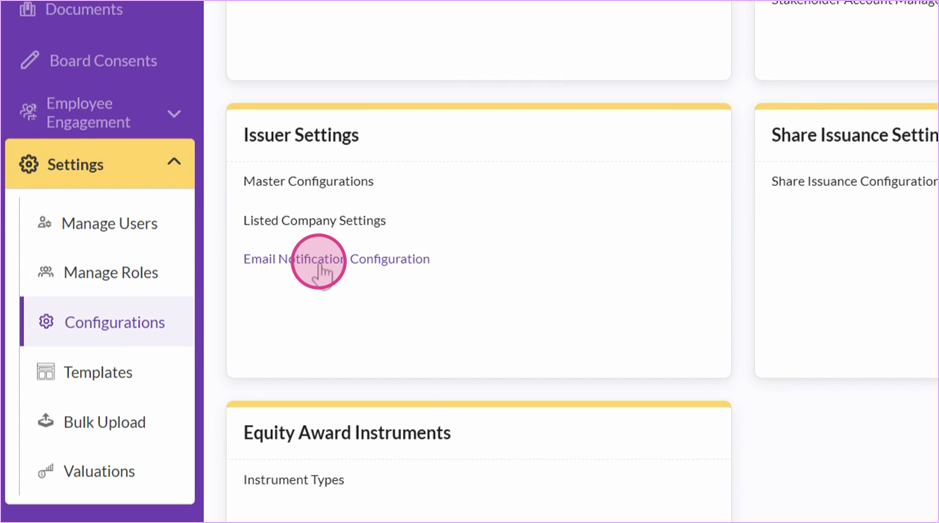
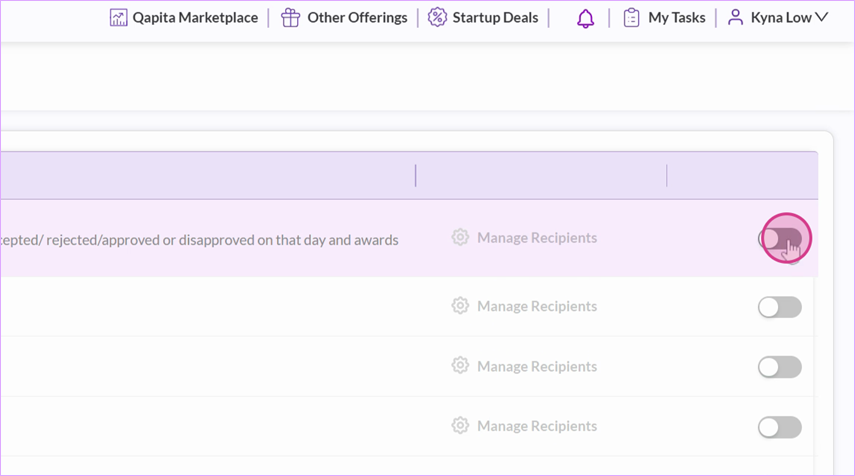
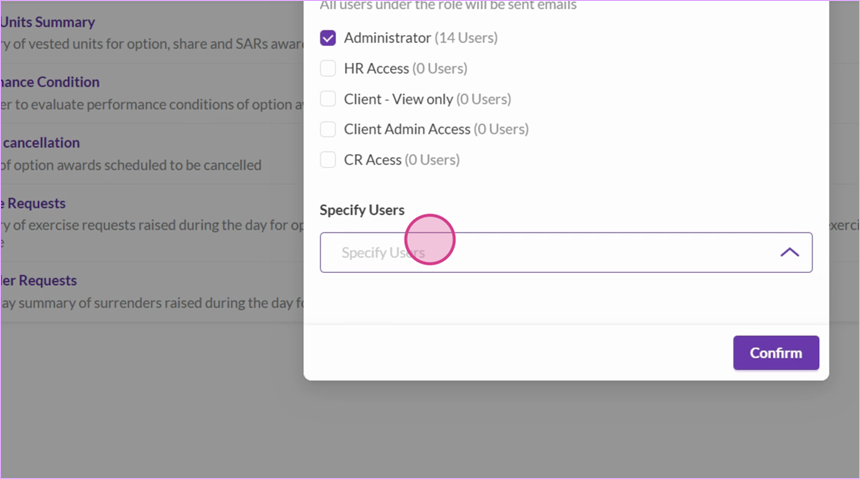
Step 1: To manage email notifications, go to Settings, then Configurations, and finally Email Notifications Configurations. Here, you can enable or disable notifications and select recipients.
Things to Note
Currently, customizing email notifications requires backend support. However, a future feature will allow you to configure these email templates from the user interface. Stay tuned for this update or reach out to support@qapita.com for any help!
Was this article helpful?
That’s Great!
Thank you for your feedback
Sorry! We couldn't be helpful
Thank you for your feedback
Feedback sent
We appreciate your effort and will try to fix the article