3.9 Reporting
Extracting raw data and transforming it into reports is crucial for gaining insights into stock plans. This process enables HR teams to effectively manage, analyze, and communicate the impact of stock plans on compensation, retention, and overall employee engagement.
Qapita can extract raw stock plans’ data from various standard reports. Users can also leverage this capability to create customized reports, tailoring the output to meet their specific reporting and analytical needs.
The following showcases Qapita's reporting feature to extract standard reports and create custom reports.
|
Generating Standard Reports
Step 1: Access the standard reports by clicking on the Report option in the left menu, and you will see the list of standard reports available.
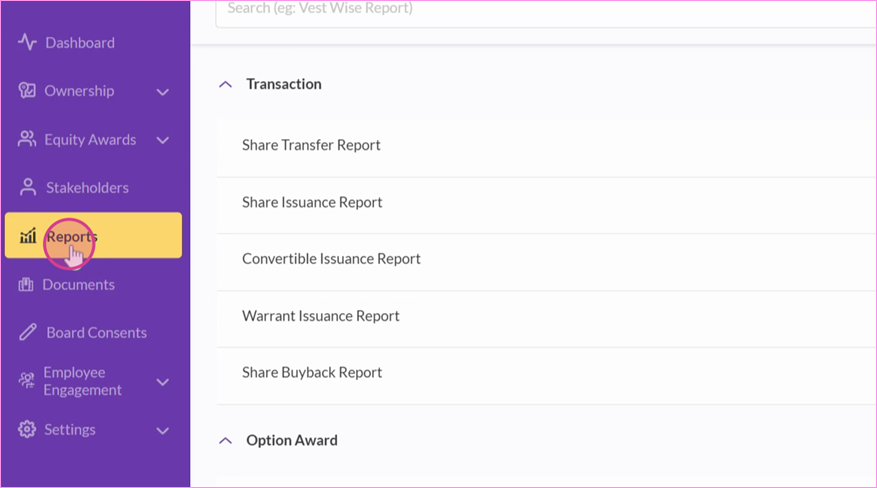
Step 2: Choose the report that suits your company's needs. Click on the Generate button for the report you want to generate.
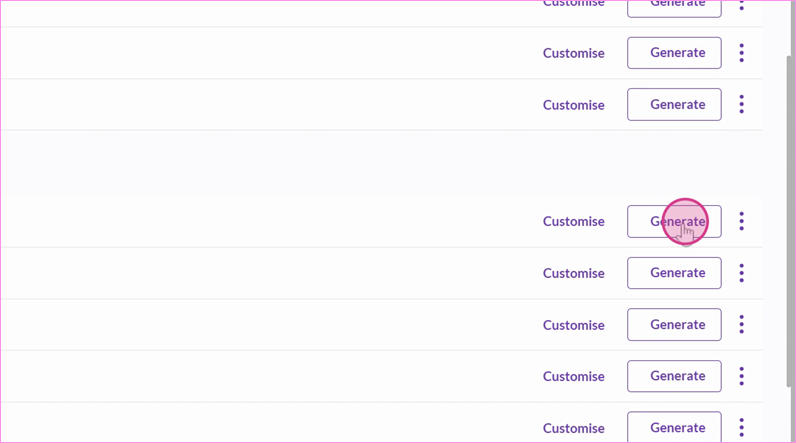
Step 3: Select the report date for the report and click on Generate.
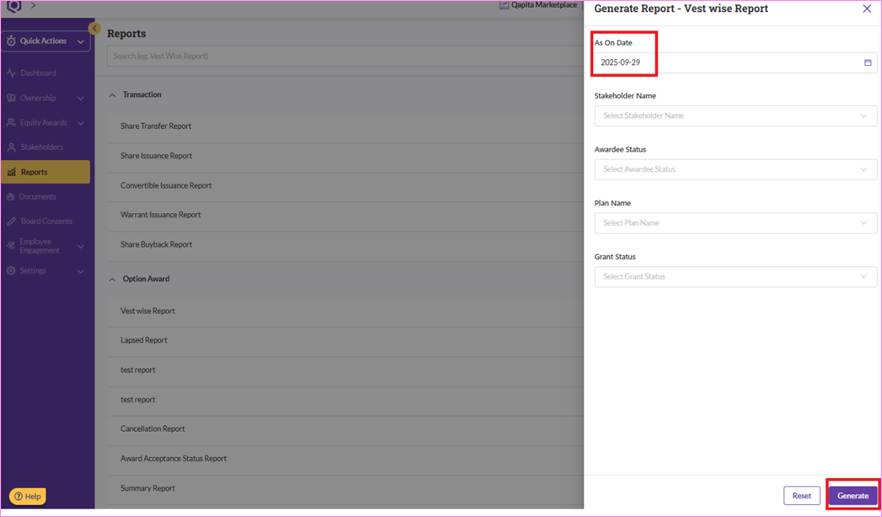
Note: You can also filter the report by stakeholder, status, or plan name. If you would like to download the full report (without filter), simply leave these fields blank.
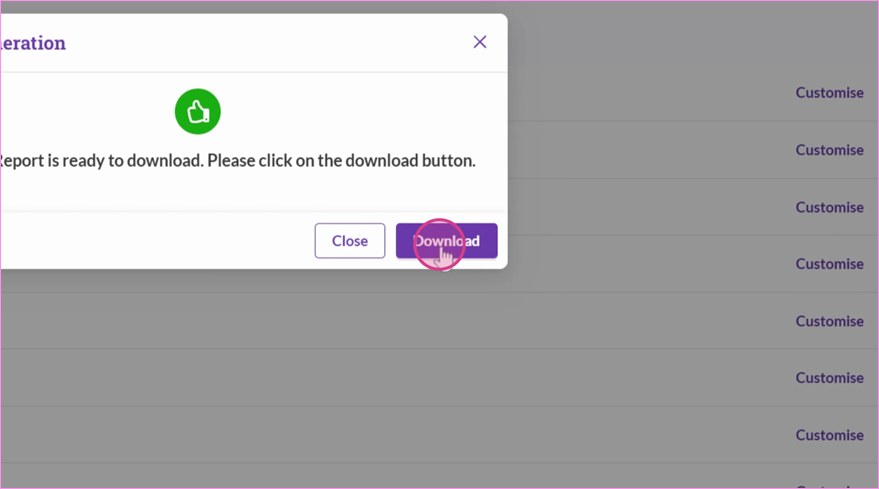
Step 4: Once the report is ready, download it by clicking the Download button.
Creating Custom Reports
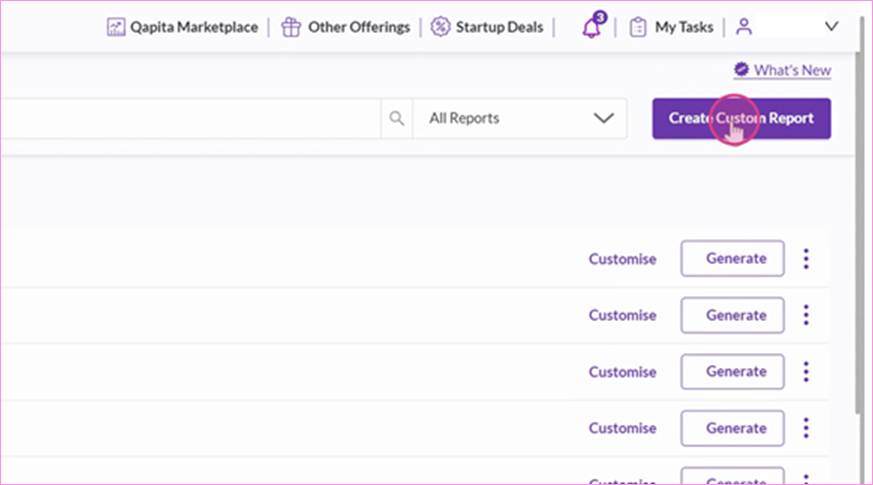
Step 1: If you want to create a custom report, click on Create Custom Report.
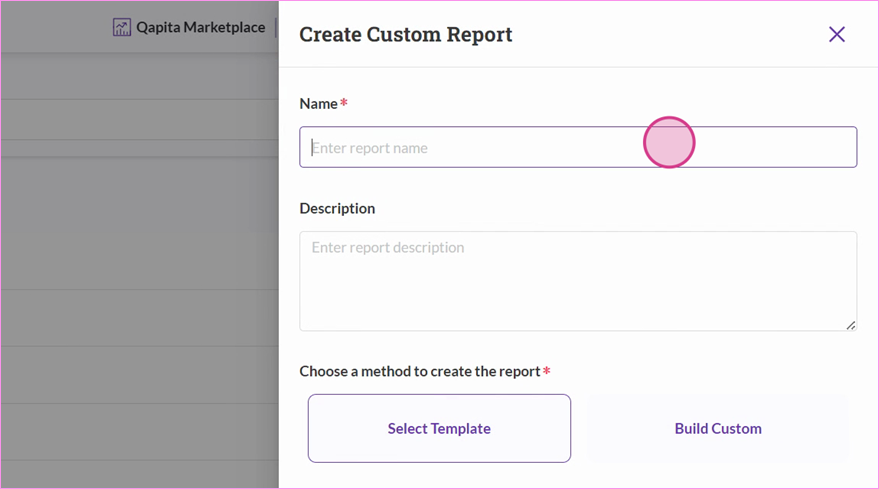
Step 2: Name your custom report and add description (optional).
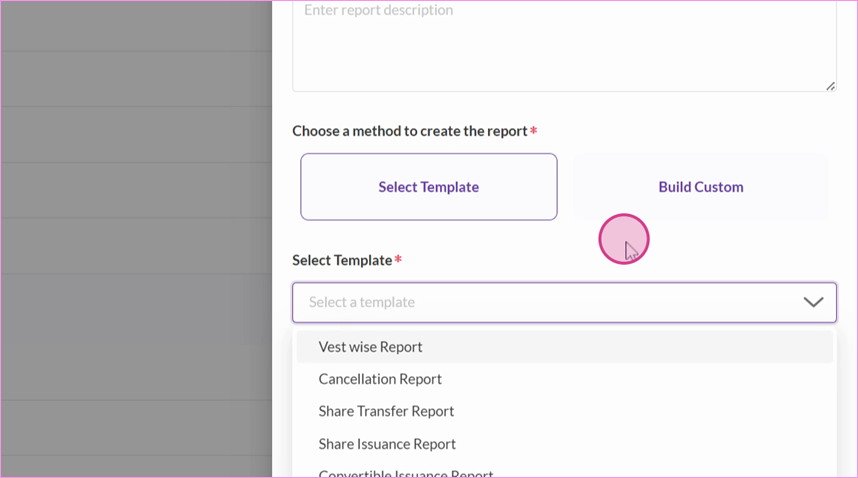
Step 3: You can create your custom report by selecting from existing templates or building from scratch.
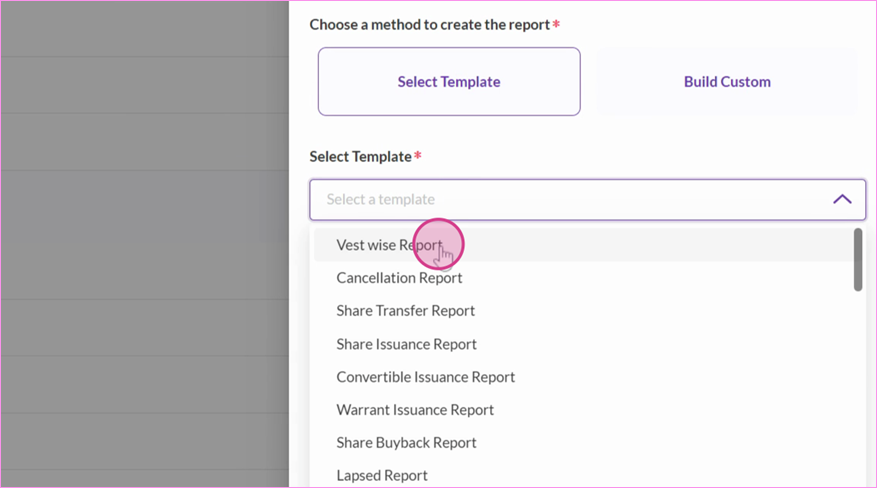
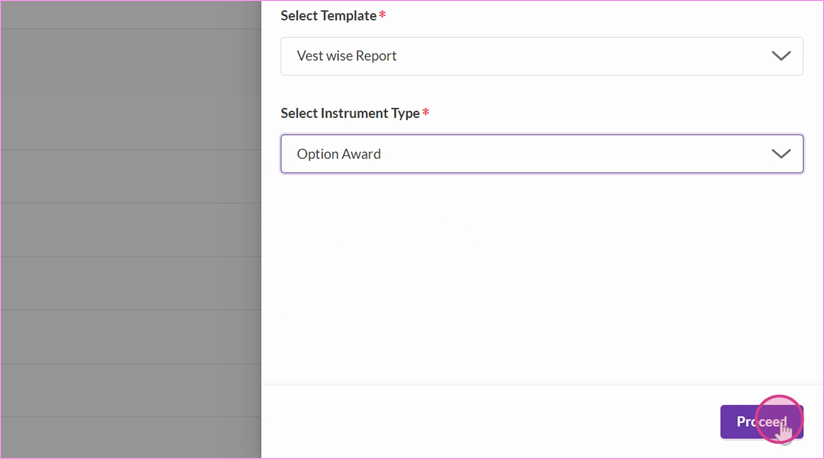
Step 4: Select the existing template or information you want to include in your report.
Step 5: Once you've made your selections, click on Proceed.
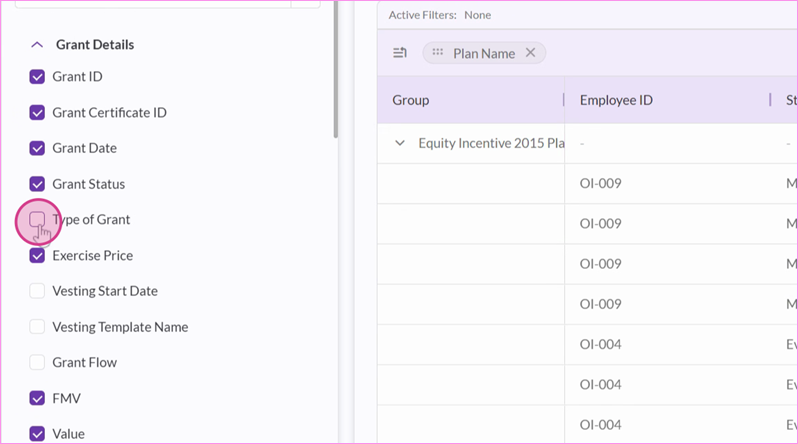
Step 6: On the next page, choose which data to include or exclude by ticking or unticking the boxes.
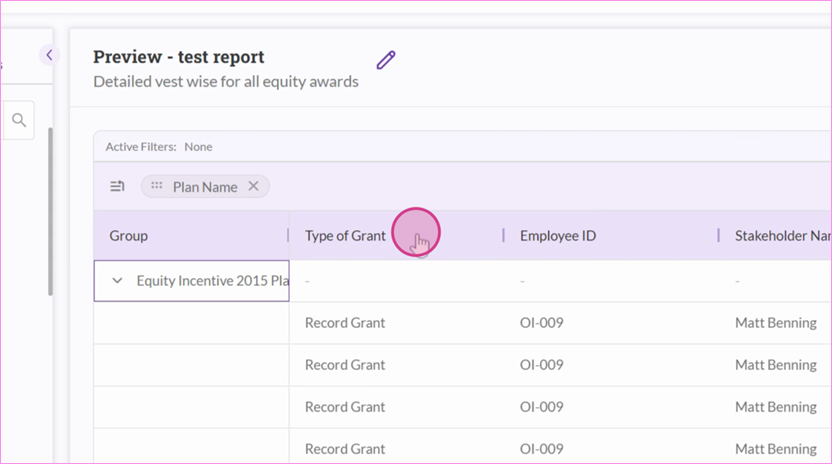
Step 7: If you want to change the sequence of columns, simply drag them to the desired position.
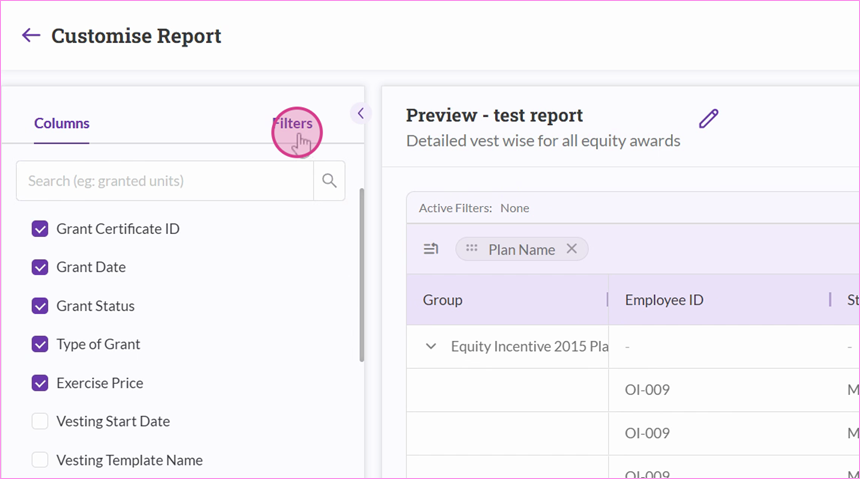
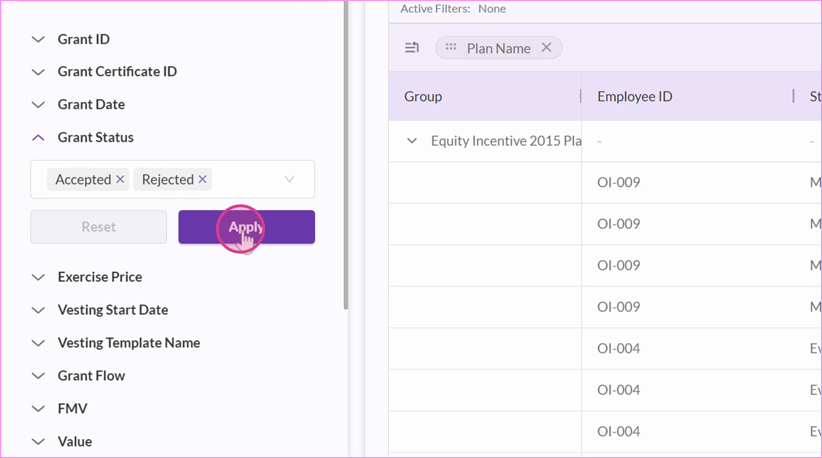
Step 8: You can also apply filters by clicking on the filters button and selecting the categories you want to include. Click on Apply once you've applied the filters.
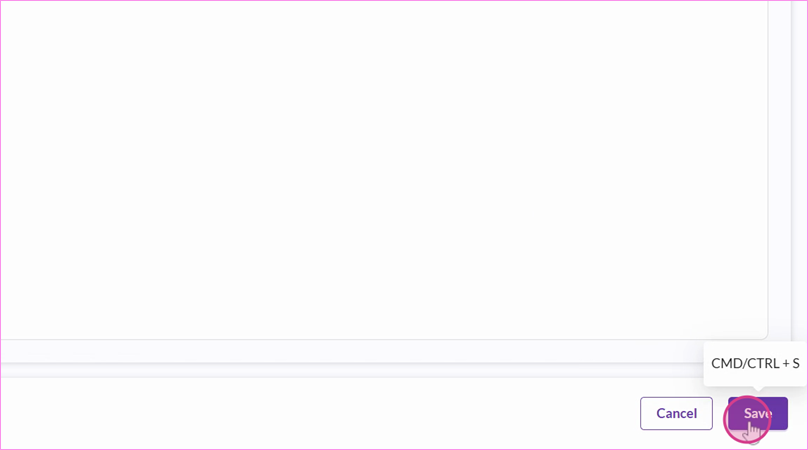
Step 9: Save your custom report by clicking on Save.
Things to Note
Once the custom report template is created, it will be saved, and you can download it with different dates without needing to create the same template again.
Was this article helpful?
That’s Great!
Thank you for your feedback
Sorry! We couldn't be helpful
Thank you for your feedback
Feedback sent
We appreciate your effort and will try to fix the article