3.13 Managing Cash-settled Transactions
Cash Settlement
Cash settlement in stock plan allows participants to receive a cash payout via payroll for their vested stock options or shares, based on the current market value, instead of taking physical shares. This provides liquidity and simplifies equity management for both participants and companies.
Note that cash settlement is called "surrender" in Qapita, referring to participants relinquishing their vested stock plan rights for a cash equivalent.
Cash Settlement
There are two ways to record cash settlement/surrender transactions in Qapita:
- Company-initiated Cash Settlement/Surrender: Administrators log offline cash settlement/surrender agreements into Qapita, updating the transaction to maintain precise transaction records.
|
- Participant-initiated Cash Settlement/Surrender: Participants access their Qapita account to submit a cash settlement/surrender request, initiating an automated approval process. Upon approval, the system computes payouts, and updates records efficiently.
|
Admin-initiated Cash Settlement
The detailed steps below guide you on how to record Cash Settlement on behalf of participant as an admin.
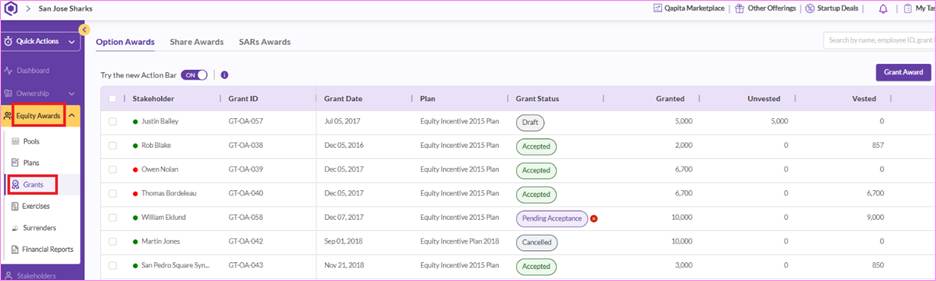
Step 1: Navigating to the Equity Awards > Grants.
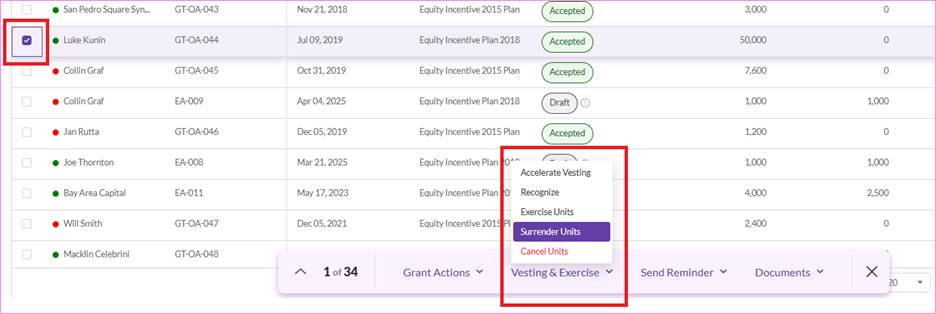
Step 2: Select the grant that you would like to record as cash settlement, click on Vesting & Exercise, and then select Surrender units.
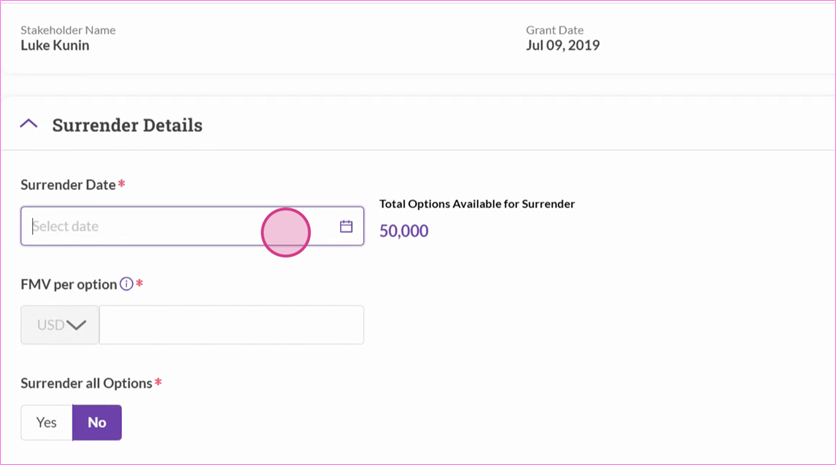
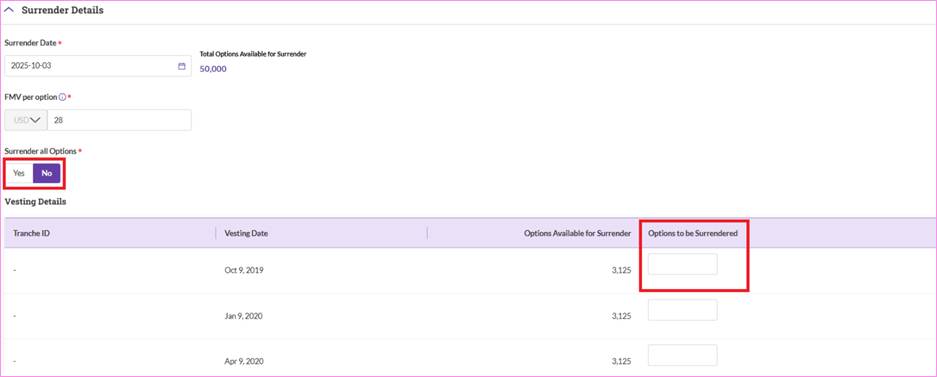
Step 3: You will need to choose the cash settlement/surrender date, FMV per option and number of units to be cash settled.
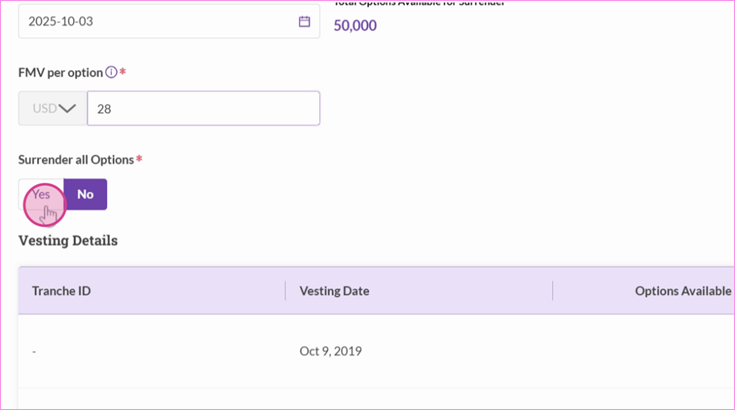
Step 4: Click on “Yes” if you want all the vested awards to be recorded as cash settled. Alternatively, you can select “No” and key in the number of units you would like to consider as cash settled.
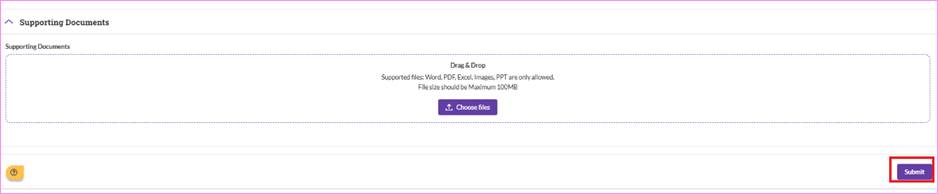
Step 5: You can then upload any supporting documents and click on Submit.
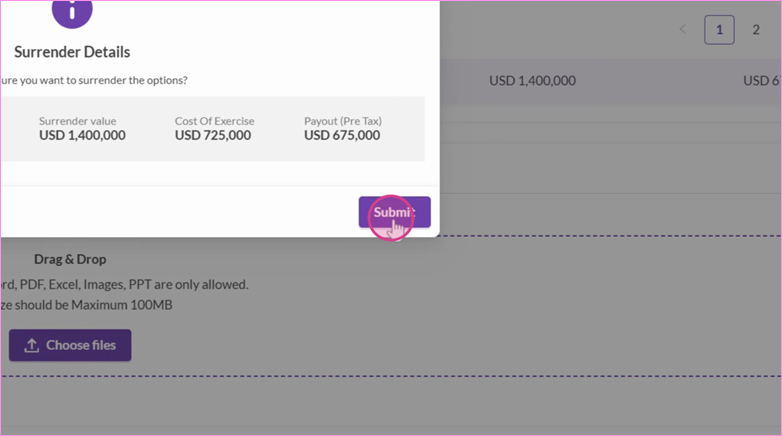
Step 6: You will be asked to reconfirm the settlement details.
Participant-initiated Cash Settlement/Surrender (Admin’s POV):
The detailed steps below will guide you on how to set up the Cash Settlement workflow on Qapita.
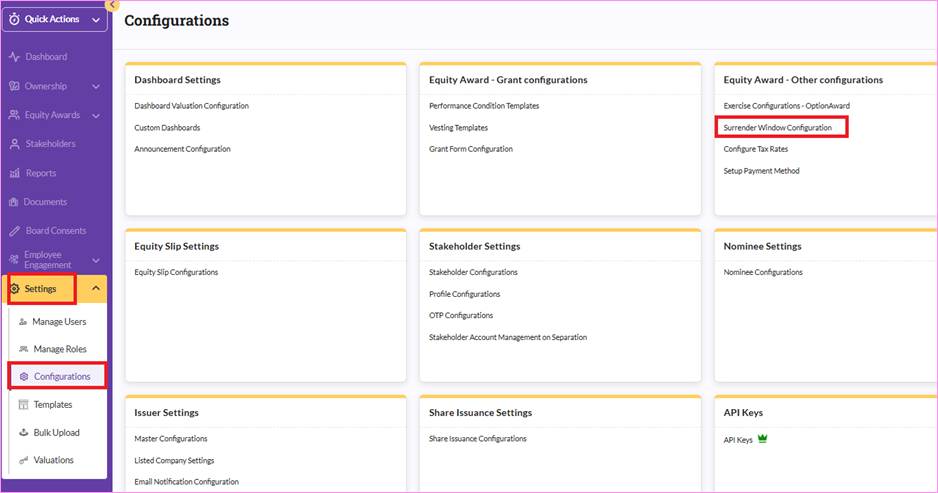
Step 1: Navigate to the left menu and click on Settings > Configurations > Surrender Window Configuration.
Step 2: At the Surrender Window Configuration, you can choose to open the window permanently or for specific durations.
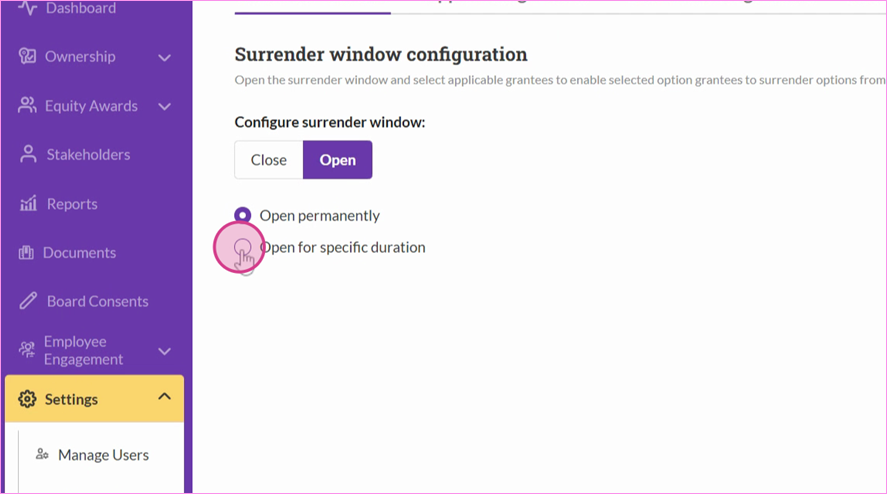
If you Choose to open the window for a specific duration, you will need to select the start date and end date.
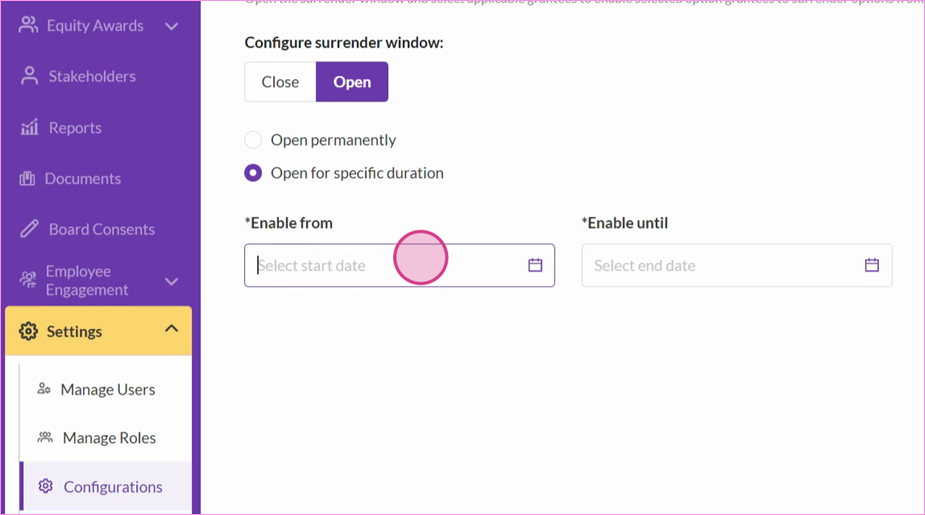
Once you have saved your settings, the Cash Settlement/Surrender Window will be open based on your settings.
Step 3: Select the applicable participants. You can choose the applicable participants based on their employment status: Active or Terminated.
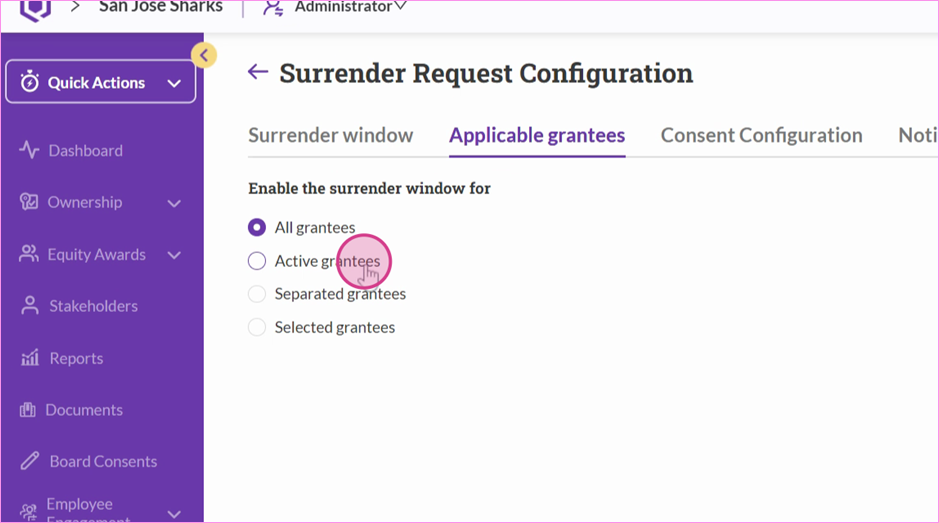
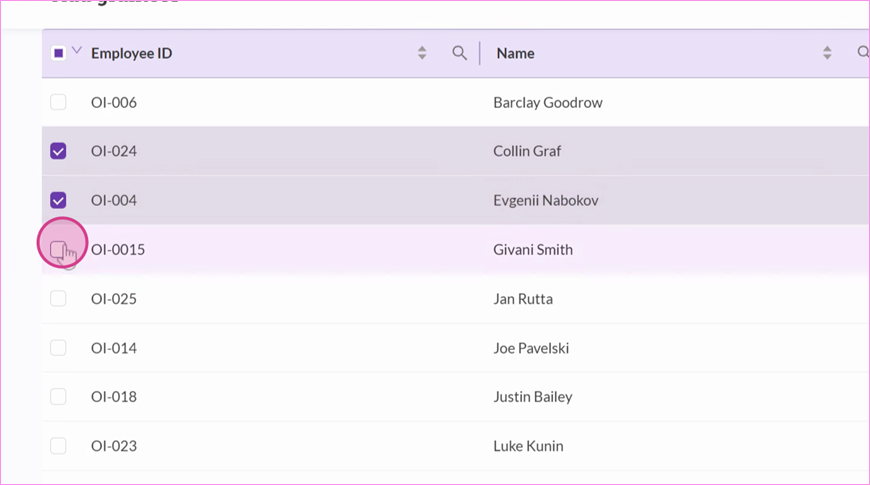
You can also select specific participants by choosing their names – click on Selected grantees > Add grantees and select the individual participants.
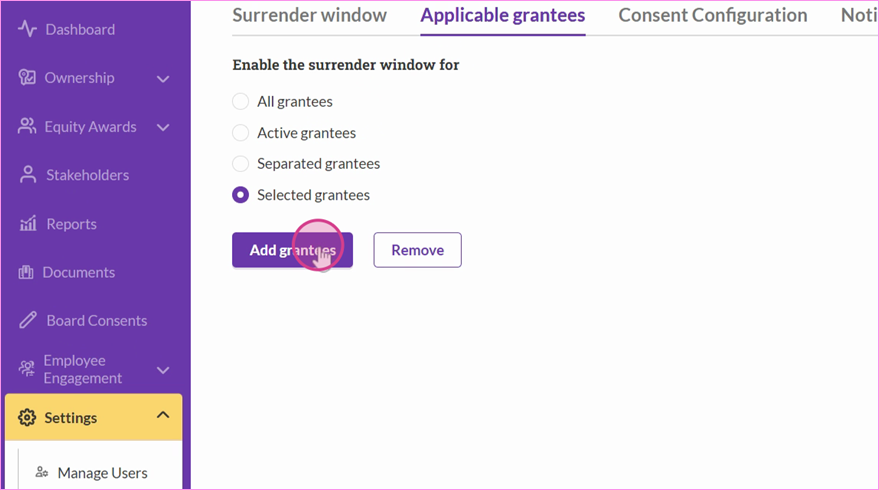
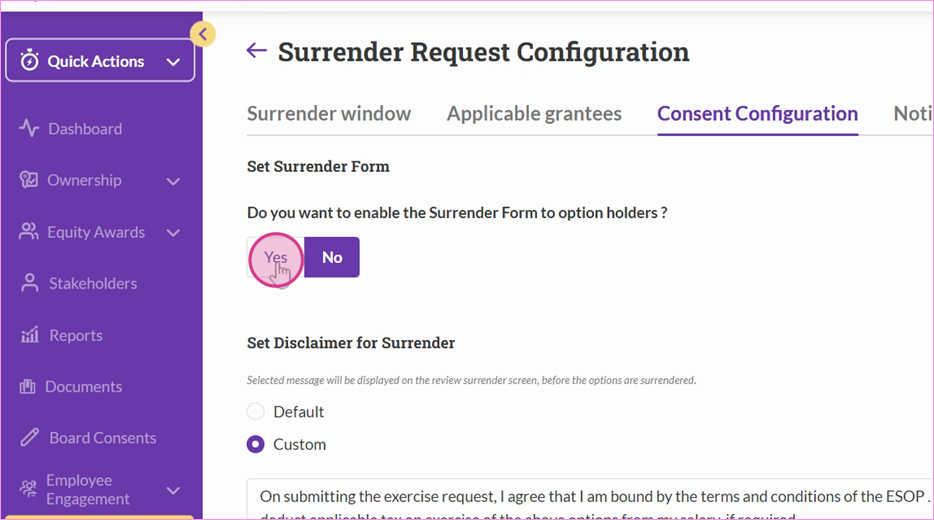
Step 4: Consent Configure: You can decide whether a cash settlement/surrender form is required.
Step 5: If a cash settlement/surrender form is required, select "Yes" and you can select a template for the cash settlement/surrender form. You can also add a new form as template if applicable too.
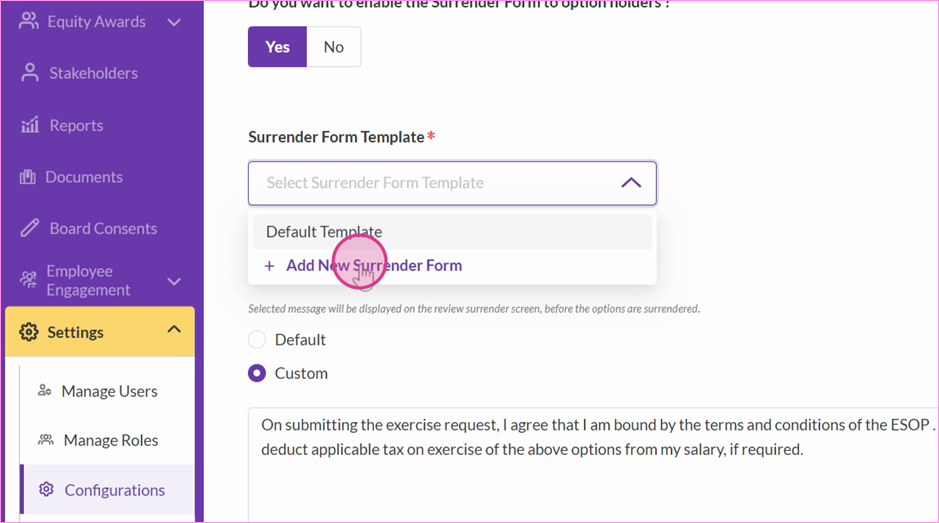
Note: Qapita currently does not support e-sign on cash settlement/surrender form.
Step 6: Set a disclaimer for surrender. You can use the default disclaimer or customize a message.
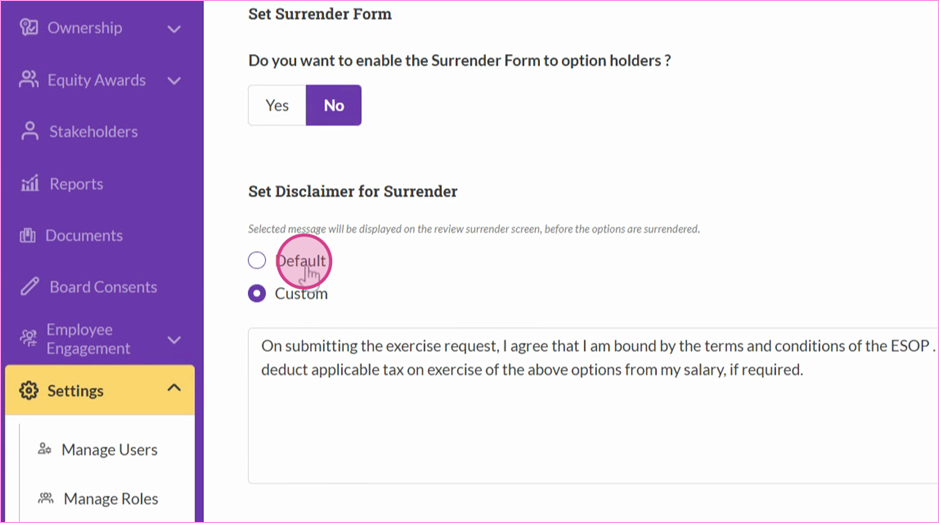
Step 7: Next, decide whether to notify the eligible participants about the surrender/cash settlement window.
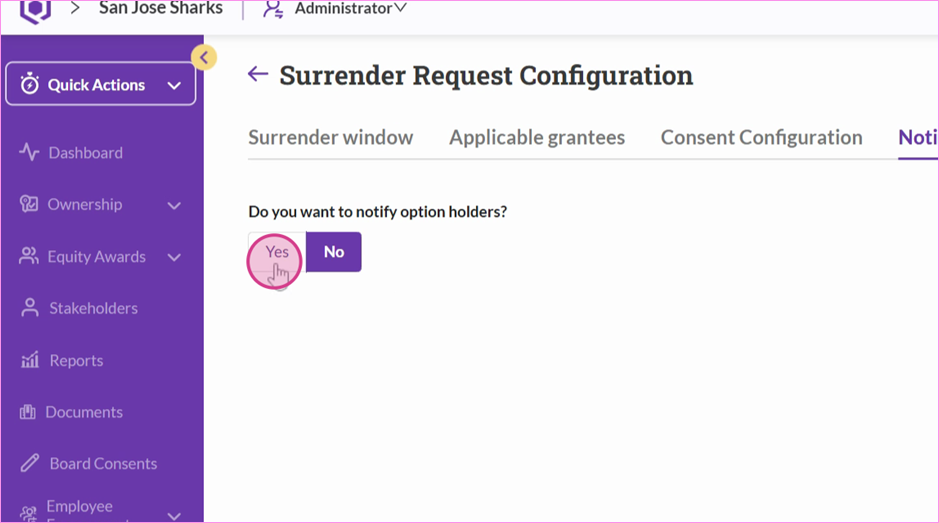
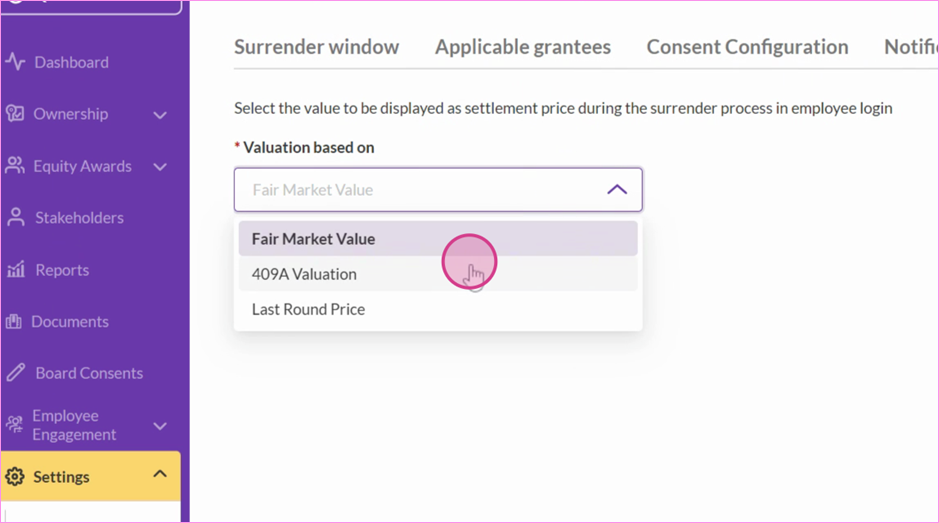
Step 8: Lastly, you will need to set the settlement price. You can pick a settlement price based on three valuation types: fair market value, 409A valuation, and last round price.
Last round price is linked to your latest fundraising round pricing that was recorded on the Cap Table module. Fair market value and 409A valuation are set by you at the Valuation module.
Step 9: Click Submit once all settings are finalized.
Once the Surrender/Cash Settlement Window is enabled, eligible participants will be able to submit their surrender request from their own Qapita account.
Participant-Initiated Cash Settlement/Surrender (Participant’s POV):
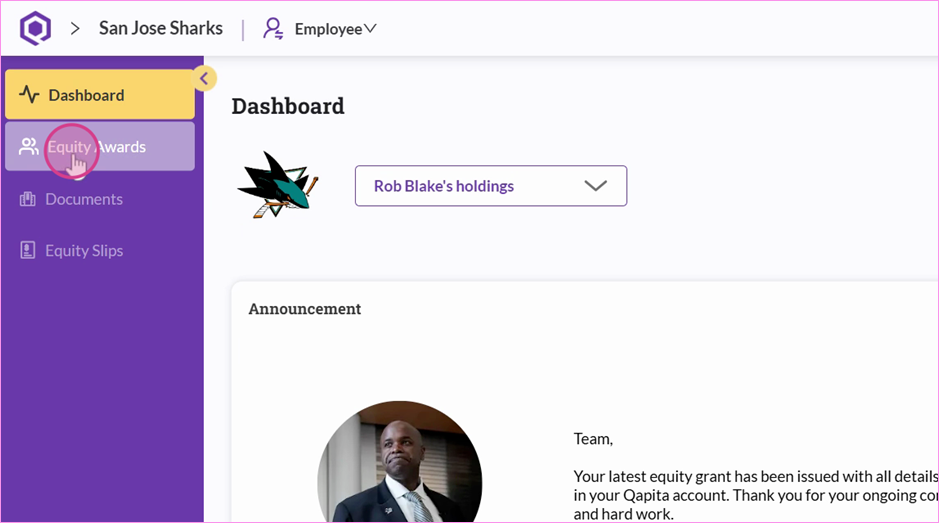
Step 1: Log in as a participant to view the cash settlement/surrender workflow - Navigate to the Equity Awards in the left menu.
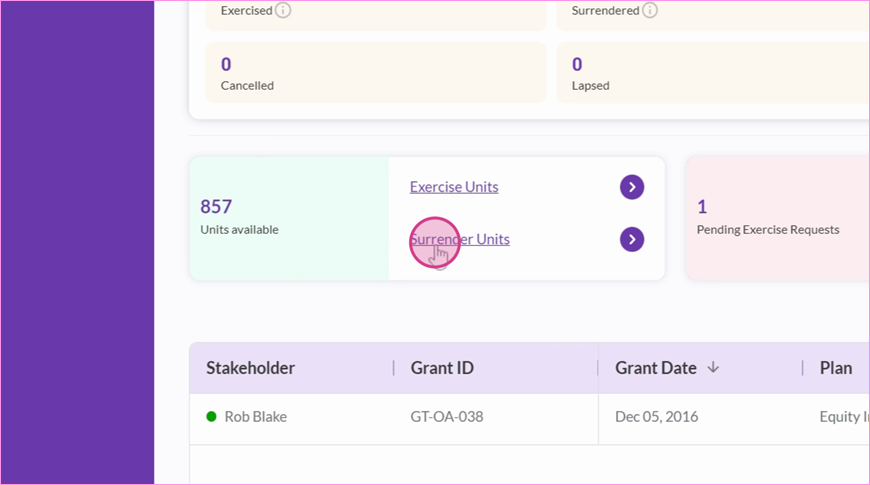
Step 2: Click on Surrender Units.
Step 3: Select "Yes" if the eligible participants would like to cash settle/surrender all units, otherwise, fill in the number of units to cash settle/surrender.
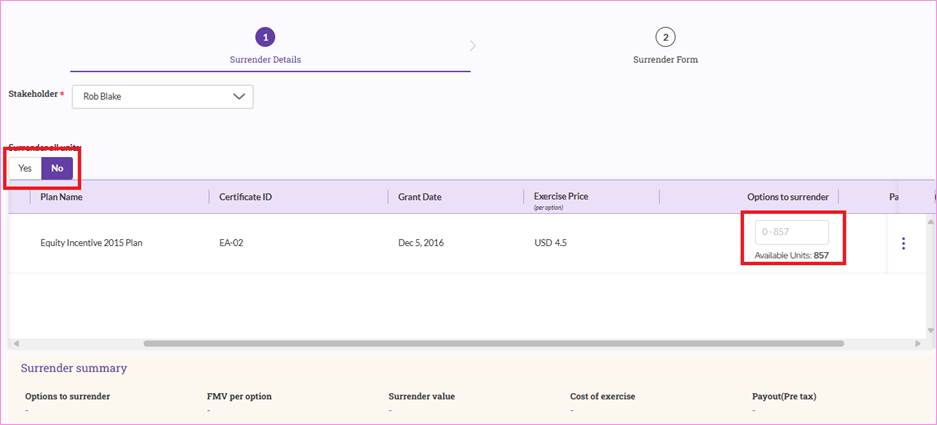
Step 4: Review the total payout, disclaimer, and submit the surrender request.
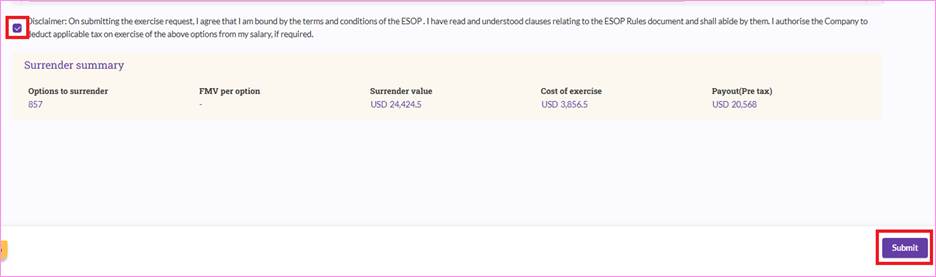
Once the cash settle/surrender request has been submitted, administrator will be notified and can review the cash settle/surrender request.
Administrator can then navigate to Equity Awards > Surrenders > In Progress surrenders to check on the cash settle/surrender requests, approve or disapprove the request.
Things to Note
Cash settlement is named as “surrender” in Qapita.
Qapita currently does not support e-sign on cash settlement/surrender form.
Was this article helpful?
That’s Great!
Thank you for your feedback
Sorry! We couldn't be helpful
Thank you for your feedback
Feedback sent
We appreciate your effort and will try to fix the article