3.7 Employee Engagement
Employee engagement is paramount for companies, particularly as stock plans are increasingly integral to compensation strategies. Stock plans are a key tool for fostering a sense of co-ownership, motivating, and retaining talent.
To support this, Qapita offers functions designed to engage employees seamlessly. For instance, companies can customize the employee dashboard, utilize company announcements and equity pay slips to enhance interaction and keep employees informed.
Employee Dashboard and Announcement
|
The guide below will walk you through configuring, customising, and updating your Employee Dashboard.
Step 1: Navigating to Settings > Configurations > Custom Dashboards.
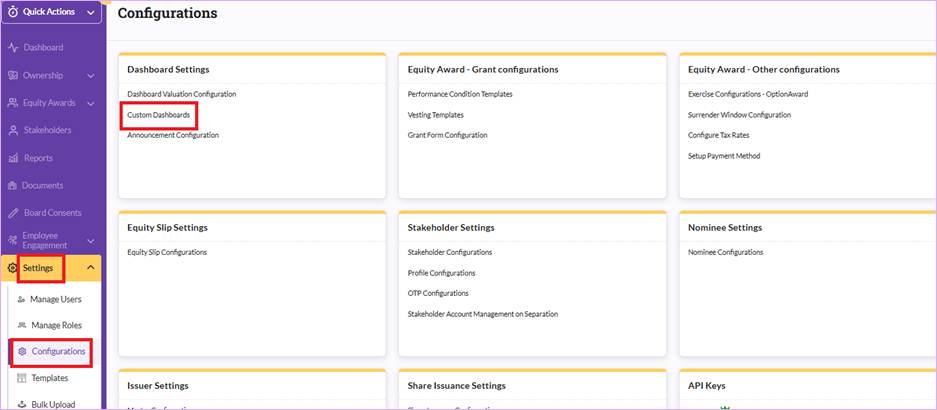
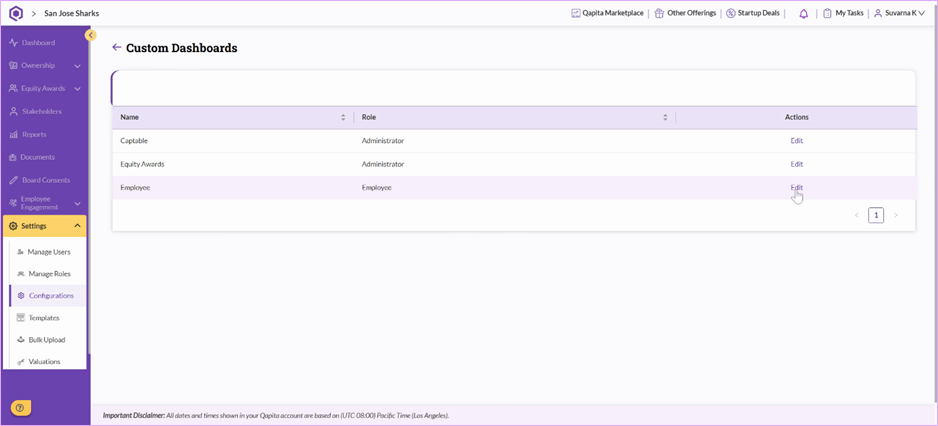
Step 2: Click on Edit for the employee group for setting up Employee Dashboard.
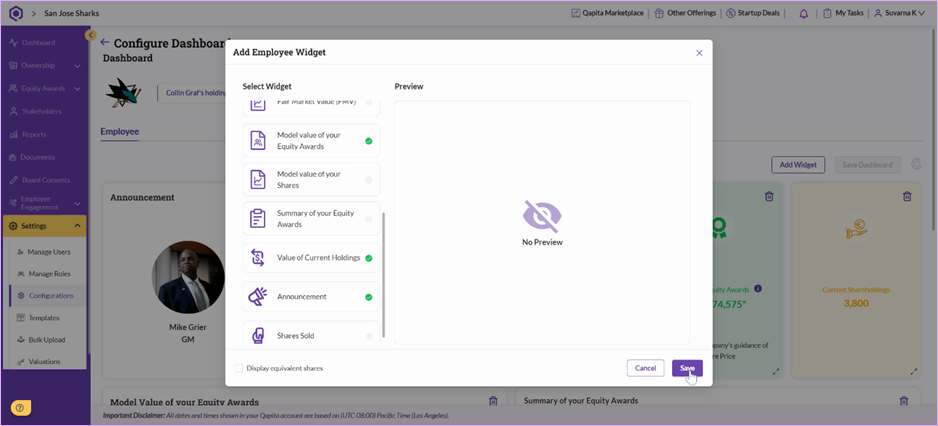
Step 3: You can add or remove widgets by clicking “Add Widgets”.
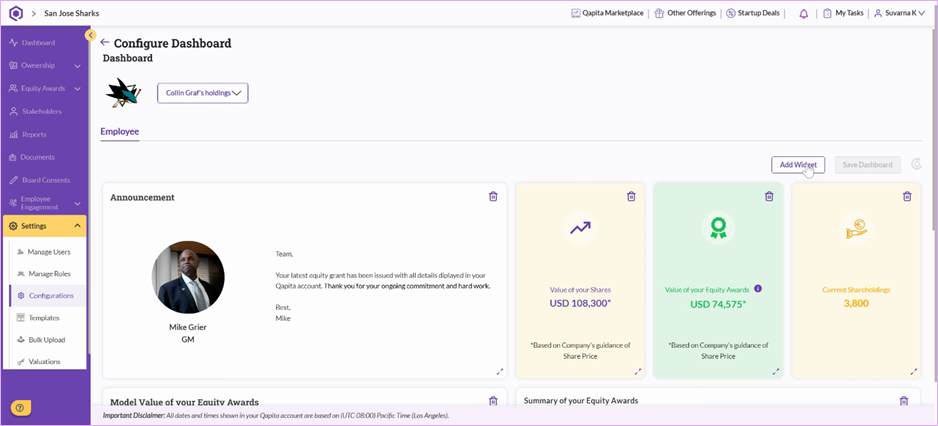
Note: While customizing the Employee Dashboard, we suggest selecting a user with stock options for the preview to ensure you can view all available widgets.
Step 4: Browse the list of available widgets (up to 12 can be displayed on the Employee Dashboard) and select the widgets you want.
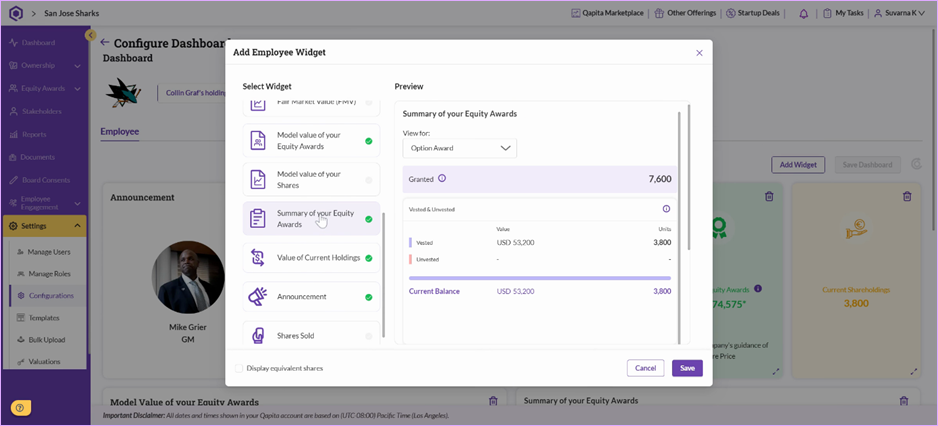
Step 5: Once your widget selection is complete, click on Save to update the dashboard configuration.
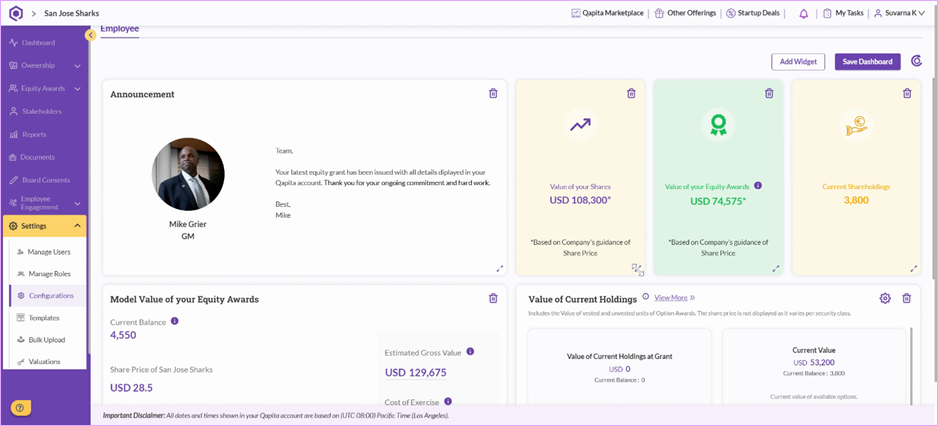
Step 6: You can arrange your dashboard by changing the layout, moving widgets, and adjusting their size or shape for better usability. Make sure to press Save Dashboard once you finish.
Thing to Note
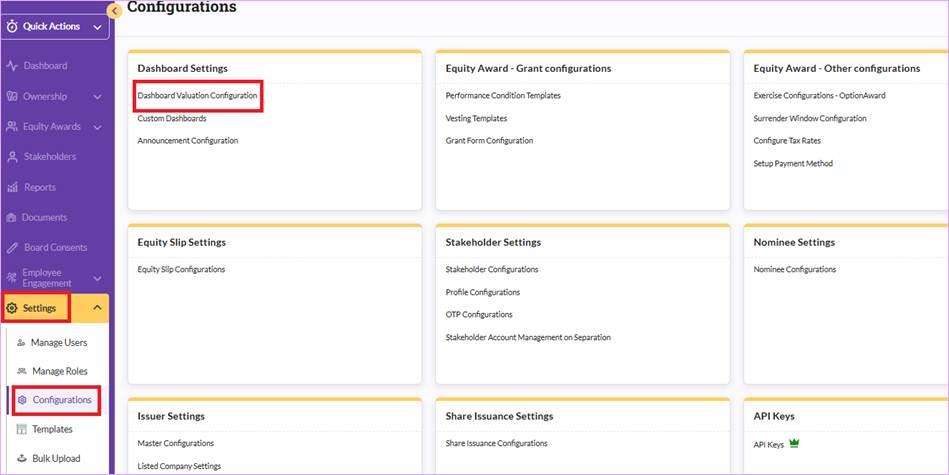
All widgets that related to the “valuation” of the stock plan are required to set separately. Navigating to Settings > Configurations > Dashboard Valuation Configuration to set the dashboard valuation.
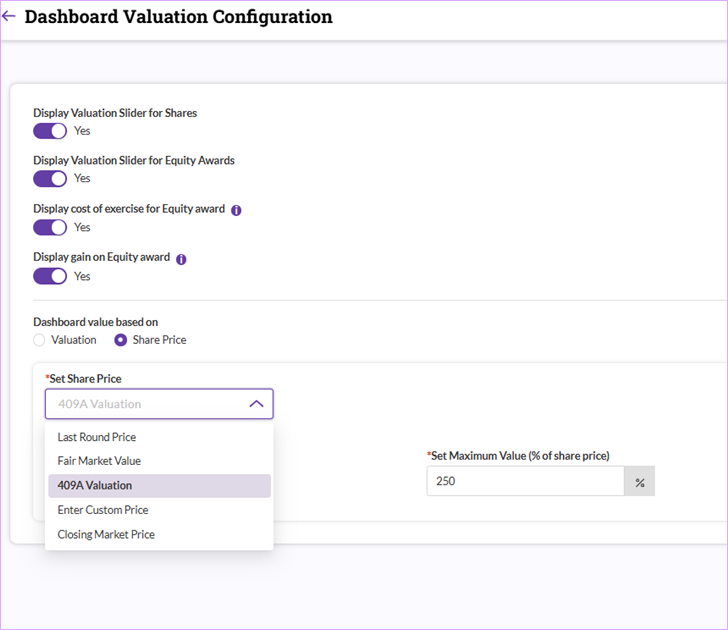
You can set the dashboard valuation based on “valuation” or “share price” while share price can be based on last round price, fair market value, 409A valuation, enter custom price or closing market price (listed companies). For more details on how to set up 409A valuation and fair market value, refer to Section 2.3.
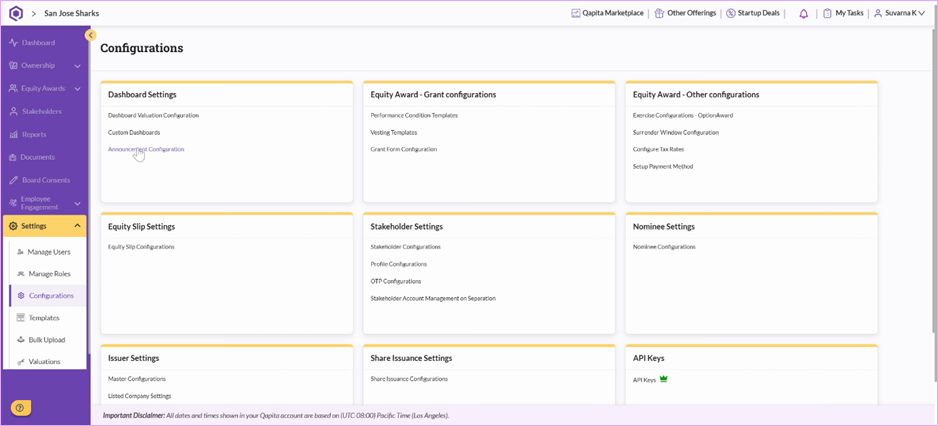
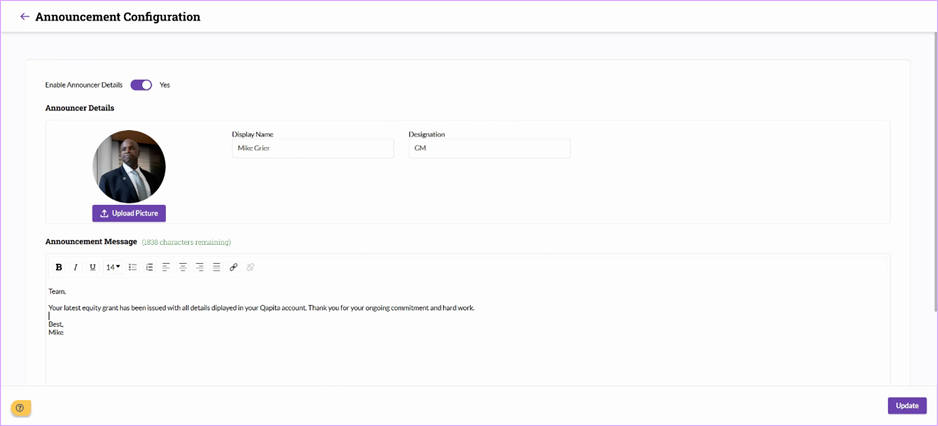
You can include or exclude the “Announcement” widget in this section. However, you will need to navigate to Settings > Configurations > Announcement Configurations to change the text of the “Announcement.”
Once the announcement is finalised, press Update to save your announcement edits.
Equity Payslips
An "Equity Payslip" is designed to provide participants with a clear summary of the value of their equity holdings, similar to how a traditional salary payslip details monetary compensation. It would typically show the current market value of their vested and unvested shares, the change in that value over a specific period, and the total equity value of a participant has received or stands to receive.
This feature helps participants understand the financial impact and growth of their ownership in the company, complementing their cash compensation by transparently communicating the evolving value of their stock options or shares.
|
You can follow the below steps to set up the Equity Payslips:
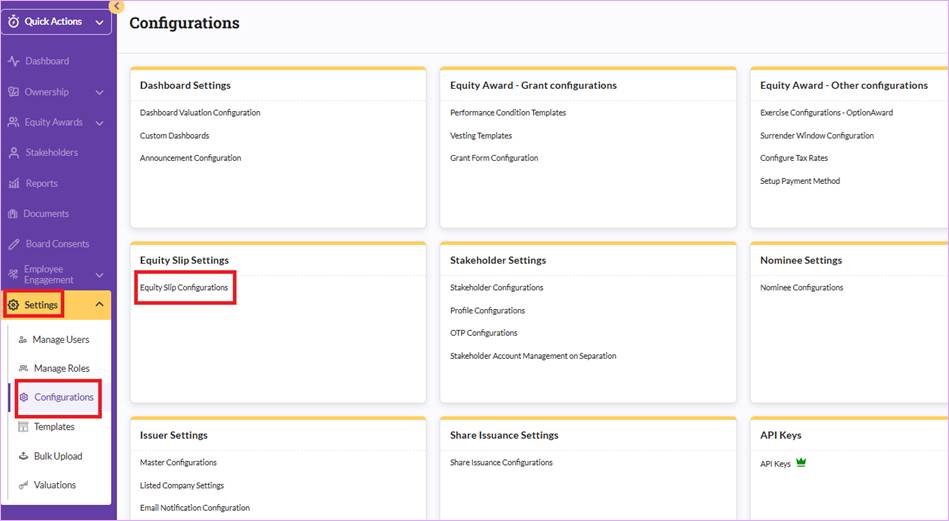
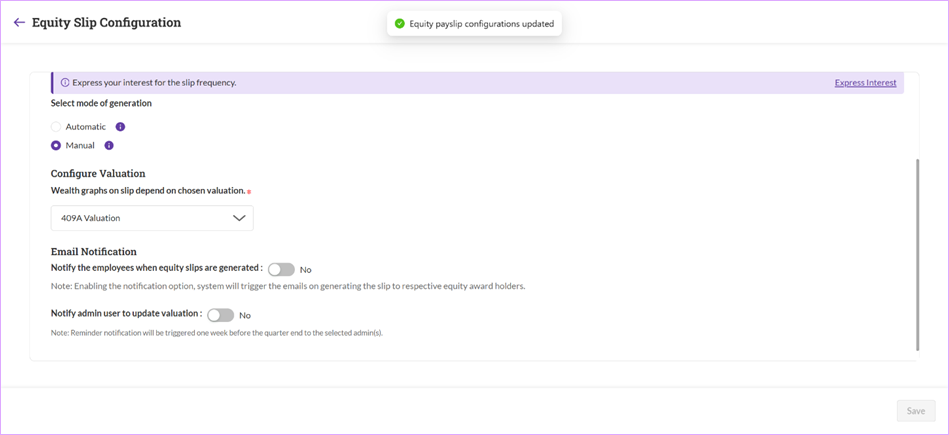
Step 1: Navigate to Settings > Configurations > Equity Slip Configurations.
Step 2: Enable Equity Slips for Option Holders, you can then set the Frequency, Generation Mode, Valuation Display and Email Notification Settings.
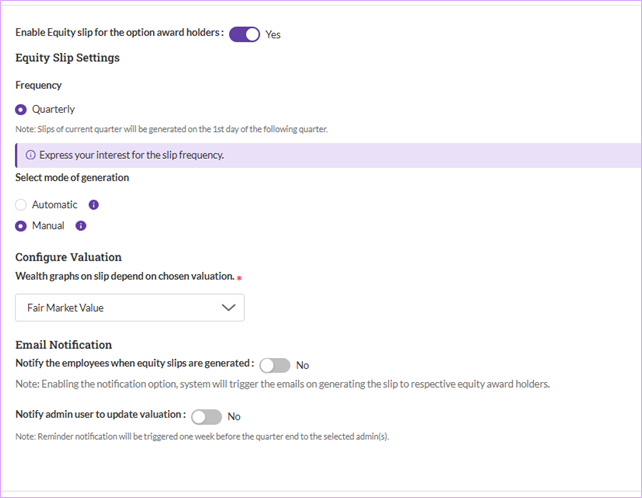
- Frequency: Qapita currently only support generating Equity Payslips quarterly.
- Generation Mode: You can choose to generate the equity payslip manually or automatically.
- Valuation Display Setting: You can select the types of valuations (Fair Market Value or 409A Valuation) you would like to include in the equity payslips.
- Email Notification: Enable email notifications if you want the participants to receive updates when equity payslips are published.
Step 3: Once the settings is finalised, click on Save to save the Equity Payslips settings.
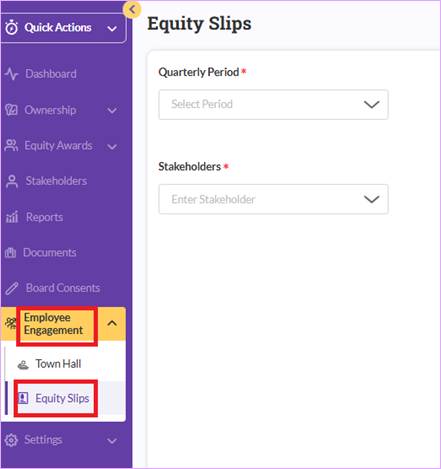
Step 4: Return to the left menu and click Employee Engagement > Equity Slips.
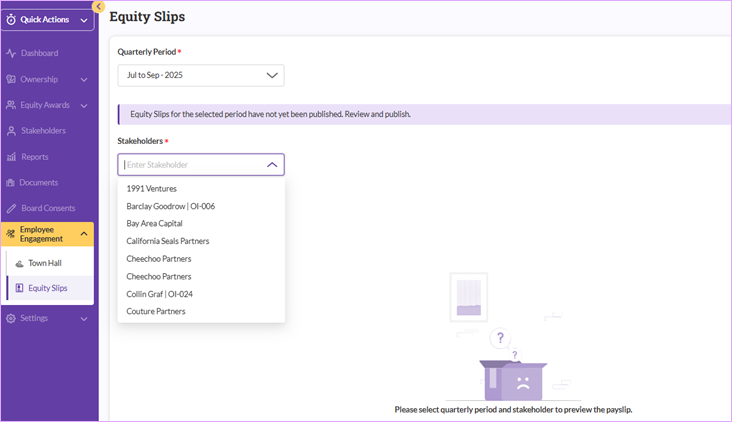
Step 5: Select the Period and Stakeholders:
Select the appropriate reporting period from the dropdown menu and choose the stakeholders whose equity payslips you want to preview.
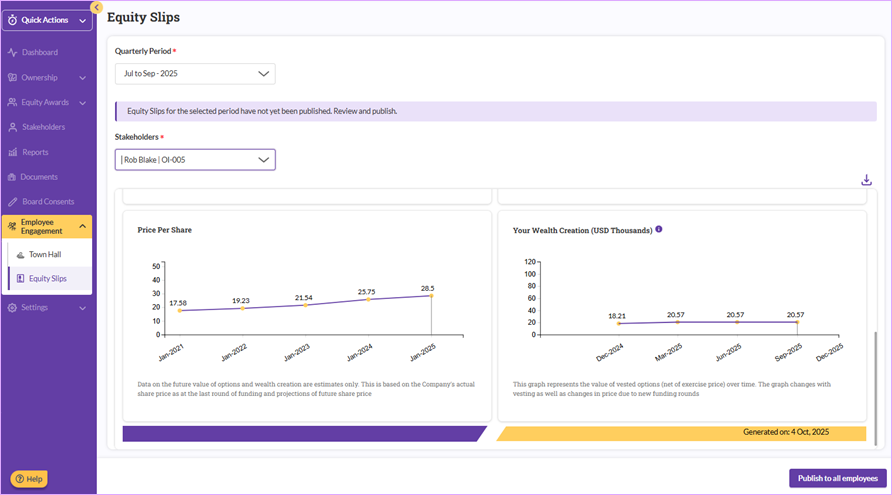
Step 6: Preview and Publish Equity Payslips to all participants.
Review the equity payslip document for accuracy. If everything looks correct, click Publish to all employees to make the equity payslips available to all employees.
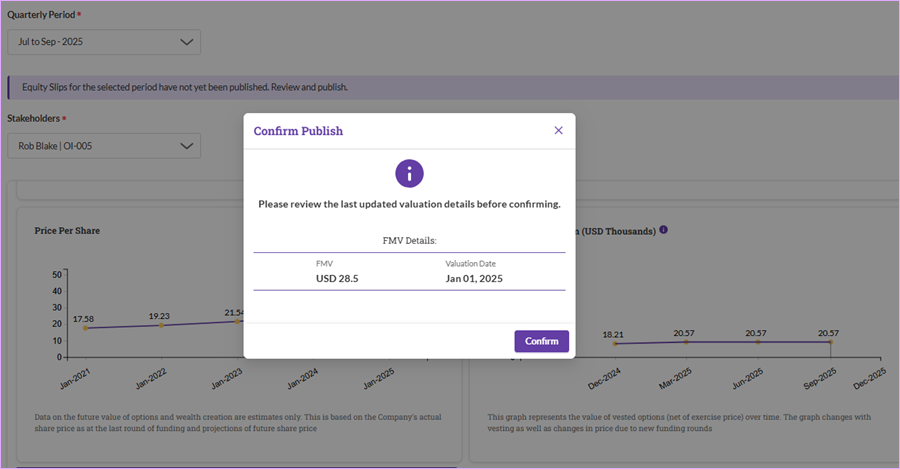
Step 7: Confirm publication by clicking Confirm in the confirmation prompt.
Things to Note
Currently, equity payslip feature supports only stock option holders and cannot generate payslips for RSU holders.
Qapita currently only support generating Equity Payslips quarterly.
Equity payslip is generated only when there are outstanding options in a quarter.
Was this article helpful?
That’s Great!
Thank you for your feedback
Sorry! We couldn't be helpful
Thank you for your feedback
Feedback sent
We appreciate your effort and will try to fix the article